VPN for Windows: a practical guide to choosing and using a VPN on Windows
A comprehensive, user-friendly guide on selecting and using a VPN for Windows, with setup tips and safety best practices.
Windows users looking to browse, stream, or work securely often turn to a VPN. A VPN, or virtual private network, creates an encrypted tunnel between your device and the internet. On Windows, this can help you protect sensitive data on public Wi‑Fi, access geo‑restricted content, and maintain privacy from ISPs or network observers. In this guide, you’ll find practical how‑tos, what to look for in a VPN for Windows, and best practices to stay safe online.

What a VPN does for Windows users
- Encrypts traffic between your device and the VPN server, keeping it hidden from local networks.
- Masks your real IP address with the server’s IP, helping you appear as if you’re in another location.
- Bypasses some geographic content restrictions and can improve access on restricted or monitored networks.
- Provides an extra layer of privacy, especially on shared or public Wi‑Fi.
However, a VPN does not make you completely anonymous or immune to all online threats. It’s one piece of a broader security approach that includes strong passwords, regular software updates, and safe browsing habits.
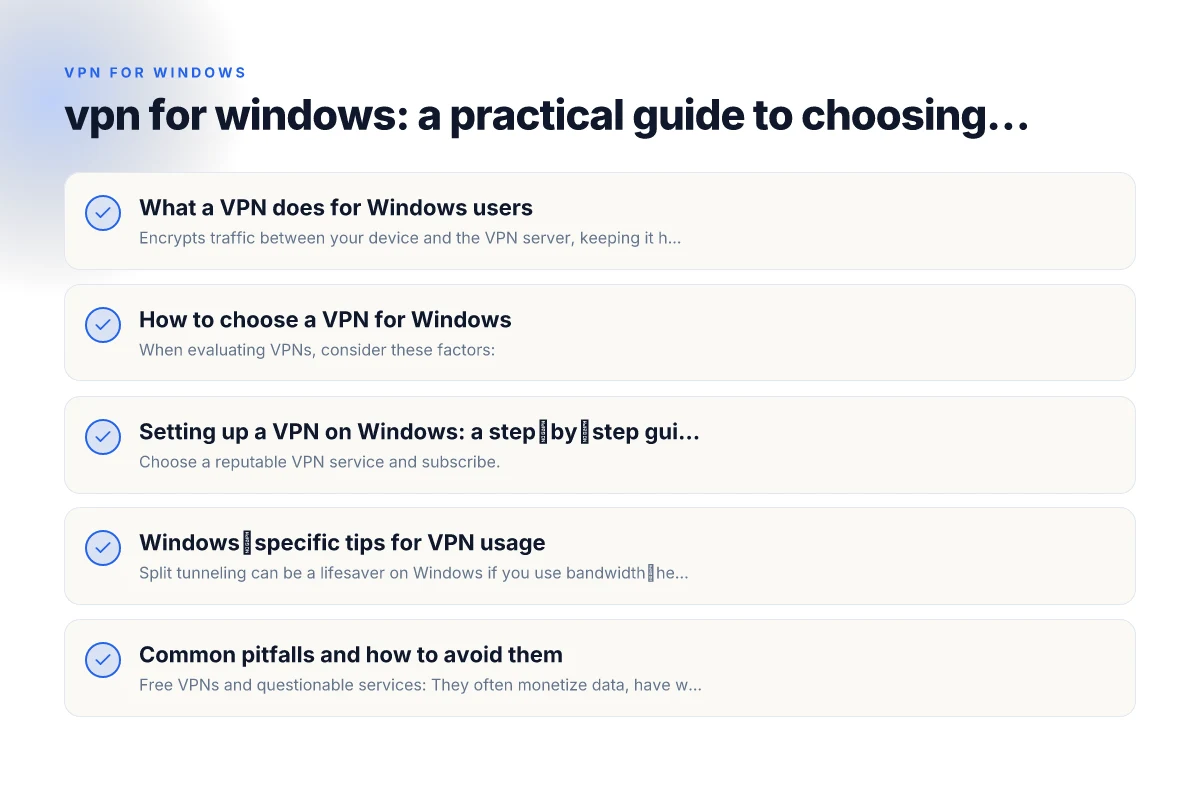
How to choose a VPN for Windows
When evaluating VPNs, consider these factors:
- Encryption and security: Look for AES‑256 encryption and reputable security protocols (OpenVPN, WireGuard). Avoid questionable or outdated protocols.
- Privacy policy and logging: Prefer providers with transparent policies and minimal or no-logs commitments. Read the privacy policy to see what data is collected.
- Jurisdiction: A provider based in a privacy‑friendly country with strong data protection laws is generally preferable.
- Speed and reliability: Some VPNs add noticeable latency. Check independent speed tests and look for servers close to you for better performance.
- Server network: A larger server network offers more options for unblocking content and finding fast connections.
- Client quality on Windows: A well‑built Windows app with easy setup, robust kill switch, auto‑connect, and split tunneling is a big plus.
- Payment and transparency: Clear pricing, refunds, and transparent policies matter. Consider reputable providers with multiple payment options.
- Extra features: Kill switch, split tunneling, DNS leak protection, auto‑launch on startup, and obfuscated servers for censorship environments can be important.
Setting up a VPN on Windows: a step‑by‑step guide
- Choose a reputable VPN service and subscribe.
- Download the Windows application from the official provider site.
- Install the app and grant necessary permissions ( firewall rules, VPN drivers if prompted).
- Open the app and log in with your account.
- Select a server location. If you’re aiming for speed, pick a server near you. If you’re trying to access a region‑restricted service, pick the appropriate country.
- Enable features:
- Kill switch: ensures your traffic isn’t exposed if the connection drops.
- DNS leak protection: helps prevent your real DNS from being exposed.
- Auto‑connect or startup: for constant protection.
- Split tunneling: route only specific apps through the VPN if you don’t want all traffic to go through it.
- Test your connection:
- Check your IP address on a site like iplocation.net to confirm it reflects the VPN server.
- Visit a site that checks for DNS leaks to ensure your DNS isn’t leaking.
- Use responsibly:
- Avoid suspicious free VPNs. They may log data or inject ads.
- Keep the app updated to receive security patches.
Windows‑specific tips for VPN usage
- Split tunneling can be a lifesaver on Windows if you use bandwidth‑heavy apps (like BitTorrent clients or video conferencing) that you don’t want to route through the VPN.
- If you’re on a corporate or school network, ensure your VPN use complies with policy. Some networks require or restrict VPNs.
- For streaming, a VPN can sometimes reduce buffering if you’re far from the streaming service’s servers. If you experience slowdowns, try a nearby server, switch protocols, or test WireGuard if available.
- Regularly review app permissions and disable any features you don’t need (for example, ad integrations within the app).
Common pitfalls and how to avoid them
- Free VPNs and questionable services: They often monetize data, have weak encryption, or inject ads. Stick to reputable paid providers with clear policies.
- DNS leaks: Even with a VPN on, your DNS queries can leak. Use DNS leak protection or a provider that handles DNS securely.
- Kill switch not enabled: Without a kill switch, traffic can leak if the VPN drops. Always enable it.
- Inconsistent server performance: If a server is overloaded, you’ll notice slow speeds. Switch servers or choose a provider with robust load balancing.
- Incorrect expectations: A VPN protects data in transit but doesn’t fully anonymize you. Complement with safe browsing habits and updated software.
A quick comparison of popular VPN features for Windows
| Feature | Importance | Description |
|---|---|---|
| AES‑256 encryption | High | Standard strong encryption for VPN data. |
| Protocols (OpenVPN, WireGuard) | High | OpenVPN is versatile; WireGuard offers speed and simplicity. |
| Kill switch | High | Stops all traffic if VPN disconnects. |
| DNS leak protection | High | Prevents DNS queries from leaking outside the VPN tunnel. |
| Split tunneling | Medium | Route some apps through VPN while others use regular internet. |
| Auto‑connect on startup | Medium | Ensures protection from the moment you boot. |
| Server network size | Medium‑High | More locations for access and performance options. |
| No‑logs policy | High | Reduces the likelihood of data being retained. |
| Windows app quality | Medium | A well‑designed app improves usability and safety. |
Note: Always review the provider’s terms and coverage before signing up.
Privacy, safety, and policy considerations on Windows
- Data collection: Many VPNs collect some data for maintenance, analytics, or fraud prevention. Look for a privacy policy that clearly states what is collected and why.
- Jurisdiction: Some regions require data retention or surveillance cooperation. Providers in privacy‑friendly jurisdictions are generally preferable.
- Device compatibility: Some VPNs offer browser extensions in addition to a Windows app. This can be useful for additional protection, but browser extensions alone aren’t enough for full device protection.
- Legal considerations: In some countries, using a VPN to sidestep local laws may be restricted or illegal. Know your local rules.
How to test and verify your VPN setup on Windows
- IP check: Visit a site like whatismyip.com to see if your apparent IP matches the VPN server location.
- DNS test: Use dnsleaktest.com to confirm that your DNS requests aren’t leaking.
- WebRTC check: Some browsers can leak your IP via WebRTC. Disable WebRTC in your browser or use a browser that blocks leaks.
- Speed test: Run a speed test with and without the VPN to gauge impact. Try different servers to find a good balance of speed and location.
Final recommendation
If you’re new to VPNs on Windows, start with a widely trusted, well‑reviewed paid provider that offers a solid Windows app, strong encryption, a clear privacy policy, and essential features like a kill switch, DNS leak protection, and split tunneling. Take advantage of a trial or money‑back guarantee to test performance with your typical apps and use cases. Maintain good security practice beyond the VPN: use strong passwords, enable multi‑factor authentication where possible, keep Windows and apps updated, and stay vigilant about phishing and malware. A VPN for Windows is a powerful tool, but it works best as part of a broader, layered security approach. VPN for PC Windows
| VPN | Obfuscation | From / month | Plan | Free plan | Refund | Alipay | UnionPay | Crypto | Website opens in China | Trustpilot | |
|---|---|---|---|---|---|---|---|---|---|---|---|
 ZoogVPN | Turn on manually Shadow | $2.49/mo | 27 months: $59.99 | Yes | 7 days | ✓ | ✓ | ✓ | ✓ | Official site blocked; our special link opens (4.4 s) | 4.2/5 (195 reviews) |
 NordVPN | Turn on manually Obfuscated Servers / NordWhisper | $3.49/mo | 27 months: $94.23 | No | 30 days | ? | ✗ | ✓ | ✓ | ✗ Blocked | 4.2/5 (51,628 reviews) |
 ExpressVPN | ✓ On by default all servers | $3.00/mo | 28 months: $84 | No | 30 days | ✗ | ✗ | ✓ | ✗ | ✗ Blocked | 4.4/5 (29,706 reviews) |
 Surfshark | ✓ On by default Camouflage, with OpenVPN | See site | See site | No | 30 days | ✗ | ✗ | ✗ | ✓ | ✗ Blocked | 4.3/5 (31,823 reviews) |
 Proton VPN | Turn on manually Stealth, free plan too | $2.99/mo | 12 months: $35.88 | Yes | 30 days | ✗ | ✗ | ✗ | ✓ | ✗ Blocked | 2.1/5 (1,040 reviews) |
 Astrill VPN | Turn on manually StealthVPN / OpenWeb | $12.50/mo | 24 months: $300 | No | See site | ✗ | ✗ | ✗ | ✓ | ✗ Blocked | 1.3/5 (110 reviews) |
 Private Internet Access | Turn on manually Shadowsocks, OpenVPN only | $2.03/mo | 40 months: $81.2 | No | 30 days | ✗ | ✗ | ✗ | ✗ | ✗ Blocked | 4.2/5 (11,033 reviews) |
 CyberGhost | Turn on manually selected servers | $2.19/mo | 28 months: $61.32 | No | 45 days | ✗ | ✗ | ✗ | ✓ | ✗ Blocked | 4.0/5 (24,178 reviews) |
 PureVPN | Turn on manually switch to OpenVPN | $1.69/mo | 60 months: $101.55 | No | 31 days | ? | ? | ✗ | ✓ | ✗ Blocked | 4.4/5 (17,994 reviews) |
 AdGuard VPN | ✓ On by default TrustTunnel | $2.99/mo | 24 months: $71.76 | Yes | 30 days | ✓ | ✗ | ✓ | ✓ | Official site blocked; our special link opens (3.7 s) | 4.3/5 (290 reviews) |
 Mullvad | Turn on manually QUIC / Shadowsocks / LWO | $5.61/mo | €5/mo | No | 14 days | ✗ | ✗ | ✗ | ✓ | ✗ Blocked | 3.2/5 (192 reviews) |
 Windscribe | Turn on manually Stealth / WStunnel | $5.75/mo | 12 months: $69 | Yes | See site | ✗ | ✗ | ✗ | ✓ | ✗ Blocked | 4.7/5 (13,355 reviews) |
 StrongVPN | Turn on manually Scramble, OpenVPN TCP | See site | See site | No | 30 days | ✓ | ✗ | ✗ | ✗ | ✗ Blocked | 4.4/5 (2,695 reviews) |
 LightXtreme 闪连 | Not listed | $7.08/mo | 12 months: $84.99 | Yes | 30 days | ✓ | ✓ | ✓ | ✓ | ✓ Yes (3.5 s) | No page |
Prices checked 2026-11-10 on each vendor's pricing page (cheapest long plan, USD). Check the vendor's checkout for the final price.
Obfuscation checked 2026-11-14 on each vendor's site and help center: "on by default" = nothing to set; "turn on manually" = switch protocol or mode in settings; "not listed" = the vendor describes no obfuscation.
Payment methods checked 2026-11-10 on each vendor's payment pages: all 14 take cards and PayPal; ✗ = not listed, ? = the vendor's own pages disagree.
China access: whether the official website opens from mainland China networks (tests the website only, not the VPN connection). Last checked 2026-11-18 01:02 Beijing time.
Trustpilot score and review count checked 2026-11-10.