VPN for PC Windows
A practical guide to choosing and using a VPN for PC Windows, with setup tips and comparisons.
Windows is the most common operating system for personal and work computers, and a VPN for PC Windows is one of the simplest, most effective tools for safeguarding privacy, securing data on public networks, and bypassing geo restrictions. Whether you’re aiming to shield sensitive information, access streaming libraries, or simply browse with less tracking, a Windows VPN can be a solid addition to your digital hygiene. In this guide, you’ll learn what a Windows VPN does, how to choose one, how to set it up on a PC, and best practices to get the most value without compromising speed or security.

What a VPN does on Windows
Why you need it
- Encrypts traffic between your PC and the VPN server.
- Masks your IP address, making your online actions harder to trace to you.
- Lets you appear to browse from different locations, useful for streaming or accessing regional content.
- Adds a layer of security when connected to public Wi‑Fi at coffee shops, airports, or libraries.
How it works technically
- A VPN creates a secure tunnel using protocols like OpenVPN, WireGuard, or IKEv2.
- Data is encapsulated and encrypted, then sent to a VPN server before reaching the internet.
- The server’s IP appears as your source, not your own device IP.
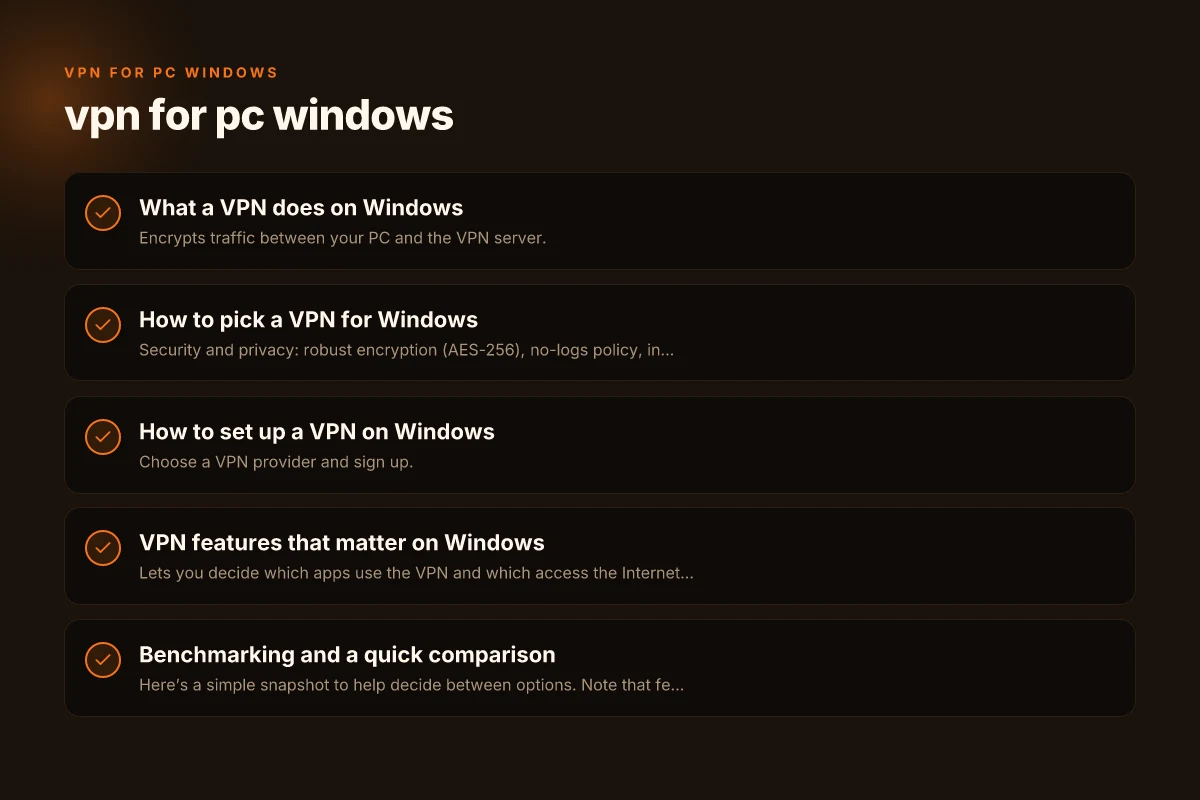
How to pick a VPN for Windows
Key criteria
- Security and privacy: robust encryption (AES-256), no-logs policy, independent audits if possible.
- Speed and reliability: servers with low latency, good bandwidth, and WireGuard support.
- Windows compatibility: native Windows app, kill switch, DNS leak protection, and split tunneling.
- Pricing and limits: reasonable plans, fair refund window, and clear terms.
- Trust and transparency: reputable company with clear privacy policy and strong support.
Quick feature checklist
- Protocols: WireGuard, OpenVPN, and IKEv2.
- Kill switch: prevents data leaks if the VPN drops.
- DNS leak protection: avoids your real DNS being exposed.
- Split tunneling: route only some traffic through the VPN.
- Multi-hop, obfuscated servers: for extra privacy or to bypass restrictions.
- Customer support: helpful resources, chat, or email.
How to set up a VPN on Windows
Step-by-step setup (typical process)
- Choose a VPN provider and sign up.
- Download the Windows app from the provider’s site or the Microsoft Store.
- Install the app and grant necessary permissions.
- Log in with your account credentials.
- Select a server location and connect.
- Verify the connection status and test for leaks.
Common issues and fixes
- Connection fails: try a different server, check your internet, restart the app, or disable firewalls temporarily.
- Slow speeds: switch to a lighter protocol like WireGuard, pick a closer server, or check for other bandwidth-heavy apps.
- DNS leaks: enable DNS leak protection and use the provider’s DNS or a trusted alternative.
- Kill switch not engaging: ensure it’s enabled in settings. Reconnect or reinstall if necessary.
VPN features that matter on Windows
Split tunneling
- Lets you decide which apps use the VPN and which access the Internet directly.
- Useful for streaming from one region while keeping your local traffic separate.
Kill switch
- Stops all traffic if the VPN disconnects, preventing accidental exposure.
- Essential when handling sensitive information or using public networks.
DNS leak protection
- Keeps your real DNS from being revealed, preserving anonymity.
- Use DNS servers provided by the VPN or reputable third-party DNS.
Auto-connect and startup behavior
- Auto-connect on login or when joining untrusted networks can enhance security.
- Ensure it doesn’t conflict with other VPNs or corporate security tools.
Benchmarking and a quick comparison
Here’s a simple snapshot to help decide between options. Note that features and performance can vary by region and time.
| VPN provider (Windows) | Protocols supported | Best for | Price range (monthly) | Notable Windows features |
|---|---|---|---|---|
| Provider A | WireGuard, OpenVPN | Speed and privacy on Windows | $9–12 | Kill switch, DNS leak protection, split tunneling |
| Provider B | WireGuard, IKEv2 | Streaming and regional access | $7–12 | Auto-connect, obfuscated servers, multi-hop |
| Provider C | OpenVPN only | Basic privacy and price | $3–8 | Basic kill switch, standard DNS protection |
- When choosing, consider the value of features over time. A cheaper option may be fine for light use, but premium features (split tunneling, robust kill switch) often justify a higher price for daily Windows use.
Privacy, logging, and trust
What to look for
- Clear no-logs policy validated by independent audits.
- Transparent data handling, including what is collected and for what purpose.
- Ownership and location that matter for law enforcement or data requests.
- Community or third-party reviews and reputation in privacy communities.
How to read a privacy policy
- Look for specifics about data collected during use, such as connection timestamps, bandwidth, or IP addresses.
- Check retention periods and data deletion practices.
- Note any exceptions that allow data sharing with third parties or government requests.
Best practices for Windows VPN use
- Use trustworthy providers with proven track records and independent audits.
- Enable the kill switch and DNS leak protection in settings.
- Prefer WireGuard or OpenVPN for a balance of speed and security.
- Keep the VPN app up to date to patch security vulnerabilities.
- Avoid using a VPN from unknown or questionable sources. Stick to reputable brands.
- Test your VPN for leaks after setup using reputable tools.
- Be mindful of terms of service and regional laws when accessing content in different regions.
Short final section: recommendation
If you want a straightforward, reliable Windows VPN that balances security, speed, and usability, choose a provider with strong privacy practices, a transparent no-logs policy, WireGuard support, and robust Windows features like a kill switch and DNS leak protection. Start with a reputable option that offers a free trial or money-back guarantee so you can evaluate performance on your own PC. For most Windows users, a mid-range plan from a trusted brand that includes split tunneling and auto-connect on untrusted networks delivers the best overall value and experience.
| VPN | Obfuscation | From / month | Plan | Free plan | Refund | Alipay | UnionPay | Crypto | Website opens in China | Trustpilot | |
|---|---|---|---|---|---|---|---|---|---|---|---|
 ZoogVPN | Turn on manually Shadow | $2.49/mo | 27 months: $59.99 | Yes | 7 days | ✓ | ✓ | ✓ | ✓ | Official site blocked; our special link opens (4.4 s) | 4.2/5 (195 reviews) |
 NordVPN | Turn on manually Obfuscated Servers / NordWhisper | $3.49/mo | 27 months: $94.23 | No | 30 days | ? | ✗ | ✓ | ✓ | ✗ Blocked | 4.2/5 (51,628 reviews) |
 ExpressVPN | ✓ On by default all servers | $3.00/mo | 28 months: $84 | No | 30 days | ✗ | ✗ | ✓ | ✗ | ✗ Blocked | 4.4/5 (29,706 reviews) |
 Surfshark | ✓ On by default Camouflage, with OpenVPN | See site | See site | No | 30 days | ✗ | ✗ | ✗ | ✓ | ✗ Blocked | 4.3/5 (31,823 reviews) |
 Proton VPN | Turn on manually Stealth, free plan too | $2.99/mo | 12 months: $35.88 | Yes | 30 days | ✗ | ✗ | ✗ | ✓ | ✗ Blocked | 2.1/5 (1,040 reviews) |
 Astrill VPN | Turn on manually StealthVPN / OpenWeb | $12.50/mo | 24 months: $300 | No | See site | ✗ | ✗ | ✗ | ✓ | ✗ Blocked | 1.3/5 (110 reviews) |
 Private Internet Access | Turn on manually Shadowsocks, OpenVPN only | $2.03/mo | 40 months: $81.2 | No | 30 days | ✗ | ✗ | ✗ | ✗ | ✗ Blocked | 4.2/5 (11,033 reviews) |
 CyberGhost | Turn on manually selected servers | $2.19/mo | 28 months: $61.32 | No | 45 days | ✗ | ✗ | ✗ | ✓ | ✗ Blocked | 4.0/5 (24,178 reviews) |
 PureVPN | Turn on manually switch to OpenVPN | $1.69/mo | 60 months: $101.55 | No | 31 days | ? | ? | ✗ | ✓ | ✗ Blocked | 4.4/5 (17,994 reviews) |
 AdGuard VPN | ✓ On by default TrustTunnel | $2.99/mo | 24 months: $71.76 | Yes | 30 days | ✓ | ✗ | ✓ | ✓ | Official site blocked; our special link opens (3.7 s) | 4.3/5 (290 reviews) |
 Mullvad | Turn on manually QUIC / Shadowsocks / LWO | $5.61/mo | €5/mo | No | 14 days | ✗ | ✗ | ✗ | ✓ | ✗ Blocked | 3.2/5 (192 reviews) |
 Windscribe | Turn on manually Stealth / WStunnel | $5.75/mo | 12 months: $69 | Yes | See site | ✗ | ✗ | ✗ | ✓ | ✗ Blocked | 4.7/5 (13,355 reviews) |
 StrongVPN | Turn on manually Scramble, OpenVPN TCP | See site | See site | No | 30 days | ✓ | ✗ | ✗ | ✗ | ✗ Blocked | 4.4/5 (2,695 reviews) |
 LightXtreme 闪连 | Not listed | $7.08/mo | 12 months: $84.99 | Yes | 30 days | ✓ | ✓ | ✓ | ✓ | ✓ Yes (3.5 s) | No page |
Prices checked 2026-11-10 on each vendor's pricing page (cheapest long plan, USD). Check the vendor's checkout for the final price.
Obfuscation checked 2026-11-14 on each vendor's site and help center: "on by default" = nothing to set; "turn on manually" = switch protocol or mode in settings; "not listed" = the vendor describes no obfuscation.
Payment methods checked 2026-11-10 on each vendor's payment pages: all 14 take cards and PayPal; ✗ = not listed, ? = the vendor's own pages disagree.
China access: whether the official website opens from mainland China networks (tests the website only, not the VPN connection). Last checked 2026-11-18 01:02 Beijing time.
Trustpilot score and review count checked 2026-11-10.