Microsoft Edge Secure Network VPN: How It Works and How to Turn It On
Learn what Microsoft Edge Secure Network protects, how to enable it, and how it differs from a full VPN.
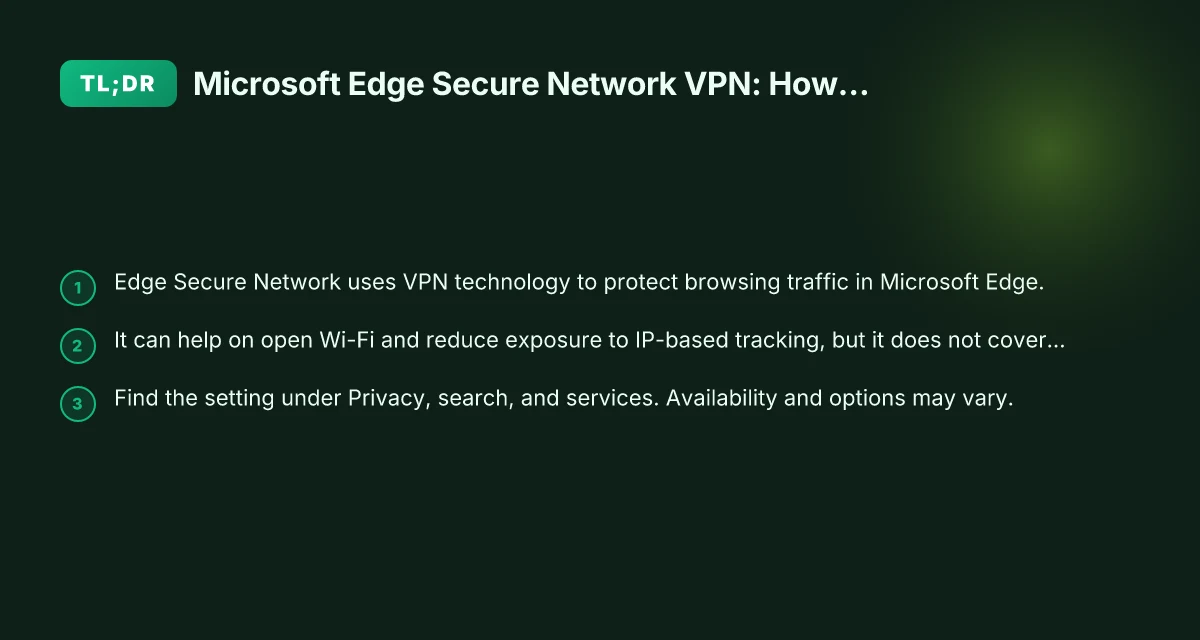
Microsoft Edge Secure Network VPN is a built-in privacy feature that uses VPN technology to help protect traffic while you browse in Edge. It can add protection on open Wi-Fi and reduce exposure to IP-based tracking. To switch it on, open Edge settings, go to Privacy, search, and services, and look for Microsoft Edge Secure Network. Keep in mind that it protects Edge browsing traffic, not every app or connection on your device.
Editor's pick: NordVPN — fast, secure VPN — Strong encryption, a no-logs policy and apps for every device. 30-day money-back guarantee. Get NordVPN →
What Secure Network protects versus what it does not
| Situation or data | Secure Network protection | What remains exposed | Practical takeaway |
|---|---|---|---|
| Connection on public Wi-Fi | Encrypts traffic routed through the feature | Protection is limited to supported Edge traffic | Useful on untrusted networks |
| IP address seen by visited sites | Masks your real IP address | Sites may still identify you in other ways | Reduces, but does not eliminate, tracking |
| Browser traffic | Routes supported Edge traffic through the service | Other apps are not covered | Not a device-wide VPN |
| Location-based access | May change the apparent connection location | Not designed to reliably bypass regional restrictions | Do not rely on it for location switching |
| Online accounts | Protects connection traffic in transit | Does not prevent account compromise or phishing | Use strong passwords and multifactor authentication |
| Cookies and browser fingerprinting | Does not remove them | Sites can use them to track activity | Privacy tools may still be needed |
| Downloads and files | Does not make files safe | Malware risks remain | Check downloads before opening |
Compiled November 2026; check the provider's site for current details.
| VPN | Obfuscation | From / month | Plan | Free plan | Refund | Alipay | UnionPay | Crypto | Website opens in China | Trustpilot | |
|---|---|---|---|---|---|---|---|---|---|---|---|
 ZoogVPN | Turn on manually Shadow | $2.49/mo | 27 months: $59.99 | Yes | 7 days | ✓ | ✓ | ✓ | ✓ | Official site blocked; our special link opens (4.4 s) | 4.2/5 (195 reviews) |
 NordVPN | Turn on manually Obfuscated Servers / NordWhisper | $3.49/mo | 27 months: $94.23 | No | 30 days | ? | ✗ | ✓ | ✓ | ✗ Blocked | 4.2/5 (51,628 reviews) |
 ExpressVPN | ✓ On by default all servers | $3.00/mo | 28 months: $84 | No | 30 days | ✗ | ✗ | ✓ | ✗ | ✗ Blocked | 4.4/5 (29,706 reviews) |
 Surfshark | ✓ On by default Camouflage, with OpenVPN | See site | See site | No | 30 days | ✗ | ✗ | ✗ | ✓ | ✗ Blocked | 4.3/5 (31,823 reviews) |
 Proton VPN | Turn on manually Stealth, free plan too | $2.99/mo | 12 months: $35.88 | Yes | 30 days | ✗ | ✗ | ✗ | ✓ | ✗ Blocked | 2.1/5 (1,040 reviews) |
 Astrill VPN | Turn on manually StealthVPN / OpenWeb | $12.50/mo | 24 months: $300 | No | See site | ✗ | ✗ | ✗ | ✓ | ✗ Blocked | 1.3/5 (110 reviews) |
 Private Internet Access | Turn on manually Shadowsocks, OpenVPN only | $2.03/mo | 40 months: $81.2 | No | 30 days | ✗ | ✗ | ✗ | ✗ | ✗ Blocked | 4.2/5 (11,033 reviews) |
 CyberGhost | Turn on manually selected servers | $2.19/mo | 28 months: $61.32 | No | 45 days | ✗ | ✗ | ✗ | ✓ | ✗ Blocked | 4.0/5 (24,178 reviews) |
 PureVPN | Turn on manually switch to OpenVPN | $1.69/mo | 60 months: $101.55 | No | 31 days | ? | ? | ✗ | ✓ | ✗ Blocked | 4.4/5 (17,994 reviews) |
 AdGuard VPN | ✓ On by default TrustTunnel | $2.99/mo | 24 months: $71.76 | Yes | 30 days | ✓ | ✗ | ✓ | ✓ | Official site blocked; our special link opens (3.7 s) | 4.3/5 (290 reviews) |
 Mullvad | Turn on manually QUIC / Shadowsocks / LWO | $5.61/mo | €5/mo | No | 14 days | ✗ | ✗ | ✗ | ✓ | ✗ Blocked | 3.2/5 (192 reviews) |
 Windscribe | Turn on manually Stealth / WStunnel | $5.75/mo | 12 months: $69 | Yes | See site | ✗ | ✗ | ✗ | ✓ | ✗ Blocked | 4.7/5 (13,355 reviews) |
 StrongVPN | Turn on manually Scramble, OpenVPN TCP | See site | See site | No | 30 days | ✓ | ✗ | ✗ | ✗ | ✗ Blocked | 4.4/5 (2,695 reviews) |
 LightXtreme 闪连 | Not listed | $7.08/mo | 12 months: $84.99 | Yes | 30 days | ✓ | ✓ | ✓ | ✓ | ✓ Yes (3.5 s) | No page |
Prices checked 2026-11-10 on each vendor's pricing page (cheapest long plan, USD). Check the vendor's checkout for the final price.
Obfuscation checked 2026-11-14 on each vendor's site and help center: "on by default" = nothing to set; "turn on manually" = switch protocol or mode in settings; "not listed" = the vendor describes no obfuscation.
Payment methods checked 2026-11-10 on each vendor's payment pages: all 14 take cards and PayPal; ✗ = not listed, ? = the vendor's own pages disagree.
China access: whether the official website opens from mainland China networks (tests the website only, not the VPN connection). Last checked 2026-11-18 01:02 Beijing time.
Trustpilot score and review count checked 2026-11-10.
What is Microsoft Edge Secure Network?
Secure Network is a browser feature designed to add a layer of privacy to web traffic handled by Microsoft Edge. Microsoft describes it as using VPN technology to help protect traffic on open Wi-Fi networks and reduce exposure to IP-based tracking.
The word “VPN” can create the impression that all internet activity on a device is covered. That is not what this feature does: its protection applies to traffic within the Edge browser. Other browsers and applications are outside its scope.
Secure Network is best understood as a browser-level privacy tool, rather than a replacement for a full-device VPN.
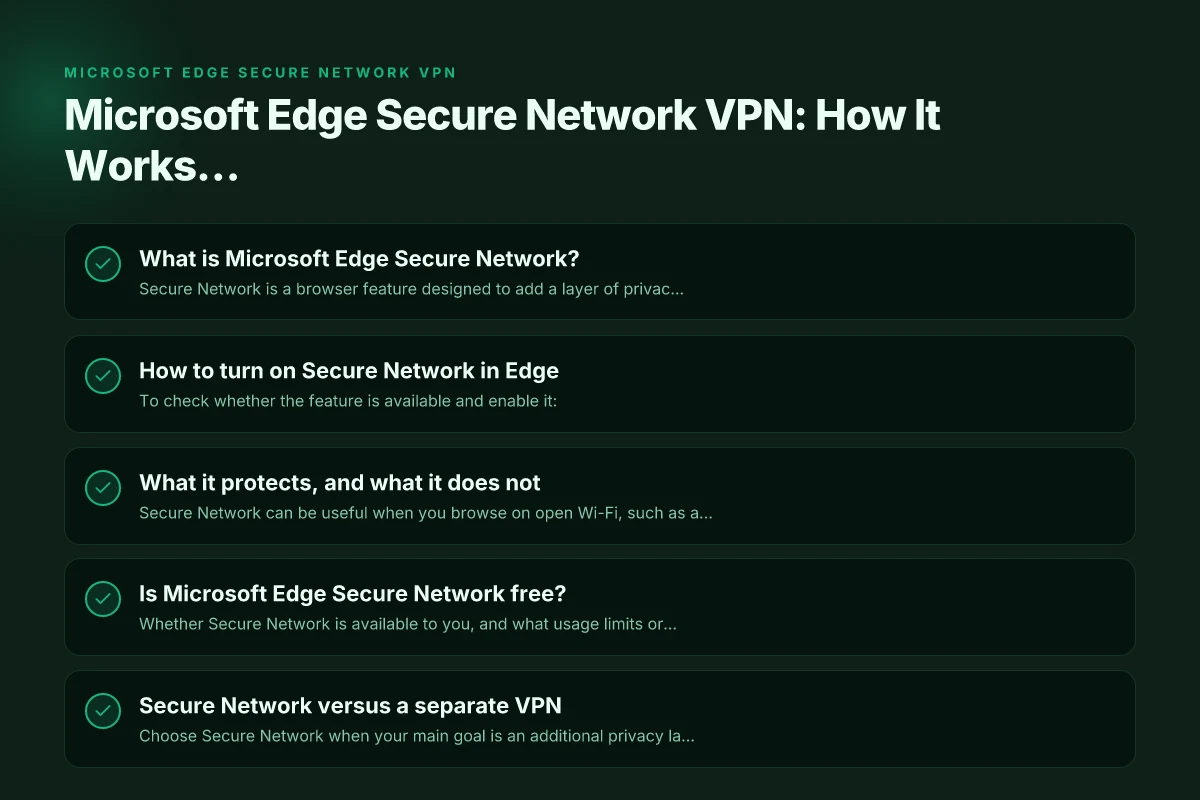
How to turn on Secure Network in Edge
To check whether the feature is available and enable it: Urban VPN: Features, Platforms, and What to Consider
- Open Microsoft Edge.
- Select the three-dot menu in the top-right corner.
- Choose Settings.
- Open Privacy, search, and services.
- Scroll to Microsoft Edge Secure Network.
- Review the available controls and turn the feature on if offered.
The exact controls and availability can vary. If you do not see the Secure Network section, check that Edge is up to date and review your browser or device management settings. In a managed environment, an administrator may control whether the feature can be used.
You can return to the same settings area to turn Secure Network off. If you are unsure whether it is active, check Edge’s settings rather than assuming that the feature is running.
What it protects, and what it does not
Secure Network can be useful when you browse on open Wi-Fi, such as a public network, because it is intended to help protect Edge traffic. It may also help limit exposure of your IP address to websites and services you visit in the browser.
However, it does not make you anonymous, guarantee that every tracking method is blocked, or protect all activity on your device. Websites may still identify you through account sign-ins, cookies, browser settings, or other signals. CJ VPN: What It Is and How to Find the Right VPN
| Activity or protection | Edge Secure Network | Full-device VPN |
|---|---|---|
| Traffic in Microsoft Edge | Designed to help protect it | Usually covered when the VPN is connected |
| Traffic in other browsers | Not covered by this Edge feature | Usually covered |
| Traffic in other apps | Not covered by this Edge feature | Usually covered |
| Open Wi-Fi browsing | Adds a privacy layer for Edge traffic | Can protect connections across the device |
The comparison is general: VPN services differ, and their exact coverage depends on their settings and how they operate.
Is Microsoft Edge Secure Network free?
Whether Secure Network is available to you, and what usage limits or account requirements apply, depends on the current version and terms shown by Microsoft. Check the feature’s description and controls in Edge for the conditions that apply to your account.
Do not assume that “built in” means unlimited or that it works in every region and configuration. If the option is missing, it may not be available for your setup, or it may be restricted by an administrator.
Secure Network versus a separate VPN
Choose Secure Network when your main goal is an additional privacy layer for browsing in Edge, especially on open Wi-Fi. Its built-in location makes it convenient if you do not need VPN protection outside the browser. Urban VPN Extension Edge: How to Install and Use It
Consider a separate VPN if you want VPN coverage for other browsers and applications too. Compare providers carefully, check what traffic their apps cover, and read their privacy terms. Neither option should be treated as a substitute for safe browsing habits, strong account security, or keeping software updated.
Common questions
How do I turn on VPN in Microsoft Edge? Open Settings, select Privacy, search, and services, then find Microsoft Edge Secure Network and use the available controls.
How do I turn it off? Return to the same settings section and switch Secure Network off if the control is available.
Why can’t I find the setting? The feature may not be available in your current setup, Edge may need updating, or an organization may manage the setting. F5 VPN: What It Is, How It Works, and When to Use It
Secure Network versus a separate VPN
| Comparison point | Edge Secure Network | Separate VPN |
|---|---|---|
| Where it works | Supported traffic in Microsoft Edge | Often covers the whole device |
| Setup | Built into Edge; turn it on in settings | Install or configure a VPN app |
| Account requirement | Microsoft account sign-in may be required | Depends on the provider |
| Data allowance | Subject to the feature’s plan limits | Depends on the VPN plan |
| Server and location choices | Limited; not a full location-selection service | Often offers selectable locations |
| Use with other apps | No | Often yes |
| Best suited for | Extra protection while browsing in Edge | Broader device coverage and more control |
| Main limitation | Not a replacement for a full VPN | Provider quality and privacy practices vary |
Compiled November 2026; check the provider's site for current details.
Recommendation
Use Microsoft Edge Secure Network as a convenient extra layer for traffic inside Edge, not as a whole-device VPN. If you need protection for other browsers or apps, look for a suitable full-device VPN and verify its coverage and privacy terms.