Free VPN gate for PC Windows

A practical guide to using free VPN Gate for PC Windows, including setup, safety tips, and alternatives.
Free VPN Gate for PC Windows: what it is and how to use it
If you’re looking for a free way to browse with a VPN on Windows, VPN Gate is one option that often comes up. It’s designed to provide access to multiple VPN servers without a subscription. This article covers what VPN Gate is, how to install and use it on a Windows PC, how it compares to other free VPNs, and important safety notes. By the end, you’ll know whether VPN Gate fits your needs and what to watch out for.

What is VPN Gate and how does it work on Windows?
VPN Gate is a public VPN project that aggregates many SSH and VPN servers contributed by volunteers around the world. On Windows, users typically connect through a client that can fetch a list of VPN Gate servers and establish a VPN tunnel. Key points:
- It offers free access to numerous servers across different countries.
- The service relies on volunteers hosting the servers, which can lead to variability in reliability and performance.
- Because it’s free and open, there is often less centralized control over privacy policies and data handling.
To get started on Windows, you’ll usually download a VPN Gate client or use a compatible OpenVPN setup to connect to VPN Gate servers. Always download software from reputable sources and verify server lists before connecting.
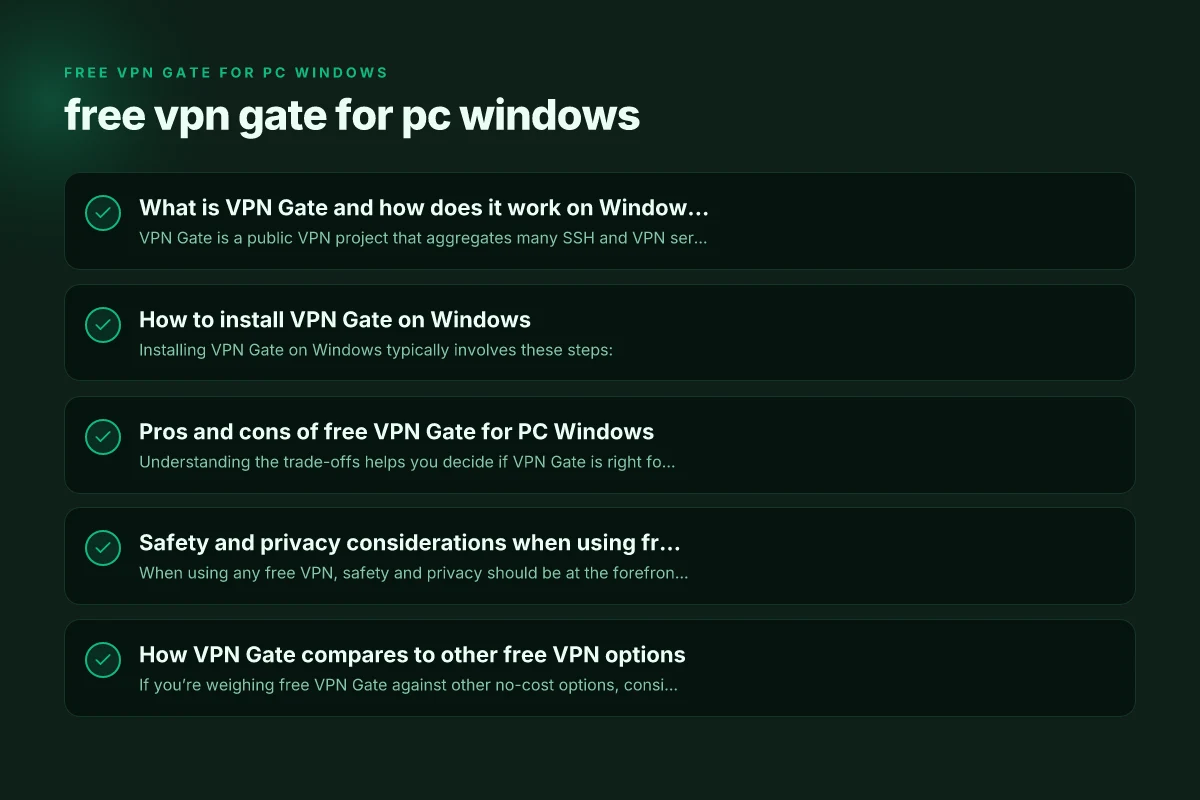
How to install VPN Gate on Windows
Installing VPN Gate on Windows typically involves these steps:
- Find a trusted source: Look for official or well-regarded pages linked to VPN Gate, or use OpenVPN-compatible configurations if available.
- Download the client or configuration files: Some users prefer the VPN Gate client, others use OpenVPN with a VPN Gate server list.
- Run the installer: Follow on-screen prompts to complete installation.
- Import a server profile or select a server: The interface will show server locations, latency, and uptime. Choose a server with good latency and reliable uptime.
- Connect and verify: Once connected, test your IP address and location to confirm the VPN is in effect.
Tips: Free VPN for PC Windows
- Disable IPv6 if you encounter leaks or IPv6 traffic not routed through the VPN.
- Use a kill switch if your client supports it, or enable Windows’ built-in network protection features to prevent leaks if the VPN drops.
Pros and cons of free VPN Gate for PC Windows
Understanding the trade-offs helps you decide if VPN Gate is right for you.
Pros:
- No cost: Access to many servers without subscription.
- Wide server selection: A variety of countries to choose from.
- Quick start for casual use: Simple onboarding for basic tasks.
Cons:
- Variable performance: Server load, uptime, and routing can be inconsistent.
- Privacy and security uncertainties: Free and volunteer-hosted servers may log data or be less transparent about policies.
- Legal and policy considerations: Some servers may be in jurisdictions with weaker data protection, and usage may violate some service terms or local laws.
- Limited support: Free tools often lack robust customer support or debt security features like dedicated kill switches.
Quick comparison: Free VPN Gate vs. Paid VPNs on Windows
| Aspect | VPN Gate (Free) | Paid VPNs (Windows) |
|---|---|---|
| Cost | Free | Monthly/annual fee |
| Server variety | Many volunteers; variable uptime | Predictable uptime, curated servers |
| Privacy policy | Often unclear; logs possible | Clear terms; audited privacy practices |
| Speed | Highly variable | More consistent speeds due to capacity |
| Features | Basic; sometimes OpenVPN profiles | Advanced features: kill switch, split tunneling, auto-connect |
| Support | Community forums; limited | Dedicated support, faster issue resolution |
Safety and privacy considerations when using free VPN Gate
When using any free VPN, safety and privacy should be at the forefront. For VPN Gate specifically: Free VPN for PC
- Trust and logs: Free services can log data or be subject to server-side monitoring. With VPN Gate’s volunteer servers, you may encounter varied privacy postures. Don’t assume anonymity.
- Source verification: Download configurations or clients from reputable sources. Beware of counterfeit software that might install malware.
- Data leaks: IPv6 leaks, DNS leaks, or WebRTC leaks can reveal your real address even when connected. Disable IPv6 if your VPN doesn’t handle it well, and consider DNS leak tests.
- Malware and ads: Some free VPN installers bundle unwanted software. Use reliable antivirus and avoid suspicious installers.
- Legal use: Ensure your activities comply with local laws and the terms of service of the services you access. VPNs don’t make illegal activity legal, and some servers may have restrictions.
Best practices:
- Use a reputable, updated firewall and enable a kill switch if available.
- Verify IP, DNS, and WebRTC status after connecting to catch leaks.
- Avoid transmitting sensitive information (like banking details) over a VPN you don’t trust.
- Consider privacy-focused defaults: minimize logging, disable unnecessary features, and use strong authentication where possible.
How VPN Gate compares to other free VPN options
If you’re weighing free VPN Gate against other no-cost options, consider these factors:
- Server reliability: VPN Gate’s servers are community-run, which can lead to unpredictable uptime. Other free VPNs may have more consistent performance but come with tighter usage limits.
- Security: Many paid VPNs offer stronger encryption defaults, stricter no-logs policies, and regular audits. Free options often trade off some of these protections for zero cost.
- Features: Paid services frequently include automatic kill switches, split tunneling, reconnect options, and dedicated apps. Free services may lack these features.
Useful alternatives to explore, if you outgrow VPN Gate or need stronger privacy:
- Free tiers of reputable paid VPNs (with monthly data caps or limited servers).
- Open-source VPN projects that emphasize privacy and transparency.
- Browser-based VPN extensions with careful privacy considerations (though they may not encrypt all traffic and can still track data).
Practical tips to get the most from VPN Gate on Windows
- Test several servers: If one server is slow, try another with a similar location to find better performance.
- Check latency and stability: Use ping tests or built-in metrics in your VPN client to pick stable servers.
- Combine with privacy tools: Use a privacy-centric browser, enable tracker blocking, and keep your OS updated.
- Keep software current: Regular updates close security gaps and improve reliability.
- A plan for leaks: If you need robust privacy, have a plan to switch to a trusted paid VPN if your needs grow.
When to choose a paid VPN instead
VPN Gate is useful for basic masking and geo-unblocking, but there are situations where a paid VPN makes sense: Free touch VPN for PC Windows
- You require consistent speeds for streaming or video conferencing.
- You want strong, clearly stated privacy practices and no-logs guarantees.
- You need reliable customer support and easy-to-use apps across devices.
- You handle sensitive work or personal data and require advanced protections (kill switch, DNS leak protection, split tunneling).
- You require features like multi-hop, obfuscated servers for restrictive networks, or dedicated apps with automated updates.
If these needs apply to you, a reputable paid VPN with a transparent privacy policy is likely a better long-term fit.
Final recommendation
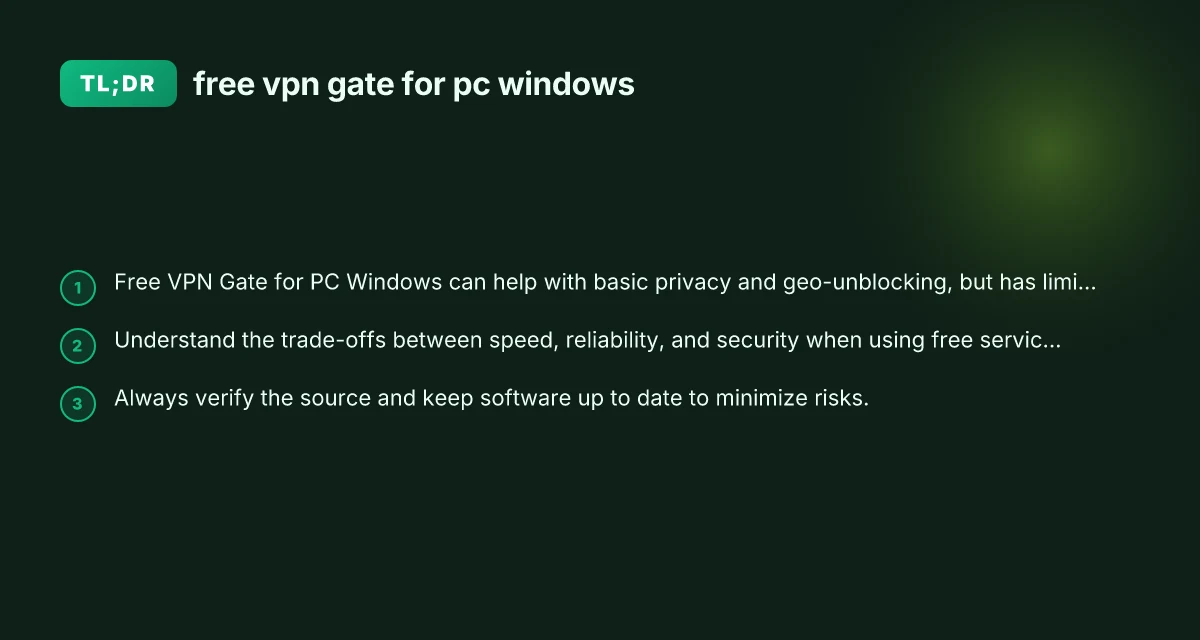
Free VPN Gate for PC Windows can be a helpful starting point for casual browsing and learning how VPNs work. It provides access to a wide range of servers at no cost, which is great for experimentation, basic geo-unblocking, and understanding VPN concepts. However, it should not be your sole or primary shield for privacy or sensitive online activity.
If your goals are privacy, security, or reliable performance, plan to test VPN Gate only as a temporary option and invest in a reputable paid VPN once you’ve assessed your needs. Always stay security-conscious: verify sources, monitor for leaks, and maintain up-to-date software. For most users who value consistent performance and strong privacy guarantees on Windows, a paid VPN with a clear privacy policy and robust features often represents the better long-term choice.
| VPN | Obfuscation | From / month | Plan | Free plan | Refund | Alipay | UnionPay | Crypto | Website opens in China | Trustpilot | |
|---|---|---|---|---|---|---|---|---|---|---|---|
 ZoogVPN | Turn on manually Shadow | $2.49/mo | 27 months: $59.99 | Yes | 7 days | ✓ | ✓ | ✓ | ✓ | Official site blocked; our special link opens (4.4 s) | 4.2/5 (195 reviews) |
 NordVPN | Turn on manually Obfuscated Servers / NordWhisper | $3.49/mo | 27 months: $94.23 | No | 30 days | ? | ✗ | ✓ | ✓ | ✗ Blocked | 4.2/5 (51,628 reviews) |
 ExpressVPN | ✓ On by default all servers | $3.00/mo | 28 months: $84 | No | 30 days | ✗ | ✗ | ✓ | ✗ | ✗ Blocked | 4.4/5 (29,706 reviews) |
 Surfshark | ✓ On by default Camouflage, with OpenVPN | See site | See site | No | 30 days | ✗ | ✗ | ✗ | ✓ | ✗ Blocked | 4.3/5 (31,823 reviews) |
 Proton VPN | Turn on manually Stealth, free plan too | $2.99/mo | 12 months: $35.88 | Yes | 30 days | ✗ | ✗ | ✗ | ✓ | ✗ Blocked | 2.1/5 (1,040 reviews) |
 Astrill VPN | Turn on manually StealthVPN / OpenWeb | $12.50/mo | 24 months: $300 | No | See site | ✗ | ✗ | ✗ | ✓ | ✗ Blocked | 1.3/5 (110 reviews) |
 Private Internet Access | Turn on manually Shadowsocks, OpenVPN only | $2.03/mo | 40 months: $81.2 | No | 30 days | ✗ | ✗ | ✗ | ✗ | ✗ Blocked | 4.2/5 (11,033 reviews) |
 CyberGhost | Turn on manually selected servers | $2.19/mo | 28 months: $61.32 | No | 45 days | ✗ | ✗ | ✗ | ✓ | ✗ Blocked | 4.0/5 (24,178 reviews) |
 PureVPN | Turn on manually switch to OpenVPN | $1.69/mo | 60 months: $101.55 | No | 31 days | ? | ? | ✗ | ✓ | ✗ Blocked | 4.4/5 (17,994 reviews) |
 AdGuard VPN | ✓ On by default TrustTunnel | $2.99/mo | 24 months: $71.76 | Yes | 30 days | ✓ | ✗ | ✓ | ✓ | Official site blocked; our special link opens (3.7 s) | 4.3/5 (290 reviews) |
 Mullvad | Turn on manually QUIC / Shadowsocks / LWO | $5.61/mo | €5/mo | No | 14 days | ✗ | ✗ | ✗ | ✓ | ✗ Blocked | 3.2/5 (192 reviews) |
 Windscribe | Turn on manually Stealth / WStunnel | $5.75/mo | 12 months: $69 | Yes | See site | ✗ | ✗ | ✗ | ✓ | ✗ Blocked | 4.7/5 (13,355 reviews) |
 StrongVPN | Turn on manually Scramble, OpenVPN TCP | See site | See site | No | 30 days | ✓ | ✗ | ✗ | ✗ | ✗ Blocked | 4.4/5 (2,695 reviews) |
 LightXtreme 闪连 | Not listed | $7.08/mo | 12 months: $84.99 | Yes | 30 days | ✓ | ✓ | ✓ | ✓ | ✓ Yes (3.5 s) | No page |
Prices checked 2026-11-10 on each vendor's pricing page (cheapest long plan, USD). Check the vendor's checkout for the final price.
Obfuscation checked 2026-11-14 on each vendor's site and help center: "on by default" = nothing to set; "turn on manually" = switch protocol or mode in settings; "not listed" = the vendor describes no obfuscation.
Payment methods checked 2026-11-10 on each vendor's payment pages: all 14 take cards and PayPal; ✗ = not listed, ? = the vendor's own pages disagree.
China access: whether the official website opens from mainland China networks (tests the website only, not the VPN connection). Last checked 2026-11-18 01:02 Beijing time.
Trustpilot score and review count checked 2026-11-10.