VPN speed for PC Windows

Practical guide to maximizing VPN speed on PC Windows, with tips, tests, and setup steps.
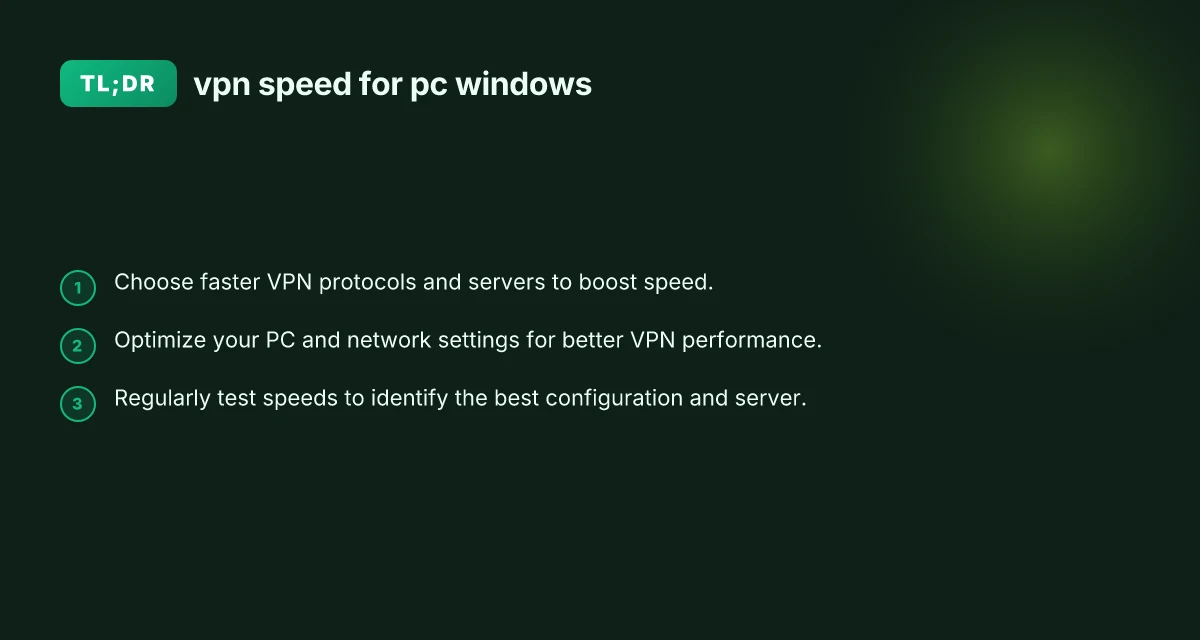
VPN speed for PC Windows: unlocking fast, reliable connections is a common goal for users who want secure browsing without sacrificing performance. This guide walks you through the factors that affect VPN speed on Windows PCs, practical steps to speed things up, and how to test and compare performance. You’ll learn which protocols and features matter most, how to configure Windows and your router, and how to evaluate results with clear benchmarks.

Understanding VPN speed on Windows
VPN speed depends on several moving parts: the VPN server’s load, the protocol used, encryption overhead, your own internet connection, and device performance. On Windows, you’ll typically see speed differences when you switch from one protocol to another, or when you connect to a different server. It’s normal to experience some slowdown due to encryption, but well-optimized setups minimize this impact.
Key factors influencing speed:
- VPN protocol: WireGuard generally offers the best balance of speed and security; OpenVPN and IKEv2 are reliable but can be slower under certain conditions.
- Server location and load: Closer servers with low load usually deliver faster speeds.
- Encryption and compression: Strong encryption can add overhead. Some VPNs offer lighter ciphers or no compression.
- Local network: Router firmware, Wi‑Fi generation, and bandwidth caps affect VPN performance.
- PC performance: CPU, RAM, and background processes can impact VPN tunneling, especially on weaker devices.
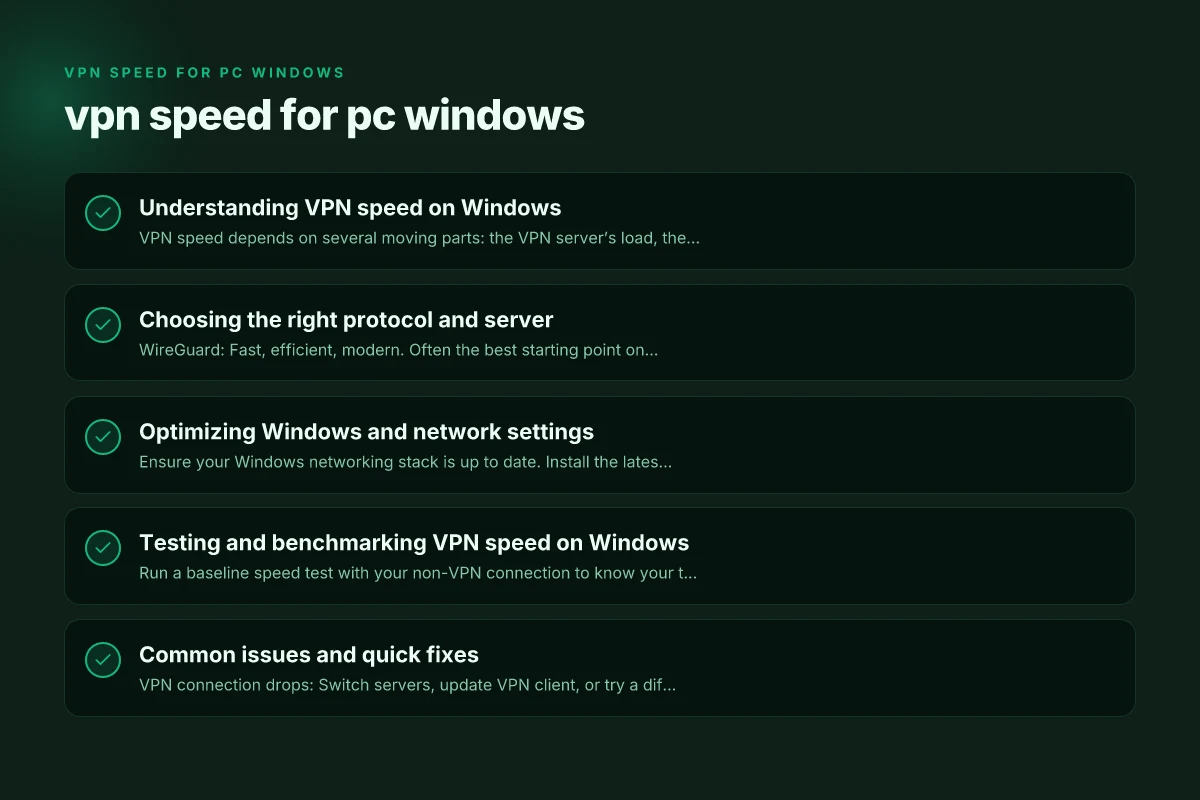
Choosing the right protocol and server
Protocols that matter
- WireGuard: Fast, efficient, modern. Often the best starting point on Windows.
- IKEv2: Stable and fast on many networks. Good after WireGuard if compatibility issues arise.
- OpenVPN: Very reliable and widely compatible but may be slower. Consider UDP mode for better performance.
Server selection strategy
- Proximity: Start with servers geographically closer to you.
- Load: Choose servers with low current users or load metrics if your VPN app shows them.
- Specialized servers: Some providers offer streaming or gaming optimized servers, test these if you have a particular use case.
Optimizing Windows and network settings
Windows tweaks
- Ensure your Windows networking stack is up to date. Install the latest updates.
- Disable unnecessary background services that could compete for bandwidth during testing.
- Make sure power settings are set to High Performance during speed tests and VPN usage.
- Disable metered connection if applicable to avoid aggressive throttling.
Router and LAN considerations
- Use a wired connection when possible for the most consistent speed; Ethernet reduces variability from Wi‑Fi.
- If you must use Wi‑Fi, ensure your router uses a modern standard (Wi‑Fi 5/6) and is placed optimally.
- Enable QoS (Quality of Service) for VPN traffic if your router supports it, prioritizing VPN packets.
- Update router firmware to improve stability and security, which can indirectly improve VPN performance.
VPN client settings
- Enable the protocol that offers the best speed for your network (start with WireGuard, test IKEv2 or OpenVPN UDP if needed).
- Check for optional features that add overhead (like double encryption or aggressive compression) and disable them if not needed.
- Turn on split tunneling if your VPN provider supports it and you want to route only certain apps through the VPN.
Testing and benchmarking VPN speed on Windows
Baseline speed tests
- Run a baseline speed test with your non-VPN connection to know your typical ISP speed.
- Use a reliable speed test site or app, and test at different times of day to get a representative baseline.
VPN speed testing steps
- Connect to a VPN server (start with a near location using WireGuard).
- Run a speed test and record download and upload speeds, latency (ping), and jitter.
- Repeat with different servers and protocols to compare results.
- Use the same test server and method each time for consistency.
Interpreting results
- Look for a smooth, consistent download speed that’s close to your baseline or a reasonable fraction of it.
- Significant increases in latency or jitter indicate network or server issues.
- If speeds drop dramatically when using VPN, try a different server, protocol, or switch to a wired connection.
A practical comparison table (example)
| Server distance | Protocol | Real-world download (Mbps) | Latency (ms) | Notes | | closer | WireGuard | 150 | 12 | Fast and responsive | | closer | IKEv2 | 130 | 18 | Slightly slower than WireGuard | | far | OpenVPN UDP | 70 | 45 | Noticeable latency increase | | far | WireGuard | 110 | 20 | Good balance, near far-server performance |
- The numbers above are illustrative. Your results will vary by location and ISP.
- Use this framework to compare your own data across multiple servers and protocols.
Common issues and quick fixes
- VPN connection drops: Switch servers, update VPN client, or try a different protocol. Check for firewall blocks and ensure your antivirus isn’t interrupting the tunnel.
- Slow speeds on Windows: Reboot both PC and router, test Wired vs. Wireless, disable bandwidth-heavy background apps, update drivers (NIC and Wi‑Fi).
- Inconsistent latency: Prefer servers with lower ping. Avoid heavily loaded hubs. Consider time-of-day patterns when testing.
- Streaming buffering: Enable streaming-optimized servers if your provider offers them and ensure split tunneling isn’t excluding streaming apps.
How to structure a speed optimization plan
- Establish a baseline: Record your usual ISP speed without VPN.
- Test protocols: Compare WireGuard, IKEv2, and OpenVPN UDP on a few near servers.
- Pick a best server: Choose the server with the best combination of download speed and latency.
- Fine-tune settings: Disable unnecessary features, enable split tunneling if needed, and optimize router QoS.
- Re-test monthly: Server loads change. An occasional re-check helps maintain optimum performance.
Final recommendations for Windows users
- Start with WireGuard on Windows for the fastest, most reliable results. If you hit issues, try IKEv2 or OpenVPN UDP as alternatives.
- Prioritize nearby servers with low load. Distance and congestion dramatically affect speed.
- Prefer a wired Ethernet connection for testing and daily VPN use to minimize wireless variability.
- Keep Windows and drivers up to date. Ensure the VPN app is current to access the latest performance improvements.
- Use a consistent testing method and track multiple metrics (download speed, upload speed, latency, and jitter) to guide adjustments.
If you want a concrete plan tailored to your setup, share: VPN shine for PC Windows
- Your Windows version and hardware specs
- The VPN service you use (and subscription tier)
- Your typical use (browsing, streaming, gaming, or large file transfers)
- Your current network type (wired vs Wi‑Fi, router model)
I can then propose a step-by-step protocol and expected targets to maximize speed for your PC on Windows.
| VPN | Obfuscation | From / month | Plan | Free plan | Refund | Alipay | UnionPay | Crypto | Website opens in China | Trustpilot | |
|---|---|---|---|---|---|---|---|---|---|---|---|
 ZoogVPN | Turn on manually Shadow | $2.49/mo | 27 months: $59.99 | Yes | 7 days | ✓ | ✓ | ✓ | ✓ | Official site blocked; our special link opens (4.4 s) | 4.2/5 (195 reviews) |
 NordVPN | Turn on manually Obfuscated Servers / NordWhisper | $3.49/mo | 27 months: $94.23 | No | 30 days | ? | ✗ | ✓ | ✓ | ✗ Blocked | 4.2/5 (51,628 reviews) |
 ExpressVPN | ✓ On by default all servers | $3.00/mo | 28 months: $84 | No | 30 days | ✗ | ✗ | ✓ | ✗ | ✗ Blocked | 4.4/5 (29,706 reviews) |
 Surfshark | ✓ On by default Camouflage, with OpenVPN | See site | See site | No | 30 days | ✗ | ✗ | ✗ | ✓ | ✗ Blocked | 4.3/5 (31,823 reviews) |
 Proton VPN | Turn on manually Stealth, free plan too | $2.99/mo | 12 months: $35.88 | Yes | 30 days | ✗ | ✗ | ✗ | ✓ | ✗ Blocked | 2.1/5 (1,040 reviews) |
 Astrill VPN | Turn on manually StealthVPN / OpenWeb | $12.50/mo | 24 months: $300 | No | See site | ✗ | ✗ | ✗ | ✓ | ✗ Blocked | 1.3/5 (110 reviews) |
 Private Internet Access | Turn on manually Shadowsocks, OpenVPN only | $2.03/mo | 40 months: $81.2 | No | 30 days | ✗ | ✗ | ✗ | ✗ | ✗ Blocked | 4.2/5 (11,033 reviews) |
 CyberGhost | Turn on manually selected servers | $2.19/mo | 28 months: $61.32 | No | 45 days | ✗ | ✗ | ✗ | ✓ | ✗ Blocked | 4.0/5 (24,178 reviews) |
 PureVPN | Turn on manually switch to OpenVPN | $1.69/mo | 60 months: $101.55 | No | 31 days | ? | ? | ✗ | ✓ | ✗ Blocked | 4.4/5 (17,994 reviews) |
 AdGuard VPN | ✓ On by default TrustTunnel | $2.99/mo | 24 months: $71.76 | Yes | 30 days | ✓ | ✗ | ✓ | ✓ | Official site blocked; our special link opens (3.7 s) | 4.3/5 (290 reviews) |
 Mullvad | Turn on manually QUIC / Shadowsocks / LWO | $5.61/mo | €5/mo | No | 14 days | ✗ | ✗ | ✗ | ✓ | ✗ Blocked | 3.2/5 (192 reviews) |
 Windscribe | Turn on manually Stealth / WStunnel | $5.75/mo | 12 months: $69 | Yes | See site | ✗ | ✗ | ✗ | ✓ | ✗ Blocked | 4.7/5 (13,355 reviews) |
 StrongVPN | Turn on manually Scramble, OpenVPN TCP | See site | See site | No | 30 days | ✓ | ✗ | ✗ | ✗ | ✗ Blocked | 4.4/5 (2,695 reviews) |
 LightXtreme 闪连 | Not listed | $7.08/mo | 12 months: $84.99 | Yes | 30 days | ✓ | ✓ | ✓ | ✓ | ✓ Yes (3.5 s) | No page |
Prices checked 2026-11-10 on each vendor's pricing page (cheapest long plan, USD). Check the vendor's checkout for the final price.
Obfuscation checked 2026-11-14 on each vendor's site and help center: "on by default" = nothing to set; "turn on manually" = switch protocol or mode in settings; "not listed" = the vendor describes no obfuscation.
Payment methods checked 2026-11-10 on each vendor's payment pages: all 14 take cards and PayPal; ✗ = not listed, ? = the vendor's own pages disagree.
China access: whether the official website opens from mainland China networks (tests the website only, not the VPN connection). Last checked 2026-11-18 01:02 Beijing time.
Trustpilot score and review count checked 2026-11-10.