Upx unblock websites for PC Windows

Learn how UPX relates to unblocking websites on Windows, what UPX is, and practical steps to access blocked content safely and legally.
Unblocking websites on a Windows PC often involves a mix of network configuration, policy considerations, and safe tools. If you’ve seen references to UPX, it’s important to clarify its role. UPX is primarily a executable packer used to compress program binaries, not a tool for bypassing network blocks. Misunderstandings about UPX can lead to unsafe or ineffective practices. In this article, we’ll explain what UPX is, how website blocks typically happen, and legitimate ways to access blocked content on Windows.

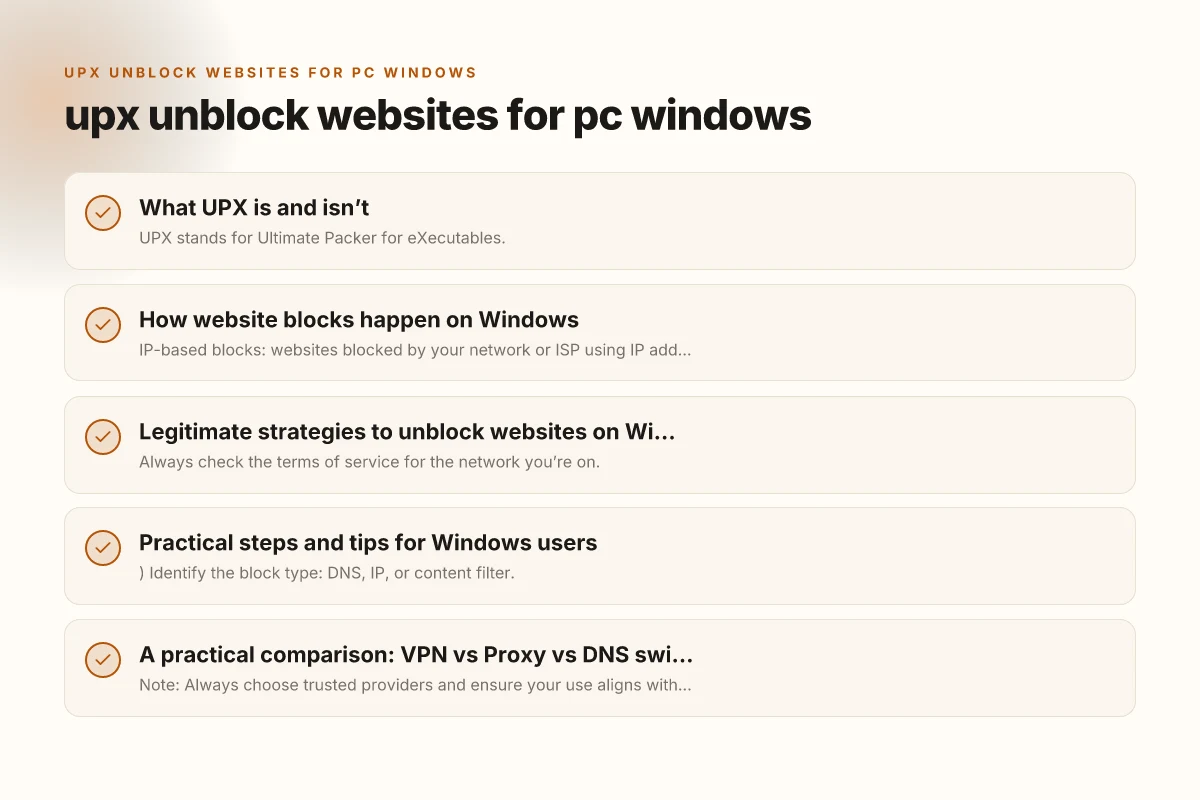
What UPX is and isn’t
Understanding the core function
- UPX stands for Ultimate Packer for eXecutables.
- It compresses executable files to reduce size and sometimes speeds up loading.
- It is not a VPN, proxy, browser extension, or network bypass tool.
Common myths
- UPX can “unblock” blocked websites: not true.
- Using UPX will let you bypass firewalls: not a recommended or reliable approach.
How website blocks happen on Windows
Types of blocks you may encounter
- IP-based blocks: websites blocked by your network or ISP using IP addresses.
- DNS blocks: domain names resolved to blocked IPs.
- Content filtering: organizations or networks block categories of sites.
- Firewall rules: local or network firewalls prevent access to certain destinations.
Where blocks typically occur
- In corporate or school networks via gateways and proxies.
- On home networks via ISP-level filtering or router settings.
- Within browsers via extensions or built-in parental controls.
Legitimate strategies to unblock websites on Windows
Confirm the policy and legality
- Always check the terms of service for the network you’re on.
- Some blocks exist for safety, compliance, or productivity reasons.
- When in doubt, seek approval from your network administrator.
Use approved access methods
- VPNs: encrypt traffic and route through a server in a permissible location.
- Proxies: act as intermediaries. Use reputable, trusted services.
- DNS switches: switch to a clean DNS resolver (e.g., Google DNS, Cloudflare) to bypass some DNS blocks.
- HTTPS and secure connections: ensure you use encrypted connections where possible.
Browser and device settings
- Clear malicious or conflicting browser extensions.
- Disable or remove shady extensions that claim to bypass blocks.
- Adjust proxy settings only if you’re authorized to do so.
Practical steps and tips for Windows users
Step-by-step approach
- Identify the block type: DNS, IP, or content filter.
- Check with network admin if you’re on a managed network.
- If permitted, try a trusted VPN service and verify no policy violations.
- If VPNs are not allowed, consider legitimate alternatives like a scoped proxy for work-approved access.
- After changes, test by visiting multiple sites to confirm the unblock effect.
Tools and considerations
- VPNs: choose reputable providers with clear logging policies and no malware.
- Proxies: be wary of free proxies that may log data or inject ads.
- DNS: use secure resolvers. Avoid changing DNS settings on networks that require specific configurations.
A practical comparison: VPN vs Proxy vs DNS switch
| Method | Security | Speed impact | Privacy | Ease of use | Typical use case |
|---|---|---|---|---|---|
| VPN | High (encrypts traffic) | Moderate to high (depends on server) | High (hides traffic origin) | Easy (one app) | Accessing blocked sites on public networks, protecting data |
| Proxy | Moderate (depends on proxy) | Variable (some slow services) | Low to moderate (may log) | Moderate (browser or system-wide) | Bypassing simple blocks or geo restrictions |
| DNS switch | Low to moderate | Usually fast | Low (doesn’t shield traffic) | Easy (change DNS settings) | Bypassing DNS-level blocks, quick testing |
Note: Always choose trusted providers and ensure your use aligns with network policies and laws.
Risks and best practices
Security considerations
- Free or shady tools can contain malware or track your activity.
- Always verify the source, read reviews, and check for professional endorsements.
- Avoid downloading unfamiliar executables or tools promising universal unblocking.
Privacy and policy considerations
- Some networks log traffic and monitor behavior. A VPN provider’s privacy policy matters.
- Bypassing blocks on a work or school network may violate policies and could have consequences.
- Be mindful of jurisdiction and legal constraints regarding accessing certain content.
When to avoid trying to unblock and seek alternatives
- If you’re in a corporate, educational, or government network with strict blocks, bypassing might violate policy.
- If blocking protects safety, compliance, or licensing, seek official permission or use approved resources.
- If you’re unsure about the legality or safety, consult IT support or network administrators.
Final recommendations
If your goal is to access content responsibly and legally on Windows:
- Start with a clear purpose and check network policies.
- Use legitimate tools such as a reputable VPN or a trusted DNS service, provided you have permission.
- Avoid UPX for unblocking tasks. Stick to network-aware strategies that respect terms of use.
- Prioritize security: choose reputable providers, enable strong authentication, and keep software updated.
- If in a managed environment (work or school), ask for approved access methods rather than attempting to bypass blocks.
In summary, UPX does not unblock websites. For Windows users seeking access to blocked sites, focus on legitimate, policy-compliant methods like VPNs, proxies from trusted providers, or DNS changes when permitted. Always consider security, privacy, and legality before attempting any unblock action.
If you’d like, I can tailor a setup guide for a specific Windows version (Windows 10 vs Windows 11), including screenshots-style steps and a list of reputable VPNs and DNS options based on your region and needs. Unlimited encrypted VPN for PC Windows