Unblock sites VPN proxy browser for PC Windows
Clear guidance on unblocking sites using VPNs, proxies, and browsers for PC Windows.
Unblocking sites on a PC running Windows can be achieved through several approaches, each with its own trade-offs. This guide explains how to use VPNs, proxies, and browser-based tools to access blocked content, stay private, and keep your data secure. It also includes practical steps, caveats, and a quick comparison to help you choose what fits your needs.

Understanding the options
When a site is blocked, you generally have three broad paths to access it again:
- VPN (Virtual Private Network): Creates an encrypted tunnel between your computer and a remote server, masking your IP and bypassing local restrictions.
- Proxy: Routes your browser traffic through a remote server. It’s often easier to set up but may not encrypt all traffic or protect all apps.
- Browser-based solutions: Extensions or built-in features that route or obfuscate traffic at the browser level. These are convenient but can be less effective against aggressive blocks.
Each option has scenarios where it shines, so understanding the differences helps you choose wisely.
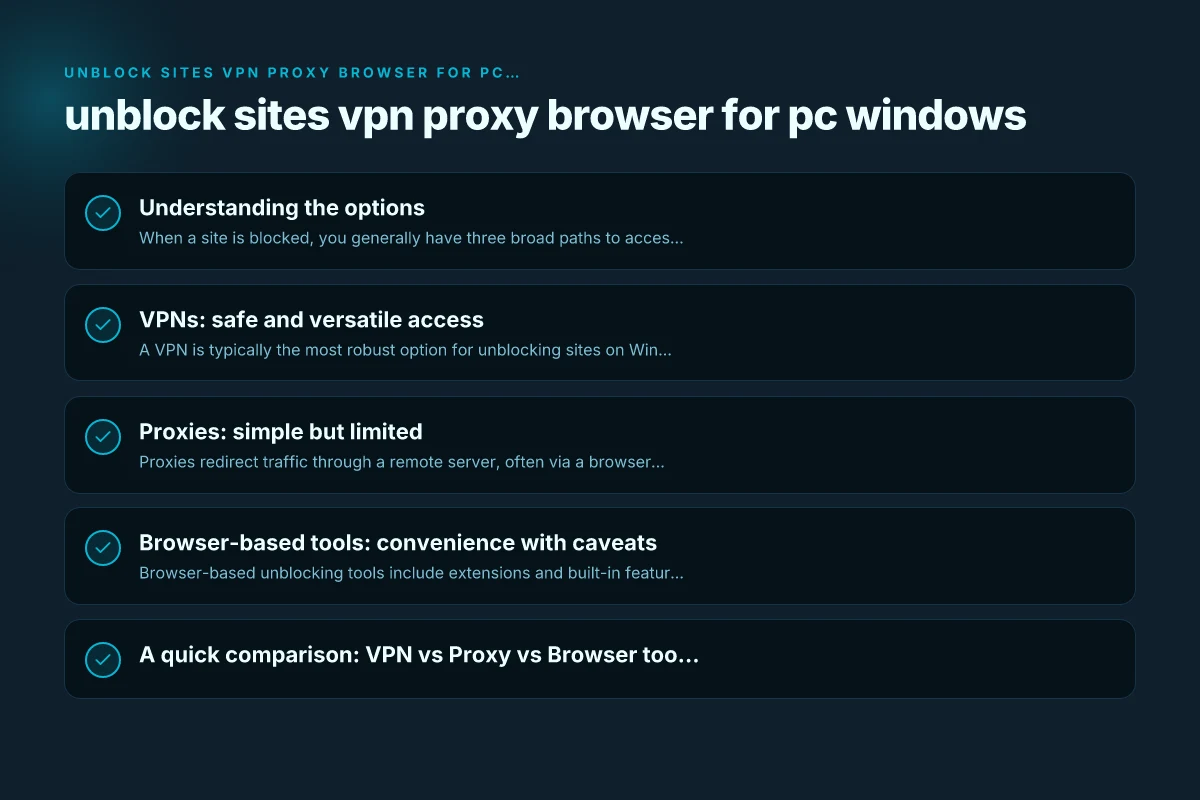
VPNs: safe and versatile access
A VPN is typically the most robust option for unblocking sites on Windows. It encrypts your traffic, hides your real IP, and can bypass many types of blocks, including DNS-level blocks and ISP throttling.
Key considerations: Ultrafastvpn for PC Windows: a practical guide to blazing-fast online privacy on Windows
- Privacy and security: Look for no-logs policies, strong encryption (AES-256), and reputable jurisdictions.
- Server network: More servers and locations offer better chances to bypass regional blocks and improve speeds.
- Speed impact: Encryption and long routes can slow you down. Premium VPNs minimize this with optimized networks.
- Device compatibility: Windows client, kill switch, and split tunneling features help manage traffic.
Step-by-step setup:
- Choose a reputable Windows VPN provider.
- Install the Windows app, sign up, and log in.
- Select a server location away from the block source.
- Activate the VPN and test access to the blocked site.
- If needed, enable kill switch and split tunneling for selective apps.
Pros:
- Strong privacy and security.
- Works with most blocked sites and apps.
- Consistent performance across networks.
Cons:
- Requires a subscription for best results.
- Some networks block VPN endpoints or throttle VPN traffic.
Proxies: simple but limited
Proxies redirect traffic through a remote server, often via a browser extension or manual proxy settings. They’re quick to set up but don’t guarantee privacy or protection for all applications. UK VPN for PC Windows
Types of proxies:
- HTTP/HTTPS proxies: Work well for browser traffic. Easy to configure in browsers like Chrome or Firefox.
- SOCKS proxies: Flexible and compatible with many apps but usually slower and less private.
How to use proxies:
- Browser extension: Install a reputable proxy extension, enter the proxy server address and port, and enable it.
- Manual configuration: In Windows, go to Settings > Network & Internet > Proxy, enter the proxy details, and save.
- Application specifics: Some apps (e.g., torrent clients) need separate proxy settings regardless of the browser.
Advantages:
- Fast setup, often free or cheap.
- No heavy software installation required.
Drawbacks: UFO VPN for PC Windows: How to Use, What to Know, and Alternatives
- Limited privacy. Many proxies don’t encrypt traffic.
- Some sites detect and block known proxy servers.
- Not all traffic is proxied. System-wide proxies may slow everything.
Browser-based tools: convenience with caveats
Browser-based unblocking tools include extensions and built-in features that redirect or obfuscate traffic at the browser level. They’re convenient for quick access but not a blanket solution.
Common options:
- VPN extensions: Lightweight proxies that work inside the browser. Often do not encrypt full device traffic.
- Web proxies: Access sites through a browser-based form. Not ideal for interactive or secure sites.
- No-trace or privacy-focused modes: Some browsers offer settings to minimize tracking but may not bypass blocks.
Limitations:
- Extensions may be blocked by network administrators.
- Web proxies can be slow and unreliable for media or complex sites.
- They generally don’t protect other apps on your PC.
A quick comparison: VPN vs Proxy vs Browser tools
| Feature | VPN | Proxy | Browser-based tools |
|---|---|---|---|
| Encryption | Yes (AES-256 or similar) | Usually no or limited | Depends on tool; often no |
| System-wide protection | Yes (all apps) | No (browser or app-specific) | Mostly browser-only |
| Bypassing blocks | Very effective | Moderate to good | Varies, often weaker |
| Setup complexity | Moderate to high | Simple to moderate | Very simple |
| Speed impact | Moderate (depends on server) | Low to moderate | Low, but varies |
| Cost | Often subscription-based | Free or cheap | Free or low-cost |
| Best for | Privacy, security, consistent access | Quick access, low effort | Quick fixes, light content |
Practical tips for Windows users
- Check your network policy: Some schools, workplaces, or public networks block VPN and proxy traffic. If you’re on a managed network, you may need administrator permission.
- Test with multiple servers: If a site is blocked in one location, a different VPN server country may unblock it.
- Avoid free VPNs with questionable origins: They may collect data or inject ads. Prefer reputable providers with clear privacy policies.
- Combine methods cautiously: Use a VPN for privacy and broad access. Use a browser proxy for quick, targeted tasks if VPN is not feasible.
- Stay legal and safe: Bypassing blocks may violate terms of service or local laws. Use these tools responsibly.
Potential risks and how to mitigate them
- Data privacy: Free tools may sell data or track you. Choose paid services with transparent policies.
- Malware and shady extensions: Only install from official stores or the provider’s site. Verify reviews and permissions.
- DNS leaks: Some VPNs can leak DNS requests. Pick VPNs with DNS leak protection and a kill switch.
- Performance issues: VPNs add latency. Pick a server close to you or near the site you’re accessing. Consider split tunneling for non-critical apps.
How to choose the right tool for your scenario
- If privacy and consistent access are paramount: Use a reputable VPN with strong encryption and a broad server network.
- If you just need to unblock a site quickly on a public computer: A browser proxy or extension can be convenient, but don’t assume it protects other apps.
- If you’re on a limited budget and only occasionally need access: Start with a trusted proxy service or browser-based tool, then upgrade if you require more robust protection.
Quick setup guide for Windows using each method
- VPN:
- Pick a reputable provider.
- Install the Windows app and sign in.
- Connect to a server in a location that can access the site.
- Visit the blocked site to confirm access.
- Proxy:
- Find a reliable HTTP/HTTPS or SOCKS proxy.
- In Chrome/Firefox: install a proxy extension or manually set the proxy in browser settings.
- Test by opening the blocked site.
- Browser-based tool:
- Add a trusted extension from the official store.
- Enable the extension and select a location/server if required.
- Navigate to the site to verify access.
Final thoughts and recommendation
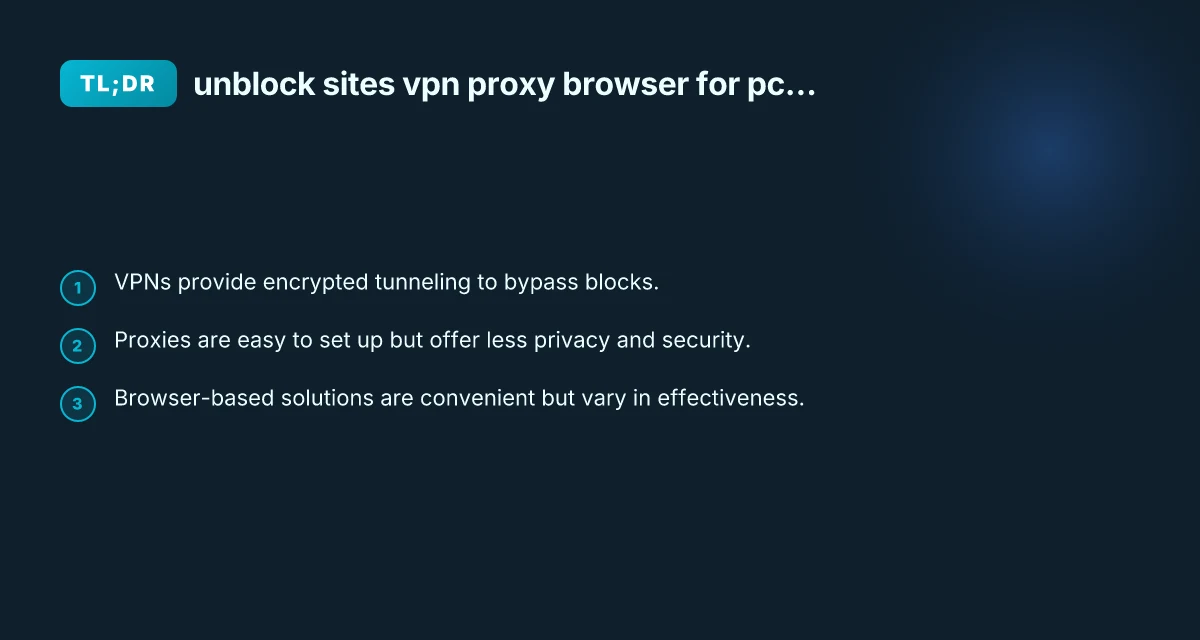
For most Windows users who want reliable access to blocked sites while protecting their data, a reputable VPN is the best all-around solution. It provides strong encryption, broad server options, and consistent performance across apps and browsers. If you only need a quick workaround for a single browser session or a lightweight task, a trusted proxy or a browser-based tool can be suitable. Always consider the level of privacy you need, the nature of the content you’re accessing, and the rules of your network or country. In short: choose a VPN for solid, long-term unblocking and security. Fallback to proxies or browser tools for fast, low-friction use cases. U VPN for PC Windows
| VPN | Obfuscation | From / month | Plan | Free plan | Refund | Alipay | UnionPay | Crypto | Website opens in China | Trustpilot | |
|---|---|---|---|---|---|---|---|---|---|---|---|
 ZoogVPN | Turn on manually Shadow | $2.49/mo | 27 months: $59.99 | Yes | 7 days | ✓ | ✓ | ✓ | ✓ | Official site blocked; our special link opens (4.4 s) | 4.2/5 (195 reviews) |
 NordVPN | Turn on manually Obfuscated Servers / NordWhisper | $3.49/mo | 27 months: $94.23 | No | 30 days | ? | ✗ | ✓ | ✓ | ✗ Blocked | 4.2/5 (51,628 reviews) |
 ExpressVPN | ✓ On by default all servers | $3.00/mo | 28 months: $84 | No | 30 days | ✗ | ✗ | ✓ | ✗ | ✗ Blocked | 4.4/5 (29,706 reviews) |
 Surfshark | ✓ On by default Camouflage, with OpenVPN | See site | See site | No | 30 days | ✗ | ✗ | ✗ | ✓ | ✗ Blocked | 4.3/5 (31,823 reviews) |
 Proton VPN | Turn on manually Stealth, free plan too | $2.99/mo | 12 months: $35.88 | Yes | 30 days | ✗ | ✗ | ✗ | ✓ | ✗ Blocked | 2.1/5 (1,040 reviews) |
 Astrill VPN | Turn on manually StealthVPN / OpenWeb | $12.50/mo | 24 months: $300 | No | See site | ✗ | ✗ | ✗ | ✓ | ✗ Blocked | 1.3/5 (110 reviews) |
 Private Internet Access | Turn on manually Shadowsocks, OpenVPN only | $2.03/mo | 40 months: $81.2 | No | 30 days | ✗ | ✗ | ✗ | ✗ | ✗ Blocked | 4.2/5 (11,033 reviews) |
 CyberGhost | Turn on manually selected servers | $2.19/mo | 28 months: $61.32 | No | 45 days | ✗ | ✗ | ✗ | ✓ | ✗ Blocked | 4.0/5 (24,178 reviews) |
 PureVPN | Turn on manually switch to OpenVPN | $1.69/mo | 60 months: $101.55 | No | 31 days | ? | ? | ✗ | ✓ | ✗ Blocked | 4.4/5 (17,994 reviews) |
 AdGuard VPN | ✓ On by default TrustTunnel | $2.99/mo | 24 months: $71.76 | Yes | 30 days | ✓ | ✗ | ✓ | ✓ | Official site blocked; our special link opens (3.7 s) | 4.3/5 (290 reviews) |
 Mullvad | Turn on manually QUIC / Shadowsocks / LWO | $5.61/mo | €5/mo | No | 14 days | ✗ | ✗ | ✗ | ✓ | ✗ Blocked | 3.2/5 (192 reviews) |
 Windscribe | Turn on manually Stealth / WStunnel | $5.75/mo | 12 months: $69 | Yes | See site | ✗ | ✗ | ✗ | ✓ | ✗ Blocked | 4.7/5 (13,355 reviews) |
 StrongVPN | Turn on manually Scramble, OpenVPN TCP | See site | See site | No | 30 days | ✓ | ✗ | ✗ | ✗ | ✗ Blocked | 4.4/5 (2,695 reviews) |
 LightXtreme 闪连 | Not listed | $7.08/mo | 12 months: $84.99 | Yes | 30 days | ✓ | ✓ | ✓ | ✓ | ✓ Yes (3.5 s) | No page |
Prices checked 2026-11-10 on each vendor's pricing page (cheapest long plan, USD). Check the vendor's checkout for the final price.
Obfuscation checked 2026-11-14 on each vendor's site and help center: "on by default" = nothing to set; "turn on manually" = switch protocol or mode in settings; "not listed" = the vendor describes no obfuscation.
Payment methods checked 2026-11-10 on each vendor's payment pages: all 14 take cards and PayPal; ✗ = not listed, ? = the vendor's own pages disagree.
China access: whether the official website opens from mainland China networks (tests the website only, not the VPN connection). Last checked 2026-11-18 01:02 Beijing time.
Trustpilot score and review count checked 2026-11-10.