Tor VPN for PC Windows

A clear guide to using Tor and VPNs on Windows PCs, including how they differ, when to combine them, and practical setup tips.
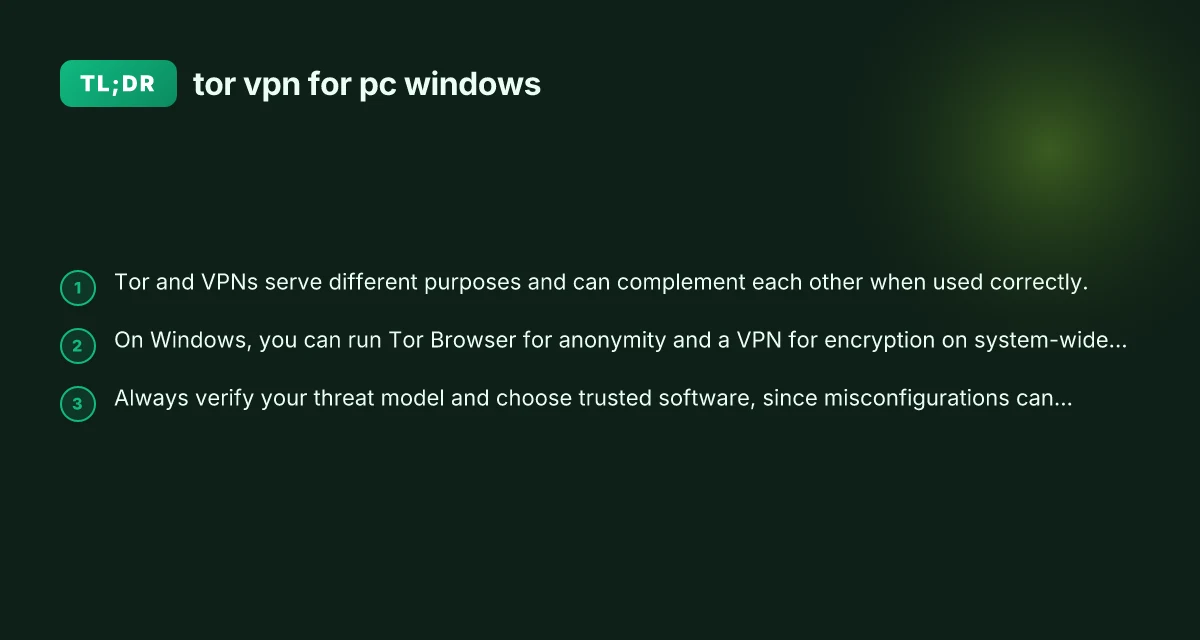
In the world of online privacy, Tor and VPNs are two popular tools that people often consider for Windows PCs. They serve related but distinct purposes: Tor helps you browse anonymously by routing traffic through volunteer-operated servers, while a VPN encrypts and shields your broader internet traffic from your ISP and local networks. Understanding how they work, and how they can be used together on Windows, will help you make informed privacy choices that fit your threat model and your performance needs.

What Tor is and how it works on Windows
Tor stands for The Onion Router. It’s a network designed to anonymize your internet traffic by bouncing it through multiple volunteer relays. Each relay only knows the previous and next hop, not the full path, which makes it difficult for observers to trace activity back to you.
- Tor Browser is the recommended way to use Tor on Windows. It’s a customized version of Firefox that routes through the Tor network.
- Tor on Windows does not automatically encrypt all your PC traffic. Only the Tor Browser traffic is anonymized by default.
- Performance can be slow due to multiple relays, and some sites may block Tor exit nodes.
What you get with Tor on Windows:
- Strong anonymity for web browsing
- Ability to access.onion sites
- Resistance to network surveillance for traffic within the Tor path
What you don’t get:
- End-to-end encryption outside the Tor path
- Broad protection for non-browser apps or system traffic
- Guaranteed access to every site (some sites block Tor)
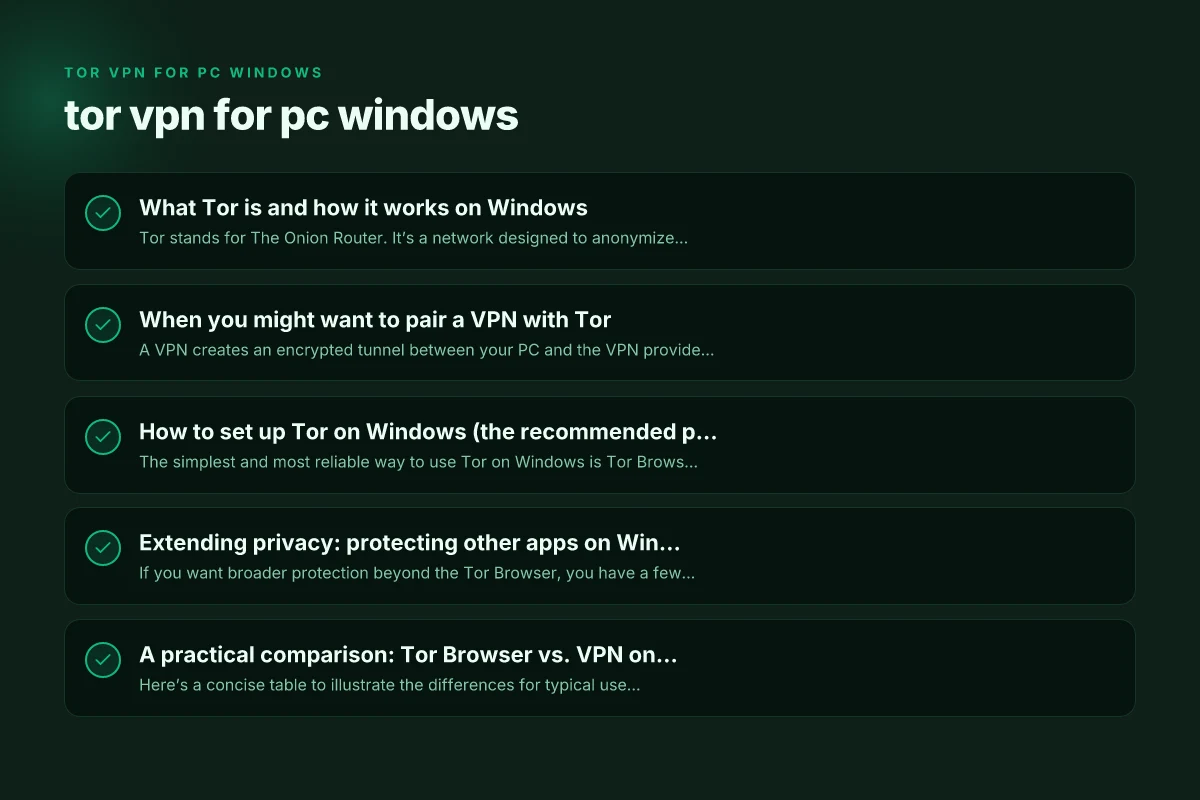
When you might want to pair a VPN with Tor
A VPN creates an encrypted tunnel between your PC and the VPN provider’s server, masking your traffic from your ISP and local networks. When combined with Tor, there are two common and widely discussed approaches: Tomvpn for PC Windows
- Tor over VPN (VPN first, then Tor): You connect to a VPN, then run Tor Browser. Your ISP sees you connected to a VPN, not Tor. The Tor network sees the VPN exit as the user, potentially adding a layer of privacy from local observers toward your exit IP.
- VPN over Tor (Tor first, then VPN): You run Tor, then route traffic through a VPN. This is less common and more complex to configure. It aims to prevent the Tor exit from seeing your final destination and hide Tor usage from sites, but it can interfere with Tor’s anonymity model if not done correctly.
Key note: Tor over VPN is commonly recommended for most Windows users seeking added privacy without complex setup. VPN over Tor is a more advanced, nuanced approach with potential friction and is not supported by all VPNs.
How to set up Tor on Windows (the recommended path)
The simplest and most reliable way to use Tor on Windows is Tor Browser. Here’s a straightforward setup:
- Download Tor Browser from the official Tor Project website.
- Install and run Tor Browser. It will connect to the Tor network automatically.
- Use Tor Browser for web browsing, including access to.onion sites.
- Keep Tor Browser updated to benefit from the latest security fixes.
Tips for using Tor Browser on Windows:
- Do not install additional plugins or extensions in Tor Browser. They can compromise anonymity.
- Avoid downloading files through Tor and opening them outside Tor unless you trust the source, as exiting the Tor network can reveal your real IP.
- Consider using HTTPS-only sites when possible, to add an extra encryption layer end-to-end.
Extending privacy: protecting other apps on Windows
If you want broader protection beyond the Tor Browser, you have a few options: Tom VPN for PC Windows
- Use a VPN for system-wide encryption: This hides all traffic from your ISP and local network, not just Tor traffic. However, if your goal is anonymity while browsing, a VPN plus Tor Browser can sometimes backfire by revealing that you are using Tor to your VPN provider’s logs.
- Route specific traffic through Tor: There are tools and configurations (like using Tor as a proxy) that can funnel specific apps through Tor, but this is usually more technical and not as straightforward on Windows as on Unix-like systems.
- Use Tails or a live USB: For high-assurance anonymity, you can boot into Tails or another live OS that routes all traffic through Tor by default. This is more involved and not typical for everyday Windows use.
A practical comparison: Tor Browser vs. VPN on Windows
Here’s a concise table to illustrate the differences for typical use cases. (Note: This is a simplified overview. Actual results depend on configuration and threat models.)
| Use case | Tor Browser | VPN (system-wide) | Tor over VPN | VPN over Tor |
|---|---|---|---|---|
| Primary benefit | Anonymity for web browsing, access to.onion sites | Privacy from ISP and local network, hides traffic from others on the same network | Privacy from ISP while hiding Tor usage from some observers | Advanced setup to hide Tor usage from sites; not widely supported |
| Traffic scope | Web traffic through Tor Browser | All traffic from device | Tor then VPN; traffic exits through VPN | Tor then VPN; traffic exits through VPN after Tor |
| Speed impact | Often slow due to multiple relays | Can be faster or slower depending on VPN server | Potentially slower due to double layering | Potentially more complexity and latency |
| Ease of setup | Very easy (Tor Browser) | Easy to moderate (VPN app) | Moderate to advanced (depends on VPN and routing) | Advanced, not common |
| Risk considerations | Some sites block Tor exit nodes; exit traffic can reveal identity if misused | VPN trust is crucial; provider could log data or be compelled to reveal it | Increased privacy if configured correctly; misconfiguration can leak identity | High risk of misconfiguration and reduced anonymity if not experienced |
Best practices for Windows users who value privacy
- Know your threat model: Are you concerned about ISP surveillance, network-level tracking, or targeted attacks? Your setup should reflect this.
- Keep software updated: Regular updates for Tor Browser, Windows, and any VPN clients reduce the risk of known vulnerabilities.
- Verify sources: Download Tor Browser only from the official Tor Project site. Use reputable VPN providers with transparent policies.
- Monitor leaks: Use tools that check for DNS, IP, and WebRTC leaks. Tor Browser is designed to minimize these, but system-wide apps can leak if not properly configured.
- Understand logging policies: If you use a VPN, read their privacy policy and terms to know what they log and under what conditions they share data.
- Be mindful of browser fingerprinting: Tor Browser is designed to reduce fingerprinting, but other browsers or plugins can introduce it.
A brief note on risks and limitations
- Tor is not a silver bullet. It protects your traffic from network observers within the Tor network, but a compromised exit relay or misconfiguration can reveal information.
- Some websites actively block traffic from known Tor exit nodes, which can make legitimate browsing harder.
- If you’re seeking anonymity in high-risk situations, consider additional measures such as hardware security, avoiding account logins, and using privacy-respecting search engines.
Final recommendation
For most Windows users who want a straightforward balance of privacy and usability, start with Tor Browser on Windows for anonymous web browsing and access to.onion sites. If you want to shield all your Windows traffic from your local network or ISP, consider adding a reputable VPN in a Tor over VPN setup, but only if you’re comfortable with the extra complexity and you choose a trusted provider that respects privacy. Avoid VPN over Tor unless you have a very specific use case and the setup is guided by privacy-savvy documentation or support.
If you’re new to privacy tech, begin with Tor Browser and a trusted VPN separately, then explore more advanced configurations as your needs evolve.
| VPN | Obfuscation | From / month | Plan | Free plan | Refund | Alipay | UnionPay | Crypto | Website opens in China | Trustpilot | |
|---|---|---|---|---|---|---|---|---|---|---|---|
 ZoogVPN | Turn on manually Shadow | $2.49/mo | 27 months: $59.99 | Yes | 7 days | ✓ | ✓ | ✓ | ✓ | Official site blocked; our special link opens (4.4 s) | 4.2/5 (195 reviews) |
 NordVPN | Turn on manually Obfuscated Servers / NordWhisper | $3.49/mo | 27 months: $94.23 | No | 30 days | ? | ✗ | ✓ | ✓ | ✗ Blocked | 4.2/5 (51,628 reviews) |
 ExpressVPN | ✓ On by default all servers | $3.00/mo | 28 months: $84 | No | 30 days | ✗ | ✗ | ✓ | ✗ | ✗ Blocked | 4.4/5 (29,706 reviews) |
 Surfshark | ✓ On by default Camouflage, with OpenVPN | See site | See site | No | 30 days | ✗ | ✗ | ✗ | ✓ | ✗ Blocked | 4.3/5 (31,823 reviews) |
 Proton VPN | Turn on manually Stealth, free plan too | $2.99/mo | 12 months: $35.88 | Yes | 30 days | ✗ | ✗ | ✗ | ✓ | ✗ Blocked | 2.1/5 (1,040 reviews) |
 Astrill VPN | Turn on manually StealthVPN / OpenWeb | $12.50/mo | 24 months: $300 | No | See site | ✗ | ✗ | ✗ | ✓ | ✗ Blocked | 1.3/5 (110 reviews) |
 Private Internet Access | Turn on manually Shadowsocks, OpenVPN only | $2.03/mo | 40 months: $81.2 | No | 30 days | ✗ | ✗ | ✗ | ✗ | ✗ Blocked | 4.2/5 (11,033 reviews) |
 CyberGhost | Turn on manually selected servers | $2.19/mo | 28 months: $61.32 | No | 45 days | ✗ | ✗ | ✗ | ✓ | ✗ Blocked | 4.0/5 (24,178 reviews) |
 PureVPN | Turn on manually switch to OpenVPN | $1.69/mo | 60 months: $101.55 | No | 31 days | ? | ? | ✗ | ✓ | ✗ Blocked | 4.4/5 (17,994 reviews) |
 AdGuard VPN | ✓ On by default TrustTunnel | $2.99/mo | 24 months: $71.76 | Yes | 30 days | ✓ | ✗ | ✓ | ✓ | Official site blocked; our special link opens (3.7 s) | 4.3/5 (290 reviews) |
 Mullvad | Turn on manually QUIC / Shadowsocks / LWO | $5.61/mo | €5/mo | No | 14 days | ✗ | ✗ | ✗ | ✓ | ✗ Blocked | 3.2/5 (192 reviews) |
 Windscribe | Turn on manually Stealth / WStunnel | $5.75/mo | 12 months: $69 | Yes | See site | ✗ | ✗ | ✗ | ✓ | ✗ Blocked | 4.7/5 (13,355 reviews) |
 StrongVPN | Turn on manually Scramble, OpenVPN TCP | See site | See site | No | 30 days | ✓ | ✗ | ✗ | ✗ | ✗ Blocked | 4.4/5 (2,695 reviews) |
 LightXtreme 闪连 | Not listed | $7.08/mo | 12 months: $84.99 | Yes | 30 days | ✓ | ✓ | ✓ | ✓ | ✓ Yes (3.5 s) | No page |
Prices checked 2026-11-10 on each vendor's pricing page (cheapest long plan, USD). Check the vendor's checkout for the final price.
Obfuscation checked 2026-11-14 on each vendor's site and help center: "on by default" = nothing to set; "turn on manually" = switch protocol or mode in settings; "not listed" = the vendor describes no obfuscation.
Payment methods checked 2026-11-10 on each vendor's payment pages: all 14 take cards and PayPal; ✗ = not listed, ? = the vendor's own pages disagree.
China access: whether the official website opens from mainland China networks (tests the website only, not the VPN connection). Last checked 2026-11-18 01:02 Beijing time.
Trustpilot score and review count checked 2026-11-10.