Super fast VPN for PC Windows

Discover the best super fast VPN for PC Windows, what makes it fast, how to test speed, and practical usage tips.
If you’re looking for a super fast VPN for PC Windows, you’re aiming for more than just a quick connection. You want low latency, high throughput, and reliable performance whether you’re streaming, gaming, or working remotely. The right VPN combines strong security with streamlined software, vast server coverage, and optimized networks. Below, you’ll find practical guidance on what to look for, how to test speed, and how to use a fast VPN effectively on Windows.

What makes a VPN fast on Windows?
Key factors
- Proximity of servers: The closer the server, the lower the latency.
- Bandwidth capacity: Large servers and high-capacity networks handle more data without slowing down.
- Protocol efficiency: WireGuard is widely regarded as one of the fastest modern VPN protocols; OpenVPN and IKEv2 have strengths in stability and compatibility.
- Server optimization: Some providers tune their servers for low ping, enough CPU headroom, and optimized routing.
- Your hardware and connection: A powerful PC with a fast internet plan benefits more from a good VPN. Weak hardware can bottleneck encryption or app overhead.
Common myths debunked
- “More encryption always means slower speed.” Not necessarily. Many providers optimize for both strong security and speed, and modern protocols (like WireGuard) are designed for speed without sacrificing safety.
- “VPNs must be clunky to be private.” Modern Windows clients are lightweight and can run smoothly with careful choices of server and protocol.

How to pick a super fast VPN for PC Windows
Look for:
- Protocol options: A fast Windows client should support WireGuard (or the fastest protocol offered), plus a fallback like IKEv2/IPsec.
- Large server network: A broad distribution across continents increases your odds of a near-by, high-speed connection.
- Consistent speed testing: The vendor should publish or provide speed metrics and allow you to test freely.
- Low overhead client: The Windows app should start quickly, not hog CPU, and integrate with Windows networking.
- Reliable throughput for your use case: Streaming, gaming, or business work each benefit from slightly different server setups.
Practical tips
- Start with a trial or monthly plan to test real-world speed for your needs.
- Check for split tunneling: If you only need VPN protection for certain apps, this reduces overhead and can speed up other traffic.
- Disable unnecessary features: Some features (like ad/tracker blocking) can add tiny overhead. Disable if you need maximum speed.
How to test VPN speed on Windows
A simple method
- Connect to a server that’s geographically close to you.
- Run a baseline speed test on your normal, non-VPN connection.
- Run a speed test with the VPN connected. Compare download, upload, and ping.
- Repeat with several servers and, if possible, different protocols (e.g., WireGuard vs OpenVPN).
- Note the difference for streaming, gaming, and file downloads.
Metrics to watch
- Latency (ping): Lower is better for gaming and interactive tasks.
- Download speed: Your typical streaming or download rate. Aim for minimal drop from baseline.
- Upload speed: Important for live streaming, cloud backups, and video calls.
- Jitter: Stability of the connection. Lower is better for real-time apps.
- Connection time: How long it takes to establish a VPN session.
Common test scenarios
- Light browser use with video calls: prioritize low latency and stability.
- 4K streaming: prioritize sustained high download speed with minimal buffering.
- Online gaming: favor low ping and quick reconnects.
- Remote work: rely on steady upload speeds and reliable connections to corporate networks.
VPNs that tend to be super fast on Windows (examples and cautions)
Note: The fastest option for you depends on your location, ISP, and use case. The following characteristics are typical of fast Windows VPNs, not endorsements.
- Providers with WireGuard support: Expect strong speed improvements on many servers.
- Providers with edge-optimized routing: Some vendors optimize paths to major cloud networks to reduce hops.
- Providers offering split tunneling and custom routing: This lets you keep non-critical traffic outside the VPN, improving speed for critical tasks.
Important cautions:
- Speed claims vary. Read independent reviews and run your own speed tests.
- Free or very cheap services often come with limitations or data usage caps that affect speed and privacy.
- Some providers aggressively throttle or shape traffic on certain server locations. Check terms of service and user reviews.
Practical setup tips for Windows users
Install and optimize the Windows client
- Choose the latest version from the vendor’s official site or Windows Store to ensure performance and security updates.
- Enable WireGuard if available. Disable features you don’t need to reduce overhead.
- Turn on auto-connect to a preferred fast server only when you need VPN protection.
Configure server selection like a pro
- Start with a nearby server for best latency.
- If streaming or gaming suffers, try servers in nearby regions with good peering to your target service.
- Use the recommended or specialized streaming servers if your provider offers them.
Network and Windows-specific optimizations
- Ensure your NIC drivers are up to date to maximize throughput.
- Consider using Ethernet (wired) instead of Wi-Fi for the most consistent speeds, especially for real-time tasks.
- Disable VPN-related DNS leaks by enabling DNS protection in the client, or set a trusted DNS when the VPN is on.
A concise comparison: features that influence speed
Here is a simple table to help you compare speed-related features across typical Windows VPNs. (Note: speeds vary by location and plan.)
What it affects
Why it matters
Protocol (WireGuard vs OpenVPN vs IKEv2)
Latency and throughput StrongVPN for PC Windows
WireGuard typically fastest; OpenVPN robust; IKEv2 strong for mobile
Server network size
Availability of near servers
More nearby options reduce travel distance and latency Stream VPN for PC Windows
Server load and routing optimization
Consistency of speed
Lower congestion improves real-time tasks
Client overhead and CPU usage Straight VPN for PC Windows
Local processing impact
Lightweight clients yield faster connections on modest hardware
Split tunneling capability
Traffic management Storm VPN for PC Windows
Reduces VPN overhead for non-critical tasks
Real-world usage: what fast looks like in practice
- Streaming in HD/4K: A fast VPN should preserve most of your baseline download speed while maintaining stable video without buffering.
- Gaming: The best fast VPN minimizes added latency and jitter. You’ll want a server in your region with low ping.
- Video conferencing: Prioritize stable upload and low jitter. Choose servers with that route to your conferencing service.
- Remote work: Consistent throughput and reliable connections to enterprise resources are critical. Some VPNs offer dedicated routes or optimized tunnels for business users.
Common pitfalls and how to avoid them
- Overemphasizing “the fastest protocol” without considering server proximity. Speed is a mix of protocol efficiency and routing.
- Ignoring device and network compatibility. Some Windows builds or VPN clients have known issues. Verify compatibility with your Windows version.
- Not testing enough servers. Always run multiple tests across several servers over different times of day to account for network variability.
- Relying on marketing speed claims. Use independent testing where possible or do your own tests to confirm.
Recommendations and next steps
If you want a practical path to finding a super fast VPN for PC Windows, here’s a clear plan:
- Start with a reputable VPN that explicitly supports WireGuard on Windows and offers a broad server network.
- Sign up for a plan that allows you to test multiple servers with a money-back guarantee.
- On Windows, install the official client, enable WireGuard, and test 4–6 nearby servers with 2–3 protocols.
- Track your speeds over different times of day and for your typical use cases (streaming, gaming, remote work).
- Choose a primary fast server location and a reliable fallback option for when a server is under load.
In short, the fastest VPN for Windows is not a single product for every user. It’s the one that gives you the lowest latency and most consistent throughput for your location and tasks, with a user-friendly client and flexible settings. By prioritizing proximity, protocol efficiency, and real-world testing, you’ll identify the super fast VPN that truly fits your PC Windows setup.
Final recommendation Starry VPN for PC Windows: everything you need to know
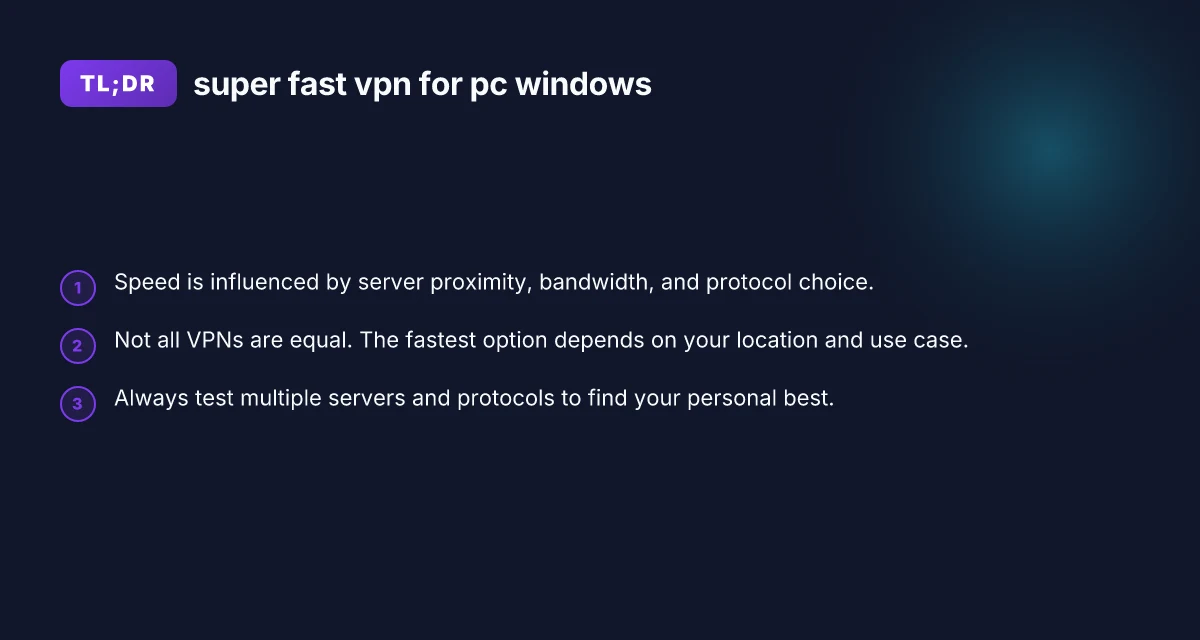
- Start with WireGuard-enabled VPNs that offer a vast, well-distributed server network. Use split tunneling to keep nonessential tasks outside the VPN, and always verify with real-speed tests across multiple servers to find your personal top performer. If you value gaming and streaming, look specifically for low-ping servers and streaming-optimized routes, and keep your Windows system updated for best compatibility and speed.
| VPN | Obfuscation | From / month | Plan | Free plan | Refund | Alipay | UnionPay | Crypto | Website opens in China | Trustpilot | |
|---|---|---|---|---|---|---|---|---|---|---|---|
 ZoogVPN | Turn on manually Shadow | $2.49/mo | 27 months: $59.99 | Yes | 7 days | ✓ | ✓ | ✓ | ✓ | Official site blocked; our special link opens (4.4 s) | 4.2/5 (195 reviews) |
 NordVPN | Turn on manually Obfuscated Servers / NordWhisper | $3.49/mo | 27 months: $94.23 | No | 30 days | ? | ✗ | ✓ | ✓ | ✗ Blocked | 4.2/5 (51,628 reviews) |
 ExpressVPN | ✓ On by default all servers | $3.00/mo | 28 months: $84 | No | 30 days | ✗ | ✗ | ✓ | ✗ | ✗ Blocked | 4.4/5 (29,706 reviews) |
 Surfshark | ✓ On by default Camouflage, with OpenVPN | See site | See site | No | 30 days | ✗ | ✗ | ✗ | ✓ | ✗ Blocked | 4.3/5 (31,823 reviews) |
 Proton VPN | Turn on manually Stealth, free plan too | $2.99/mo | 12 months: $35.88 | Yes | 30 days | ✗ | ✗ | ✗ | ✓ | ✗ Blocked | 2.1/5 (1,040 reviews) |
 Astrill VPN | Turn on manually StealthVPN / OpenWeb | $12.50/mo | 24 months: $300 | No | See site | ✗ | ✗ | ✗ | ✓ | ✗ Blocked | 1.3/5 (110 reviews) |
 Private Internet Access | Turn on manually Shadowsocks, OpenVPN only | $2.03/mo | 40 months: $81.2 | No | 30 days | ✗ | ✗ | ✗ | ✗ | ✗ Blocked | 4.2/5 (11,033 reviews) |
 CyberGhost | Turn on manually selected servers | $2.19/mo | 28 months: $61.32 | No | 45 days | ✗ | ✗ | ✗ | ✓ | ✗ Blocked | 4.0/5 (24,178 reviews) |
 PureVPN | Turn on manually switch to OpenVPN | $1.69/mo | 60 months: $101.55 | No | 31 days | ? | ? | ✗ | ✓ | ✗ Blocked | 4.4/5 (17,994 reviews) |
 AdGuard VPN | ✓ On by default TrustTunnel | $2.99/mo | 24 months: $71.76 | Yes | 30 days | ✓ | ✗ | ✓ | ✓ | Official site blocked; our special link opens (3.7 s) | 4.3/5 (290 reviews) |
 Mullvad | Turn on manually QUIC / Shadowsocks / LWO | $5.61/mo | €5/mo | No | 14 days | ✗ | ✗ | ✗ | ✓ | ✗ Blocked | 3.2/5 (192 reviews) |
 Windscribe | Turn on manually Stealth / WStunnel | $5.75/mo | 12 months: $69 | Yes | See site | ✗ | ✗ | ✗ | ✓ | ✗ Blocked | 4.7/5 (13,355 reviews) |
 StrongVPN | Turn on manually Scramble, OpenVPN TCP | See site | See site | No | 30 days | ✓ | ✗ | ✗ | ✗ | ✗ Blocked | 4.4/5 (2,695 reviews) |
 LightXtreme 闪连 | Not listed | $7.08/mo | 12 months: $84.99 | Yes | 30 days | ✓ | ✓ | ✓ | ✓ | ✓ Yes (3.5 s) | No page |
Prices checked 2026-11-10 on each vendor's pricing page (cheapest long plan, USD). Check the vendor's checkout for the final price.
Obfuscation checked 2026-11-14 on each vendor's site and help center: "on by default" = nothing to set; "turn on manually" = switch protocol or mode in settings; "not listed" = the vendor describes no obfuscation.
Payment methods checked 2026-11-10 on each vendor's payment pages: all 14 take cards and PayPal; ✗ = not listed, ? = the vendor's own pages disagree.
China access: whether the official website opens from mainland China networks (tests the website only, not the VPN connection). Last checked 2026-11-18 01:02 Beijing time.
Trustpilot score and review count checked 2026-11-10.