Signal secure VPN for PC Windows

A practical guide to using Signal Secure VPN on Windows PCs, covering setup, features, security tips, and best practices.
Introduction Using a VPN on Windows is a common way to boost online privacy, bypass geo-blocks, and protect data on public Wi-Fi. Signal Secure VPN is one option people consider when they want a Windows-compatible solution. In this article, we'll walk through what Signal Secure VPN offers, how to set it up on Windows, key features to enable, security best practices, and how it stacks up against alternatives. The goal is to give you a clear, actionable path to using Signal Secure VPN effectively on a PC.

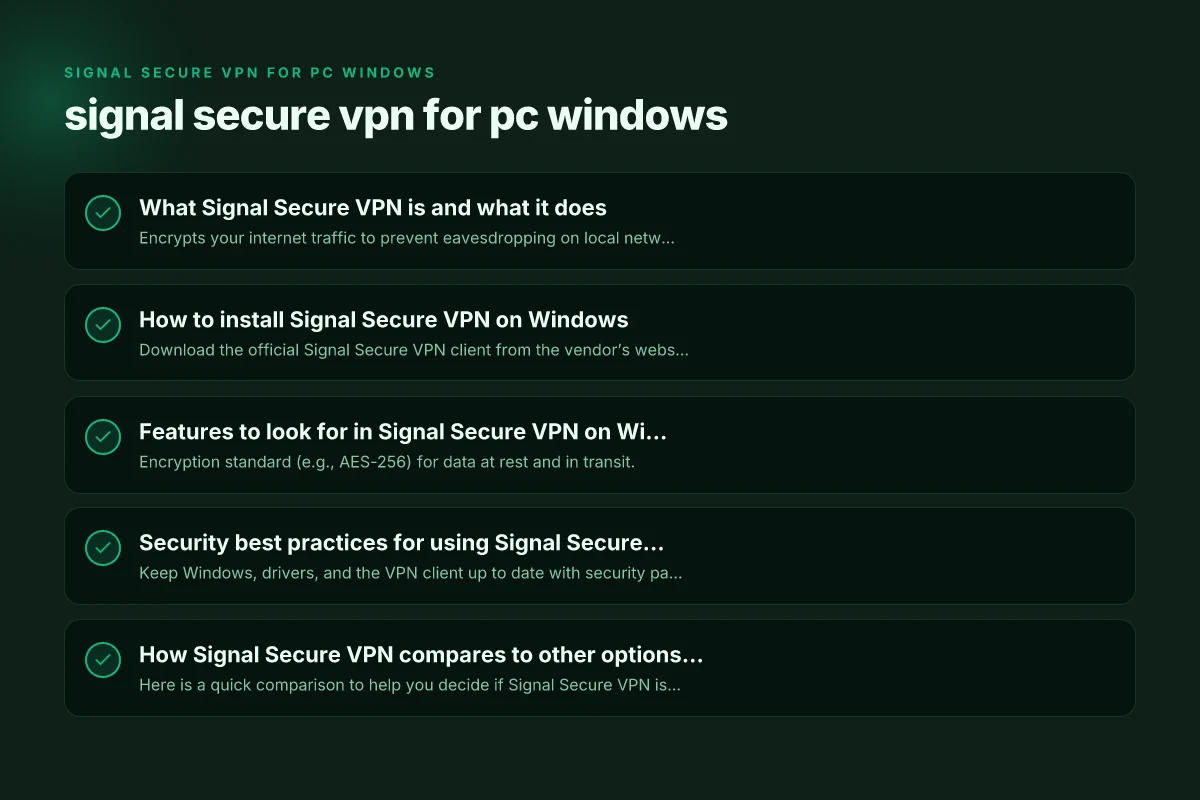
What Signal Secure VPN is and what it does
What you get with Signal Secure VPN
- Encrypts your internet traffic to prevent eavesdropping on local networks.
- Masks your real IP address, helping you appear to be browsing from a different location.
- Provides a control panel or app on Windows for server selection and connection management.
- Helps bypass certain regional restrictions and content filters when used responsibly.
- Often includes kill switch and DNS leak protection options.
What Signal Secure VPN does not guarantee
- It does not make you anonymous to all services. Websites may still track you via login accounts and other identifiers.
- It cannot outrun the security flaws of other software on your PC if you ignore updates.
- It does not automatically protect against malware, phishing, or unsafe downloads.
How to install Signal Secure VPN on Windows
Step-by-step setup
- Download the official Signal Secure VPN client from the vendor’s website or the Windows Store, ensuring you’re getting the legitimate version.
- Run the installer and follow the on-screen prompts to grant necessary permissions.
- Sign in with your account credentials or create a new account if required.
- Open the app and choose a server location, then click Connect.
- Verify the VPN status icon in the taskbar is active and check a test site to confirm your IP address changed.
Common post-install checks
- Ensure the VPN is set to start automatically with Windows if you want persistent protection.
- Check that the DNS settings reflect the VPN’s DNS servers to minimize leaks.
- Confirm that the kill switch is enabled if you’re using sensitive networks.
Features to look for in Signal Secure VPN on Windows
Core security features
- Encryption standard (e.g., AES-256) for data at rest and in transit.
- Protocol support (OpenVPN, WireGuard, or proprietary protocols) and speed vs. security trade-offs.
- Kill switch to block traffic if the VPN drops.
- DNS leak protection to prevent exposing your real DNS queries.
- Automatic reconnect and startup options.
Privacy and usability features
- Server network size and distribution (countries offered, latency).
- Split tunneling to choose which apps go through the VPN.
- Obfuscation or stealth modes for restrictive networks (where available).
- Multi-device support and simultaneous connections.
Performance considerations
- Server load indicators and recommended fastest servers.
- Bandwidth limits or throttling policies, if any.
- Client resource usage on Windows (CPU/RAM impact).
Security best practices for using Signal Secure VPN on Windows
General hygiene
- Keep Windows, drivers, and the VPN client up to date with security patches.
- Use strong, unique passwords and enable two-factor authentication where possible.
- Regularly review connected devices and active sessions in your VPN account.
Network hygiene
- Prefer VPN servers geographically near you for better speeds, unless you have a specific location requirement.
- Use the VPN on trusted networks (home or office) as your baseline, and enable VPN on public Wi-Fi.
- Turn on kill switch and DNS leak protection to prevent leaks during disconnects.
Privacy-conscious usage
- Avoid logging into sensitive accounts while using public networks without VPN protection.
- Be mindful of browser fingerprinting and online trackers. Consider additional privacy tools if needed.
- Review data retention policies of Signal Secure VPN to understand what is stored and for how long.
How Signal Secure VPN compares to other options for Windows
Here is a quick comparison to help you decide if Signal Secure VPN is right for you. (Note: values are general tendencies. Check current vendor details.)
| Feature | Signal Secure VPN | Competitor A | Competitor B |
|---|---|---|---|
| Encryption | AES-256 | AES-256 | ChaCha20-Poly1305 |
| Protocols | OpenVPN, WireGuard (typical) | OpenVPN, IPSec | WireGuard only |
| Kill switch | Yes | Optional | Yes |
| DNS leak protection | Yes | Yes | No |
| Split tunneling | Available | Available | Not always |
| Server network | Moderate to wide | Very wide | Wide |
| Windows resource use | Moderate | Low to moderate | Moderate |
| Price | Competitive | Usually higher | Varies |
Tips:
- A larger server network can offer more options for circumventing geo-restrictions and faster speeds, but it may come with higher maintenance and variable performance.
- Some competitors emphasize simplicity and light resource usage, which may matter on older PCs.
Troubleshooting common issues on Windows
VPN won’t connect
- Check your internet connection without the VPN to rule out network issues.
- Verify login credentials and server address.
- Restart the VPN client or reboot your PC.
- Disable other VPNs or proxy settings that might conflict.
- Ensure firewall software isn’t blocking the VPN.
IP address not changing
- Confirm you’re connected to the VPN, and the server location is active.
- Clear browser cache or try a different site to check IP.
- Check for DNS leaks using an online tool. Adjust DNS settings if necessary.
Slower speeds
- Try a server closer to your location.
- Switch protocols (for example, from UDP to TCP if available) or try WireGuard if OpenVPN is in use.
- Close bandwidth-heavy apps and limit other device usage on the network.
Best practices for long-term use
Security posture
- Use the latest Signal Secure VPN version and keep Windows updated.
- Combine VPN use with endpoint security software, firewall rules, and safe browsing habits.
- Periodically review VPN server selections to avoid overused or compromised nodes.
Privacy posture
- Consider a separate, privacy-respecting browser and search engine.
- Regularly audit connected apps and permissions in your Windows account.
- If you handle sensitive data, rotate credentials and use dedicated devices for sensitive sessions.
Final section: Recommendation If your goal is to improve privacy and secure your Windows PC on networks you don’t control, Signal Secure VPN can be a solid choice, provided you configure it thoughtfully. Start by enabling essential protections: DNS leak protection, a kill switch, and automatic startup. Choose servers with low latency and trusted jurisdictions, and keep your system and VPN client up to date. For best results, pair Signal Secure VPN with good online hygiene, a reputable antivirus or endpoint security suite, and mindful browsing habits. If you need very specific features (for example, a larger server network, advanced obfuscation, or more granular split tunneling), compare Signal Secure VPN against a few well-known alternatives in your region to ensure the combination of features and performance matches your needs.
| VPN | Obfuscation | From / month | Plan | Free plan | Refund | Alipay | UnionPay | Crypto | Website opens in China | Trustpilot | |
|---|---|---|---|---|---|---|---|---|---|---|---|
 ZoogVPN | Turn on manually Shadow | $2.49/mo | 27 months: $59.99 | Yes | 7 days | ✓ | ✓ | ✓ | ✓ | Official site blocked; our special link opens (4.4 s) | 4.2/5 (195 reviews) |
 NordVPN | Turn on manually Obfuscated Servers / NordWhisper | $3.49/mo | 27 months: $94.23 | No | 30 days | ? | ✗ | ✓ | ✓ | ✗ Blocked | 4.2/5 (51,628 reviews) |
 ExpressVPN | ✓ On by default all servers | $3.00/mo | 28 months: $84 | No | 30 days | ✗ | ✗ | ✓ | ✗ | ✗ Blocked | 4.4/5 (29,706 reviews) |
 Surfshark | ✓ On by default Camouflage, with OpenVPN | See site | See site | No | 30 days | ✗ | ✗ | ✗ | ✓ | ✗ Blocked | 4.3/5 (31,823 reviews) |
 Proton VPN | Turn on manually Stealth, free plan too | $2.99/mo | 12 months: $35.88 | Yes | 30 days | ✗ | ✗ | ✗ | ✓ | ✗ Blocked | 2.1/5 (1,040 reviews) |
 Astrill VPN | Turn on manually StealthVPN / OpenWeb | $12.50/mo | 24 months: $300 | No | See site | ✗ | ✗ | ✗ | ✓ | ✗ Blocked | 1.3/5 (110 reviews) |
 Private Internet Access | Turn on manually Shadowsocks, OpenVPN only | $2.03/mo | 40 months: $81.2 | No | 30 days | ✗ | ✗ | ✗ | ✗ | ✗ Blocked | 4.2/5 (11,033 reviews) |
 CyberGhost | Turn on manually selected servers | $2.19/mo | 28 months: $61.32 | No | 45 days | ✗ | ✗ | ✗ | ✓ | ✗ Blocked | 4.0/5 (24,178 reviews) |
 PureVPN | Turn on manually switch to OpenVPN | $1.69/mo | 60 months: $101.55 | No | 31 days | ? | ? | ✗ | ✓ | ✗ Blocked | 4.4/5 (17,994 reviews) |
 AdGuard VPN | ✓ On by default TrustTunnel | $2.99/mo | 24 months: $71.76 | Yes | 30 days | ✓ | ✗ | ✓ | ✓ | Official site blocked; our special link opens (3.7 s) | 4.3/5 (290 reviews) |
 Mullvad | Turn on manually QUIC / Shadowsocks / LWO | $5.61/mo | €5/mo | No | 14 days | ✗ | ✗ | ✗ | ✓ | ✗ Blocked | 3.2/5 (192 reviews) |
 Windscribe | Turn on manually Stealth / WStunnel | $5.75/mo | 12 months: $69 | Yes | See site | ✗ | ✗ | ✗ | ✓ | ✗ Blocked | 4.7/5 (13,355 reviews) |
 StrongVPN | Turn on manually Scramble, OpenVPN TCP | See site | See site | No | 30 days | ✓ | ✗ | ✗ | ✗ | ✗ Blocked | 4.4/5 (2,695 reviews) |
 LightXtreme 闪连 | Not listed | $7.08/mo | 12 months: $84.99 | Yes | 30 days | ✓ | ✓ | ✓ | ✓ | ✓ Yes (3.5 s) | No page |
Prices checked 2026-11-10 on each vendor's pricing page (cheapest long plan, USD). Check the vendor's checkout for the final price.
Obfuscation checked 2026-11-14 on each vendor's site and help center: "on by default" = nothing to set; "turn on manually" = switch protocol or mode in settings; "not listed" = the vendor describes no obfuscation.
Payment methods checked 2026-11-10 on each vendor's payment pages: all 14 take cards and PayPal; ✗ = not listed, ? = the vendor's own pages disagree.
China access: whether the official website opens from mainland China networks (tests the website only, not the VPN connection). Last checked 2026-11-18 01:02 Beijing time.
Trustpilot score and review count checked 2026-11-10.