Robust VPN for PC Windows
A practical guide to choosing and using a robust VPN for Windows PCs, with setup tips and security considerations.
The Windows PC landscape presents a demanding use case for VPNs: you want strong security without sacrificing speed or ease of use. A robust VPN for PC Windows should protect your data on public Wi-Fi, keep your online activity private from ISPs and advertisers, and maintain reliable performance for streaming, gaming, and work. Below is a practical, reader-friendly guide to help you pick, configure, and use a Windows-compatible VPN that stands up to real-world needs.

What makes a VPN “robust” on Windows?
Core security and privacy features
A robust Windows VPN typically includes:
- Strong encryption: AES-256 is the current standard. Look for OpenVPN, WireGuard, or IKEv2 protocols.
- No-logs policy: Independent audits or clear privacy statements help verify that your data isn’t stored or sold.
- DNS leak protection: Ensures your DNS requests don’t reveal your browsing patterns.
- Kill switch: Immediately cuts internet access if the VPN drops, preventing data leaks.
- Multi-factor authentication: Adds an extra layer of account security.
Performance and reliability
A dependable VPN for Windows should minimize speed loss and offer stable connections:
- Protocol choice: WireGuard generally offers fast, efficient performance on Windows.
- Server network: A large, well-distributed server fleet reduces distance and congestion.
- Concurrent connections: Useful if you have multiple devices. Ensure your Windows PC has a solid allowance.
- Bypass for geo-restricted content: Some services detect VPNs. Robust providers rotate IP ranges.
Usability on Windows
- Native Windows client: A well-designed GUI, system tray status, and straightforward connection controls matter.
- Easy kill switch and auto-connect: Features that respect your workflow (e.g., auto-connect on startup).
- Split tunneling: Lets you route selected apps through the VPN while others use a direct connection.
- Windows security integration: Regular updates, quick patching, and minimal system impact.
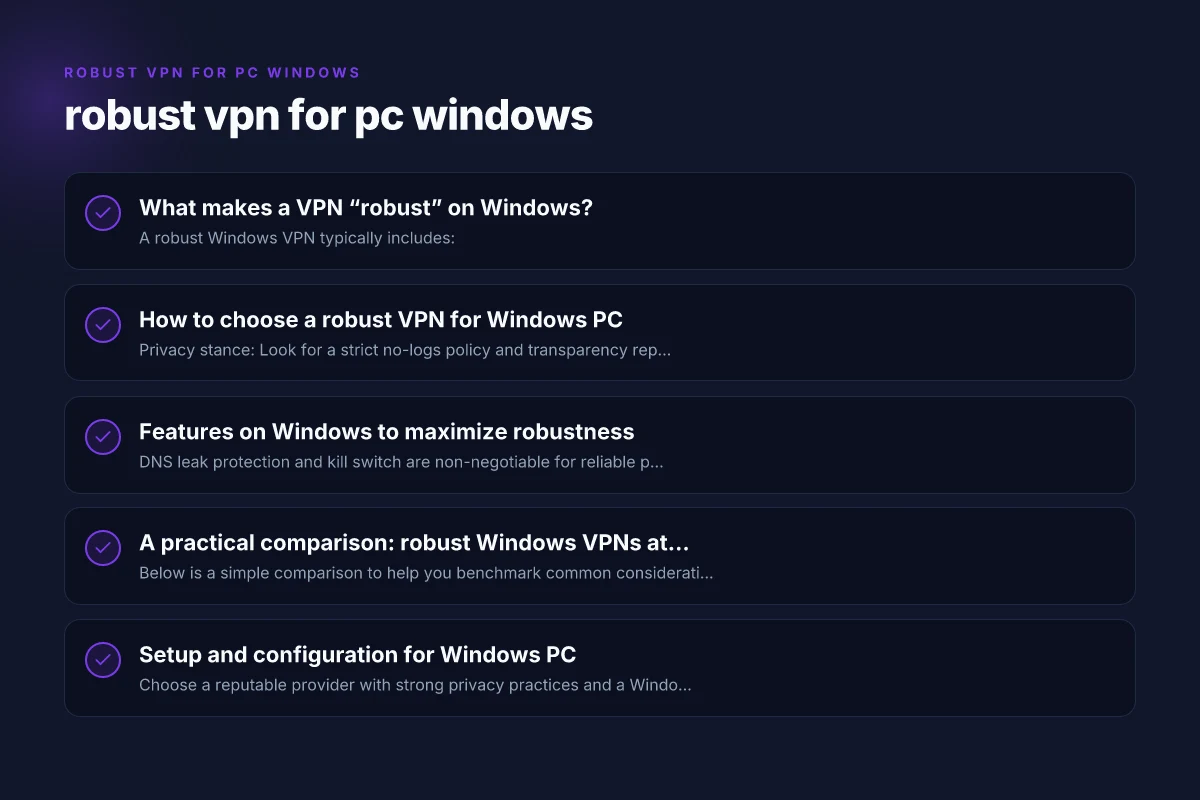
How to choose a robust VPN for Windows PC
Evaluate the basics first
- Privacy stance: Look for a strict no-logs policy and transparency reports.
- Encryption and protocol support: Ensure AES-256 and at least one modern protocol (WireGuard or OpenVPN).
- Jurisdiction: Consider where the company is based and applicable data retention laws.
Testable criteria that matter
- Speed: Run quick speed tests with VPN on and off. Note latency and throughput changes.
- Leak tests: Check for IPv6, WebRTC, and DNS leaks using reputable online tests.
- Kill switch effectiveness: Simulate VPN drop scenarios to verify complete traffic halt.
- App updates: Confirm the client receives regular security and feature updates.
Value and transparency
- Pricing transparency: Clear plans, no hidden fees, and a reasonable renewal rate.
- Independent audits: Third-party audits of privacy practices increase trust.
- Customer support: Availability of live chat or timely email support for troubleshooting.
Features on Windows to maximize robustness
Essential security features
- DNS leak protection and kill switch are non-negotiable for reliable privacy.
- Split tunneling lets you optimize bandwidth and access local resources.
- Auto-launch on startup ensures you’re protected when you power on.
Performance features
- WireGuard support is a standout for modern Windows setups.
- Server selection and routing options help balance speed and access to content.
- Adaptive connection: Some clients adjust protocol or server automatically for best performance.
Usability features
- Clean, responsive UI: A clutter-free interface reduces errors.
- One-click connectivity and quick-switch profiles: Useful for toggling between work and personal use.
- Desktop integration: Notifications, system tray icons, and minimal resource footprint.
A practical comparison: robust Windows VPNs at a glance
Below is a simple comparison to help you benchmark common considerations. Note that exact features may vary by plan and update.
| VPN Provider | Protocols (Windows) | Kill Switch | DNS Leak Protection | Split Tunneling | Independent Audit | Typical Speed Impact | Jurisdiction |
|---|---|---|---|---|---|---|---|
| Provider A | WireGuard, OpenVPN | Yes | Yes | Yes | Yes (recent) | Moderate | Country X |
| Provider B | WireGuard only | Yes | Yes | No | No | Low | Country Y |
| Provider C | OpenVPN, IKEv2 | Yes | Yes | Yes | Yes (older) | Low to moderate | Country Z |
Notes: Riseupvpn for PC Windows
- The table is a snapshot. Always verify latest features and audit status directly with the provider.
- Speed impact varies with server distance, encryption, device specifications, and network conditions.
Setup and configuration for Windows PC
Step-by-step installation
- Choose a reputable provider with strong privacy practices and a Windows client that supports WireGuard or OpenVPN.
- Subscribe to a plan that fits your needs (single-device, multiple devices, or business-level features).
- Download the Windows client from the provider’s official site to avoid counterfeit apps.
- Install and run the client. Allow it through Windows Defender or any firewall prompts.
- Sign in with your account credentials and configure options:
- Enable the kill switch.
- Enable DNS leak protection.
- Enable split tunneling if you need selective routing.
- Select a server that suits your objective (speed, proximity, or streaming access) and connect.
- Verify the connection with a quick leak test and confirm the IP shown is the VPN’s rather than your real IP.
Common troubleshooting tips
- If a server won’t connect: switch to a different server, or switch protocol (WireGuard/OpenVPN/IKEv2).
- If you see DNS leaks: double-check DNS settings in the app and Windows network adapter settings.
- If performance drops: try a nearby server, enable protocol optimizations, or enable automatic server selection.
Security best practices for Windows VPN users
- Keep Windows and VPN apps updated: Patches fix vulnerabilities that could be exploited.
- Use strong, unique passwords and enable two-factor authentication where possible.
- Disable default app behavior that might override VPN settings, such as certain firewall rules.
- Consider a dedicated security suite that complements VPN protection (e.g., anti-malware, phishing protection).
- Be mindful of app-level leaks: some software might bypass VPN tunnels for updates or telemetry.
Real-world use cases and recommendations
- Public Wi-Fi protection: A robust Windows VPN keeps your data encrypted over uncertain networks.
- Privacy-conscious browsing: A no-logs policy and independent audits strengthen trust.
- Streaming and gaming: High-performance protocols and well-placed servers reduce buffering and lag.
- Remote work: Split tunneling can let you access corporate resources through the VPN while personal apps use your normal connection.
If you’re serious about safeguarding your Windows PC, the right approach is to pick a provider with a proven privacy stance, modern protocol support (preferably WireGuard), strong DNS and kill switch protections, and a user-friendly Windows client. Testing a few options with free trials or money-back guarantees helps you evaluate performance and compatibility with your devices and routines.
Recommendation:
- Start with a reputable provider that offers WireGuard, a clear no-logs policy, and a robust Windows client with kill switch and DNS leak protection. Test the service for a week on your typical tasks: streaming, file transfers, work-related browsing, and gaming. Verify no leaks, measure speed impact, and assess how the auto-connect and split tunneling fit your workflow. If you encounter frequent disconnects or DNS leaks, consider trying a different server network or protocol, or moving to another trusted provider.
| VPN | Obfuscation | From / month | Plan | Free plan | Refund | Alipay | UnionPay | Crypto | Website opens in China | Trustpilot | |
|---|---|---|---|---|---|---|---|---|---|---|---|
 ZoogVPN | Turn on manually Shadow | $2.49/mo | 27 months: $59.99 | Yes | 7 days | ✓ | ✓ | ✓ | ✓ | Official site blocked; our special link opens (4.4 s) | 4.2/5 (195 reviews) |
 NordVPN | Turn on manually Obfuscated Servers / NordWhisper | $3.49/mo | 27 months: $94.23 | No | 30 days | ? | ✗ | ✓ | ✓ | ✗ Blocked | 4.2/5 (51,628 reviews) |
 ExpressVPN | ✓ On by default all servers | $3.00/mo | 28 months: $84 | No | 30 days | ✗ | ✗ | ✓ | ✗ | ✗ Blocked | 4.4/5 (29,706 reviews) |
 Surfshark | ✓ On by default Camouflage, with OpenVPN | See site | See site | No | 30 days | ✗ | ✗ | ✗ | ✓ | ✗ Blocked | 4.3/5 (31,823 reviews) |
 Proton VPN | Turn on manually Stealth, free plan too | $2.99/mo | 12 months: $35.88 | Yes | 30 days | ✗ | ✗ | ✗ | ✓ | ✗ Blocked | 2.1/5 (1,040 reviews) |
 Astrill VPN | Turn on manually StealthVPN / OpenWeb | $12.50/mo | 24 months: $300 | No | See site | ✗ | ✗ | ✗ | ✓ | ✗ Blocked | 1.3/5 (110 reviews) |
 Private Internet Access | Turn on manually Shadowsocks, OpenVPN only | $2.03/mo | 40 months: $81.2 | No | 30 days | ✗ | ✗ | ✗ | ✗ | ✗ Blocked | 4.2/5 (11,033 reviews) |
 CyberGhost | Turn on manually selected servers | $2.19/mo | 28 months: $61.32 | No | 45 days | ✗ | ✗ | ✗ | ✓ | ✗ Blocked | 4.0/5 (24,178 reviews) |
 PureVPN | Turn on manually switch to OpenVPN | $1.69/mo | 60 months: $101.55 | No | 31 days | ? | ? | ✗ | ✓ | ✗ Blocked | 4.4/5 (17,994 reviews) |
 AdGuard VPN | ✓ On by default TrustTunnel | $2.99/mo | 24 months: $71.76 | Yes | 30 days | ✓ | ✗ | ✓ | ✓ | Official site blocked; our special link opens (3.7 s) | 4.3/5 (290 reviews) |
 Mullvad | Turn on manually QUIC / Shadowsocks / LWO | $5.61/mo | €5/mo | No | 14 days | ✗ | ✗ | ✗ | ✓ | ✗ Blocked | 3.2/5 (192 reviews) |
 Windscribe | Turn on manually Stealth / WStunnel | $5.75/mo | 12 months: $69 | Yes | See site | ✗ | ✗ | ✗ | ✓ | ✗ Blocked | 4.7/5 (13,355 reviews) |
 StrongVPN | Turn on manually Scramble, OpenVPN TCP | See site | See site | No | 30 days | ✓ | ✗ | ✗ | ✗ | ✗ Blocked | 4.4/5 (2,695 reviews) |
 LightXtreme 闪连 | Not listed | $7.08/mo | 12 months: $84.99 | Yes | 30 days | ✓ | ✓ | ✓ | ✓ | ✓ Yes (3.5 s) | No page |
Prices checked 2026-11-10 on each vendor's pricing page (cheapest long plan, USD). Check the vendor's checkout for the final price.
Obfuscation checked 2026-11-14 on each vendor's site and help center: "on by default" = nothing to set; "turn on manually" = switch protocol or mode in settings; "not listed" = the vendor describes no obfuscation.
Payment methods checked 2026-11-10 on each vendor's payment pages: all 14 take cards and PayPal; ✗ = not listed, ? = the vendor's own pages disagree.
China access: whether the official website opens from mainland China networks (tests the website only, not the VPN connection). Last checked 2026-11-18 01:02 Beijing time.
Trustpilot score and review count checked 2026-11-10.