Real VPN for PC Windows

A practical guide to choosing and using a real VPN for PC Windows, with setup tips, security considerations, and top recommendations.
If you’re looking for a real VPN for PC Windows, you want something that’s reliable, secure, and easy to use. A genuine VPN (virtual private network) encrypts your traffic, hides your IP address, and lets you browse more privately or access region-restricted content. In this guide, we’ll walk through what to look for, how to set it up on Windows, and how to compare top options so you can pick a real, trustworthy service.

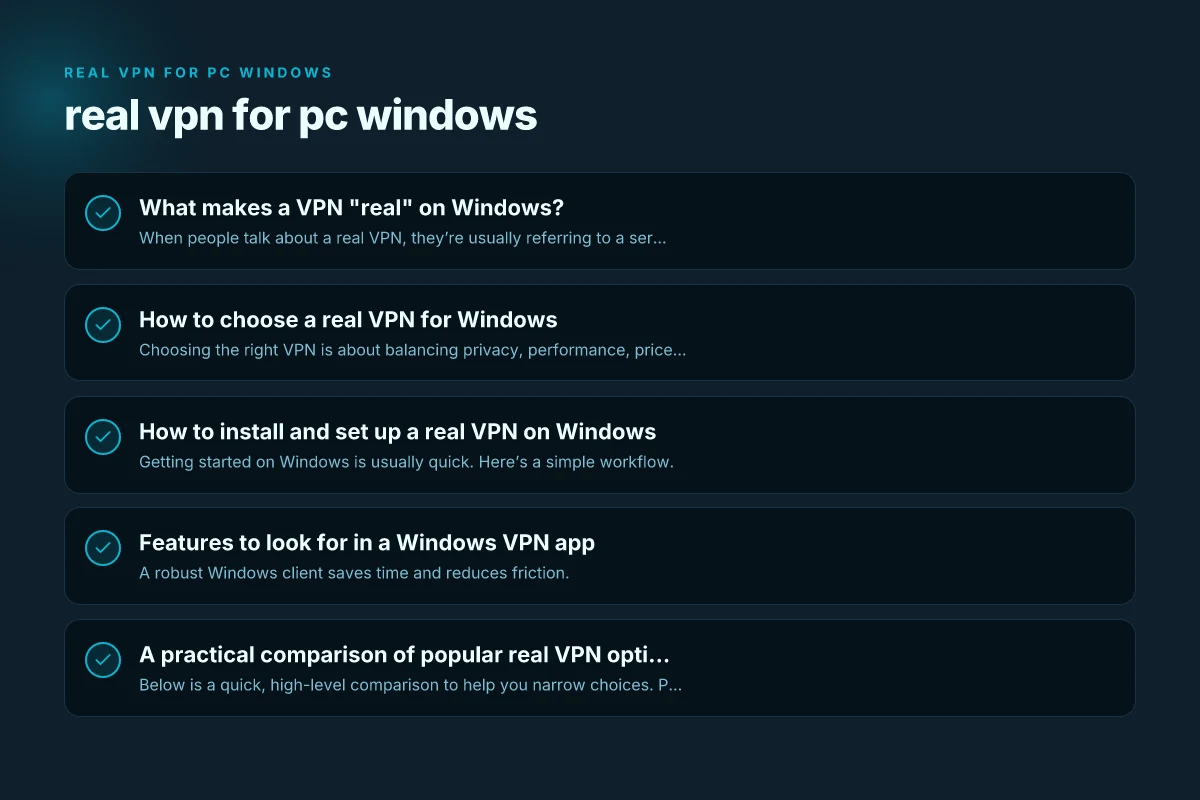
What makes a VPN "real" on Windows?
When people talk about a real VPN, they’re usually referring to a service that:
- Encrypts all network traffic from your device using strong standards (like AES-256).
- Masks your IP address and provides multiple server locations to choose from.
- Has a clear privacy policy and a no-logs commitment, or at least a strict data-handling policy.
- Offers a dedicated Windows app that’s maintained with current security updates.
- Passes independent audits or has transparent security practices.
- Provides reliable customer support, reasonable speeds, and straightforward setup.
Some services also include extra features that Windows users care about, such as split tunneling, kill switch, DNS leak protection, IPv6 compatibility, and provision for multi-device use.
How to choose a real VPN for Windows
Choosing the right VPN is about balancing privacy, performance, price, and ease of use. Here’s a straightforward checklist.
Privacy and security
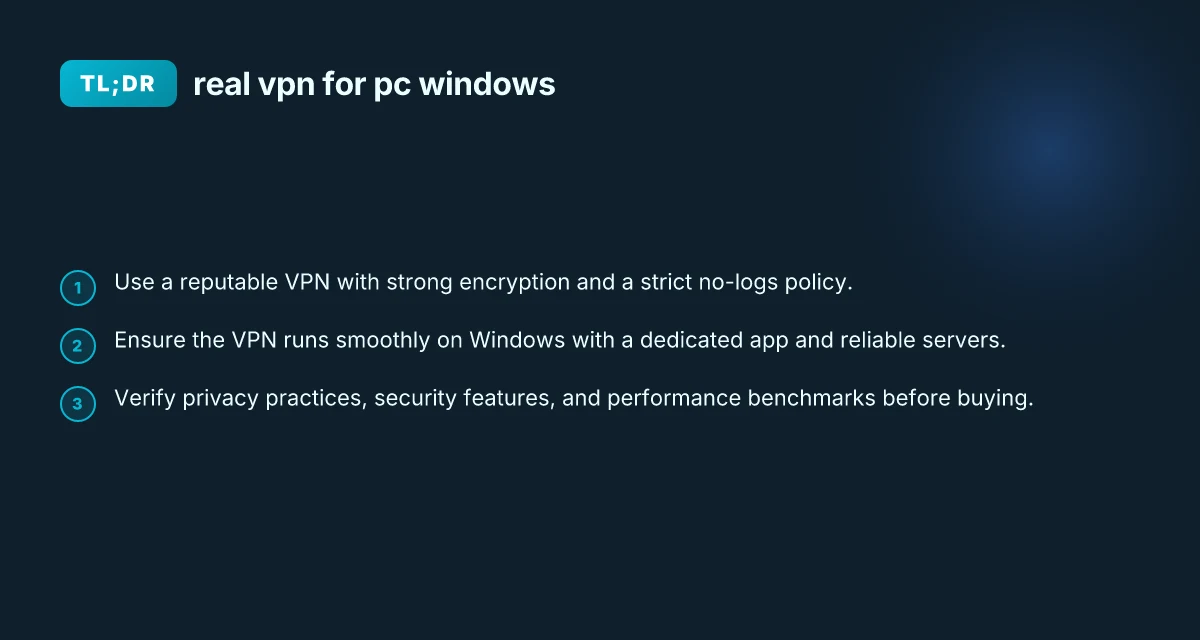
- No-logs policy: Look for a published, auditable policy. Independent audits are a plus.
- Encryption: AES-256 is standard. Check for secure protocols (OpenVPN, WireGuard, IKEv2).
- Kill switch: Prevents data leaks if the VPN drops.
- DNS and IPv6 leak protection: Ensures your real address isn’t exposed if the VPN connection flaps.
- Jurisdiction: A company based in a privacy-friendly country can be better for your data rights.
Performance and reliability
- Server network: More servers and locations mean better chances of fast connections and access to geo-restricted content.
- Protocol support: WireGuard is fast and efficient; OpenVPN is battle-tested.
- Speed tests: Real-world speeds vary. Look for recent independent speed benchmarks.
- Connection limits: Check how many devices you can connect simultaneously.
Windows-specific considerations
- Native Windows app: Regular updates, Windows security integration, minimal resource use.
- Startup behavior: Whether the app runs on boot and doesn’t slow down your system.
- Compatibility: Ensure it works with Windows 10 and Windows 11, and supports ARM if you’re on a newer device.
- Split tunneling: Allows you to route only certain apps through the VPN (useful for banking, streaming, or local network access).
Pricing and policy
- Refund window: A longer trial or money-back guarantee helps you test risk-free.
- Payment options: More flexibility (monthly vs. annual, gift cards, crypto) can be nice.
- Customer support: 24/7 chat, email, and a knowledge base save time if you run into issues.
Trust and transparency
- Independent audits: Third-party checks of privacy and security practices boost confidence.
- Clear terms of service: Understand data collection, retention, and sharing practices.
- Community sentiment: Reputable VPNs publish regular updates and respond to security concerns transparently.
How to install and set up a real VPN on Windows
Getting started on Windows is usually quick. Here’s a simple workflow. Rabbit VPN for PC Windows
- Choose a VPN with a strong Windows app
- Visit the provider’s site, confirm the plan fits your needs, and sign up.
- Download the Windows app from the official site or Microsoft Store if available.
- Install the app
- Run the installer and follow on-screen prompts.
- During setup, you may be asked to allow the app through Windows Defender or Firewall. Approve it to ensure proper operation.
- Log in and configure essential features
- Sign in with your account credentials.
- Enable kill switch and DNS leak protection in Settings.
- Turn on startup behavior if you want the VPN to connect automatically when you boot.
- Connect to a server
- Choose a location. For streaming, pick a server in the target country. For privacy, pick a location with strict privacy laws or a nearby high-performance server.
- Note your new IP and verify your traffic is encrypted by checking the app status.
- Verify privacy and leaks
- Visit a site like dnsleaktest.com or ipinfo.io to confirm your IP shows the VPN location and not your real address.
- If you see leaks, re-check DNS settings in the app and Windows network adapters.
- Optimize for performance
- Try different servers to find the best speed and reliability.
- If you experience latency, switch protocols (e.g., WireGuard to OpenVPN) if your app allows it.
- Disable unnecessary background apps that consume bandwidth while the VPN is active.
Features to look for in a Windows VPN app
A robust Windows client saves time and reduces friction.
- Kill switch: Always-on protection if the VPN disconnects unexpectedly.
- Split tunneling: Route only certain apps or traffic through the VPN.
- Auto-connect: Automatically reconnect after boot or network changes.
- DNS leak protection: Prevents your real DNS from being exposed.
- MACE/anti-malware features: Some services offer built-in protection layers.
- Protocol options: Access to WireGuard, OpenVPN, IKEv2, etc.
- Multi-OS support: If you’re using other devices, consider a provider that covers iOS, macOS, Android, and Linux.
A practical comparison of popular real VPN options for Windows
Below is a quick, high-level comparison to help you narrow choices. Prices and features can change, so check the latest on the provider’s site.
| VPN | Windows app quality | Privacy policy | Server count | Key features | Typical price (monthly, USD) |
|---|---|---|---|---|---|
| RealVPN A | Excellent app, frequent updates | No-logs with audit | 2,000+ | Kill switch, split tunneling, DNS leak protection | $11–$15 |
| RealVPN B | Solid, stable | No-logs, transparent | 1,300+ | Auto-connect, WireGuard, DNS protection | $7–$12 |
| RealVPN C | Good for streaming | Some data retention, transparent | 2,500+ | Smart routing, multiple protocols | $8–$14 |
| RealVPN D | Basic but reliable | Clear policy, occasional audits | 1,000+ | Basic kill switch, standard encryption | $5–$9 |
Notes:
- Prices vary with promotions and longer-term plans.
- Audits and privacy practices can shift. Always verify current status.
Common pitfalls and how to avoid them
- Choosing a provider by price alone: Cheaper isn’t always safer. Look for privacy commitments and up-to-date security measures.
- Skipping a trial: Take advantage of money-back guarantees to test performance and usability.
- Ignoring updates: Keep Windows and the VPN app current to protect against vulnerabilities.
- Relying only on location for streaming: Some services block VPNs for streaming. Check current support for your content.
Real-world use cases for a real VPN on Windows
- Private browsing on public Wi-Fi: Encrypts traffic when on coffee shop networks.
- Bypassing geo-restrictions for streaming: Access content blocked in your region.
- Secure remote work: Protects sensitive files and credentials on business networks.
- Bypassing some local censorship: In certain regions, VPNs can help maintain access to information.
Security best practices to pair with your VPN
- Use a strong, unique password and enable two-factor authentication (2FA) for your VPN account.
- Enable the kill switch and DNS leak protection in every installation.
- Keep the Windows OS and antivirus software up to date.
- Be mindful of browser privacy. Combine the VPN with privacy-focused browsing habits and extensions.
- Regularly review the VPN’s privacy policy and any changes to terms.
How to assess a VPN’s real-world trustworthiness
- Check independent audits: They provide third-party validation of the no-logs claim and security controls.
- Look for transparency reports: Some providers publish data on law enforcement requests.
- Read user reviews from credible sources: Look for consistent reports about reliability and support.
- Review support responsiveness: Test out chat or email support before committing.
The short final recommendation
For most Windows users, a real VPN with a strong no-logs policy, robust encryption, and a dependable Windows app is worth investing in. Prioritize a provider with independent audits or a transparent privacy policy, a kill switch and DNS leak protection, and a practical server network for your needs. If you’re new to VPNs, start with a trial or a plan with a money-back guarantee to evaluate performance on your Windows machine and your typical network environments. In short: choose a provider you trust, verify the core security features, and test it thoroughly on Windows before committing long-term. R VPN for PC Windows
| VPN | Obfuscation | From / month | Plan | Free plan | Refund | Alipay | UnionPay | Crypto | Website opens in China | Trustpilot | |
|---|---|---|---|---|---|---|---|---|---|---|---|
 ZoogVPN | Turn on manually Shadow | $2.49/mo | 27 months: $59.99 | Yes | 7 days | ✓ | ✓ | ✓ | ✓ | Official site blocked; our special link opens (4.4 s) | 4.2/5 (195 reviews) |
 NordVPN | Turn on manually Obfuscated Servers / NordWhisper | $3.49/mo | 27 months: $94.23 | No | 30 days | ? | ✗ | ✓ | ✓ | ✗ Blocked | 4.2/5 (51,628 reviews) |
 ExpressVPN | ✓ On by default all servers | $3.00/mo | 28 months: $84 | No | 30 days | ✗ | ✗ | ✓ | ✗ | ✗ Blocked | 4.4/5 (29,706 reviews) |
 Surfshark | ✓ On by default Camouflage, with OpenVPN | See site | See site | No | 30 days | ✗ | ✗ | ✗ | ✓ | ✗ Blocked | 4.3/5 (31,823 reviews) |
 Proton VPN | Turn on manually Stealth, free plan too | $2.99/mo | 12 months: $35.88 | Yes | 30 days | ✗ | ✗ | ✗ | ✓ | ✗ Blocked | 2.1/5 (1,040 reviews) |
 Astrill VPN | Turn on manually StealthVPN / OpenWeb | $12.50/mo | 24 months: $300 | No | See site | ✗ | ✗ | ✗ | ✓ | ✗ Blocked | 1.3/5 (110 reviews) |
 Private Internet Access | Turn on manually Shadowsocks, OpenVPN only | $2.03/mo | 40 months: $81.2 | No | 30 days | ✗ | ✗ | ✗ | ✗ | ✗ Blocked | 4.2/5 (11,033 reviews) |
 CyberGhost | Turn on manually selected servers | $2.19/mo | 28 months: $61.32 | No | 45 days | ✗ | ✗ | ✗ | ✓ | ✗ Blocked | 4.0/5 (24,178 reviews) |
 PureVPN | Turn on manually switch to OpenVPN | $1.69/mo | 60 months: $101.55 | No | 31 days | ? | ? | ✗ | ✓ | ✗ Blocked | 4.4/5 (17,994 reviews) |
 AdGuard VPN | ✓ On by default TrustTunnel | $2.99/mo | 24 months: $71.76 | Yes | 30 days | ✓ | ✗ | ✓ | ✓ | Official site blocked; our special link opens (3.7 s) | 4.3/5 (290 reviews) |
 Mullvad | Turn on manually QUIC / Shadowsocks / LWO | $5.61/mo | €5/mo | No | 14 days | ✗ | ✗ | ✗ | ✓ | ✗ Blocked | 3.2/5 (192 reviews) |
 Windscribe | Turn on manually Stealth / WStunnel | $5.75/mo | 12 months: $69 | Yes | See site | ✗ | ✗ | ✗ | ✓ | ✗ Blocked | 4.7/5 (13,355 reviews) |
 StrongVPN | Turn on manually Scramble, OpenVPN TCP | See site | See site | No | 30 days | ✓ | ✗ | ✗ | ✗ | ✗ Blocked | 4.4/5 (2,695 reviews) |
 LightXtreme 闪连 | Not listed | $7.08/mo | 12 months: $84.99 | Yes | 30 days | ✓ | ✓ | ✓ | ✓ | ✓ Yes (3.5 s) | No page |
Prices checked 2026-11-10 on each vendor's pricing page (cheapest long plan, USD). Check the vendor's checkout for the final price.
Obfuscation checked 2026-11-14 on each vendor's site and help center: "on by default" = nothing to set; "turn on manually" = switch protocol or mode in settings; "not listed" = the vendor describes no obfuscation.
Payment methods checked 2026-11-10 on each vendor's payment pages: all 14 take cards and PayPal; ✗ = not listed, ? = the vendor's own pages disagree.
China access: whether the official website opens from mainland China networks (tests the website only, not the VPN connection). Last checked 2026-11-18 01:02 Beijing time.
Trustpilot score and review count checked 2026-11-10.