One touch VPN for PC Windows
A practical guide to one touch VPN on Windows PCs, covering setup, reliability, and safety considerations.
One touch VPN for PC Windows is a concept many users search for when they want a fast, easy VPN experience. The idea is to connect quickly with a single tap or button, without fiddling with complex settings. In practice, “one touch” often means a simplified connection flow, a straightforward user interface, and sensible defaults. This article breaks down what to look for, how to set it up on Windows, and what to consider for security and performance.

What “one touch” means in the VPN world
Simplicity vs. control
- Pros: Fast connection, minimal clicks, beginner-friendly.
- Cons: Limited customization, fewer advanced options.
- Best for: Occasional secure browsing, streaming from home networks, quick remote access.
Typical user flow
- Open the VPN app.
- Click a big connect button labeled “Connect,” “One Tap,” or similar.
- Confirm if prompted, and you’re connected to a chosen server.
- Disconnect with one click when finished.
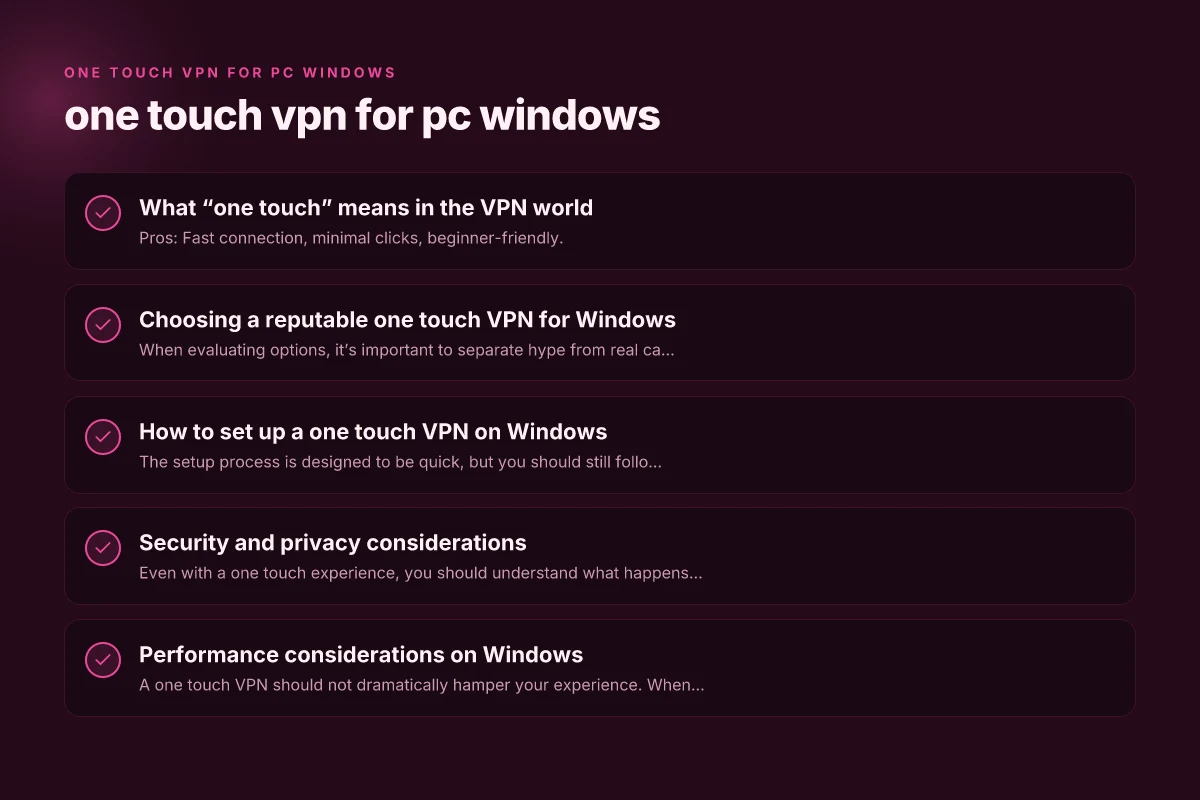
Choosing a reputable one touch VPN for Windows
When evaluating options, it’s important to separate hype from real capability. A truly good one touch VPN on Windows should offer a secure foundation, clear privacy practices, and reliable performance.
What to look for
- Encryption: At least AES-256 for data in transit.
- Protocols: OpenVPN, WireGuard, or IKEv2 for balance of speed and reliability.
- Kill switch: Prevents traffic leaks if the connection drops.
- DNS leak protection: Stops your DNS requests from leaking.
- No-logs policy: Independent verification is a plus.
- Windows compatibility: A native Windows app with a clear one-click experience.
- Regular updates: Active maintenance and prompt security patches.
Red flags
- Vague or unverifiable privacy terms.
- Frequent disconnects or inconsistent speed.
- Absence of a kill switch or DNS protection.
- Poor Windows UI/UX that undermines the “one touch” promise.
How to set up a one touch VPN on Windows
The setup process is designed to be quick, but you should still follow best practices.
Step-by-step guide
- Choose a reputable provider and download the Windows app from the official site or Microsoft Store.
- Install the app and grant any necessary permissions.
- Open the app and look for the primary “Connect” or “One Tap” button.
- If prompted, select a preferred server location.
- Connect. You should see status indicators confirming a secure tunnel.
- Optionally enable features like a kill switch and DNS protection in settings.
- When finished, click “Disconnect.”
Optional advanced settings
- Auto-connect on startup: Useful for always-on protection.
- Split tunneling: Sends only some traffic through the VPN, useful for streaming vs work apps (if supported).
- Protocol preferences: Some apps allow choosing WireGuard for speed or OpenVPN for compatibility.
Security and privacy considerations
Even with a one touch experience, you should understand what happens behind the scenes.
Privacy and logs
- Many one touch VPNs claim no-logs, but verify with independent audits or third-party endorsements when possible.
- Consider whether the service collects telemetry or usage data. Check the privacy policy.
Data protection
- Ensure end-to-end encryption is active and compatible with your Windows version.
- Enforce a kill switch and DNS leak protection to prevent leaks during switchovers or interruptions.
Trust and jurisdiction
- VPNs route your traffic through their servers, so the provider’s jurisdiction matters for data retention and legal access.
- If privacy is a major concern, look for providers with transparent governance and strong privacy commitments.
Performance considerations on Windows
A one touch VPN should not dramatically hamper your experience. When it does, you’ll notice. Olow VPN for PC Windows
Factors that affect speed
- Server location: Closer servers usually mean faster connections.
- Protocol: WireGuard often delivers lower latency and higher throughput.
- Server load: Overcrowded servers can slow you down.
- Local network: Your ISP, Wi-Fi strength, and hardware can limit performance.
How to optimize
- Connect to the nearest server or a server optimized for your use case (e.g., streaming).
- Choose WireGuard or IKEv2 if available for better speed.
- Enable auto-connect only on trusted networks to avoid unnecessary connections on public networks.
A quick comparison: one touch VPN for Windows vs traditional VPN apps
| Feature | One touch VPN for Windows | Traditional VPN app |
|---|---|---|
| Connection flow | Single button, minimal steps | May involve multiple screens and options |
| Tunneled protocol options | Often simplified to best default | Wide range of protocols and configurations |
| Security controls | Basic controls; kill switch may be optional | Comprehensive controls; deeper customization |
| Customization | Limited | High, including split tunneling and rules |
| Ease of use | Very high | Moderate to high, depending on UI |
| Ideal use case | Quick protection, streaming, travel | Power users, enterprise, specialized needs |
Common scenarios and recommended practices
- Streaming from home or abroad: Choose a server in your home region to minimize buffering. A one touch approach helps you switch quickly if a location isn’t optimal.
- Public Wi-Fi protection: Use auto-connect on unsecured networks, enable the kill switch, and DNS protection.
- Remote work: If you rely on a VPN for work resources, confirm split tunneling is compatible with your employer’s network policies, and ensure you have stable latency to the work server.
Troubleshooting quick hits
- Connection fails: Check your internet, verify server status, and ensure the app has required permissions in Windows.
- DNS leaks: Enable DNS protection in the app settings. Flush DNS on Windows if needed.
- Slow speeds: Switch to a closer server, try a different protocol, or temporarily disable firewall conflicts.
- Kill switch not engaging: Confirm the feature is enabled and test with a simulated disconnect.
The final recommendation
If your goal is easy, fast protection on Windows with minimal setup, a reputable one touch VPN for PC Windows can be a solid choice. Prioritize providers with strong privacy protections, clear no-logs statements, and robust security features such as kill switch and DNS leak protection. Look for native Windows apps that emphasize a single-button connect experience while offering essential controls for security. Always verify the provider’s reputation, server network, and transparency through independent audits or third-party endorsements. If privacy and control are important to you, you may prefer a service that balances one-tap simplicity with optional advanced settings rather than a completely locked-down, limited-feature experience. In short: choose a trusted brand, confirm essential protections, and test the one touch flow on your Windows PC to ensure it meets your needs.
| VPN | Obfuscation | From / month | Plan | Free plan | Refund | Alipay | UnionPay | Crypto | Website opens in China | Trustpilot | |
|---|---|---|---|---|---|---|---|---|---|---|---|
 ZoogVPN | Turn on manually Shadow | $2.49/mo | 27 months: $59.99 | Yes | 7 days | ✓ | ✓ | ✓ | ✓ | Official site blocked; our special link opens (4.4 s) | 4.2/5 (195 reviews) |
 NordVPN | Turn on manually Obfuscated Servers / NordWhisper | $3.49/mo | 27 months: $94.23 | No | 30 days | ? | ✗ | ✓ | ✓ | ✗ Blocked | 4.2/5 (51,628 reviews) |
 ExpressVPN | ✓ On by default all servers | $3.00/mo | 28 months: $84 | No | 30 days | ✗ | ✗ | ✓ | ✗ | ✗ Blocked | 4.4/5 (29,706 reviews) |
 Surfshark | ✓ On by default Camouflage, with OpenVPN | See site | See site | No | 30 days | ✗ | ✗ | ✗ | ✓ | ✗ Blocked | 4.3/5 (31,823 reviews) |
 Proton VPN | Turn on manually Stealth, free plan too | $2.99/mo | 12 months: $35.88 | Yes | 30 days | ✗ | ✗ | ✗ | ✓ | ✗ Blocked | 2.1/5 (1,040 reviews) |
 Astrill VPN | Turn on manually StealthVPN / OpenWeb | $12.50/mo | 24 months: $300 | No | See site | ✗ | ✗ | ✗ | ✓ | ✗ Blocked | 1.3/5 (110 reviews) |
 Private Internet Access | Turn on manually Shadowsocks, OpenVPN only | $2.03/mo | 40 months: $81.2 | No | 30 days | ✗ | ✗ | ✗ | ✗ | ✗ Blocked | 4.2/5 (11,033 reviews) |
 CyberGhost | Turn on manually selected servers | $2.19/mo | 28 months: $61.32 | No | 45 days | ✗ | ✗ | ✗ | ✓ | ✗ Blocked | 4.0/5 (24,178 reviews) |
 PureVPN | Turn on manually switch to OpenVPN | $1.69/mo | 60 months: $101.55 | No | 31 days | ? | ? | ✗ | ✓ | ✗ Blocked | 4.4/5 (17,994 reviews) |
 AdGuard VPN | ✓ On by default TrustTunnel | $2.99/mo | 24 months: $71.76 | Yes | 30 days | ✓ | ✗ | ✓ | ✓ | Official site blocked; our special link opens (3.7 s) | 4.3/5 (290 reviews) |
 Mullvad | Turn on manually QUIC / Shadowsocks / LWO | $5.61/mo | €5/mo | No | 14 days | ✗ | ✗ | ✗ | ✓ | ✗ Blocked | 3.2/5 (192 reviews) |
 Windscribe | Turn on manually Stealth / WStunnel | $5.75/mo | 12 months: $69 | Yes | See site | ✗ | ✗ | ✗ | ✓ | ✗ Blocked | 4.7/5 (13,355 reviews) |
 StrongVPN | Turn on manually Scramble, OpenVPN TCP | See site | See site | No | 30 days | ✓ | ✗ | ✗ | ✗ | ✗ Blocked | 4.4/5 (2,695 reviews) |
 LightXtreme 闪连 | Not listed | $7.08/mo | 12 months: $84.99 | Yes | 30 days | ✓ | ✓ | ✓ | ✓ | ✓ Yes (3.5 s) | No page |
Prices checked 2026-11-10 on each vendor's pricing page (cheapest long plan, USD). Check the vendor's checkout for the final price.
Obfuscation checked 2026-11-14 on each vendor's site and help center: "on by default" = nothing to set; "turn on manually" = switch protocol or mode in settings; "not listed" = the vendor describes no obfuscation.
Payment methods checked 2026-11-10 on each vendor's payment pages: all 14 take cards and PayPal; ✗ = not listed, ? = the vendor's own pages disagree.
China access: whether the official website opens from mainland China networks (tests the website only, not the VPN connection). Last checked 2026-11-18 01:02 Beijing time.
Trustpilot score and review count checked 2026-11-10.