Nolog VPN for PC Windows

A practical guide to using no-log VPNs on Windows PCs, with setup tips, safety checks, and evaluation criteria.
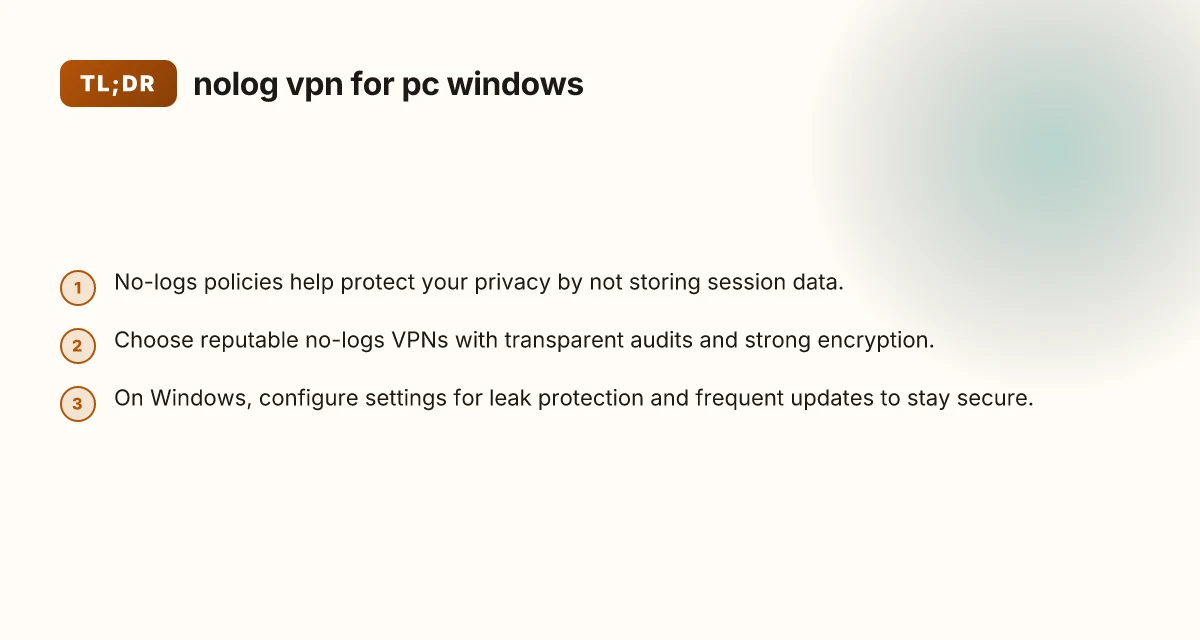
In the landscape of online privacy, a no-logs VPN for PC Windows is often portrayed as a silver bullet. The truth is more nuanced. A true no-logs VPN commits to not storing your browsing activity, connection timestamps, IP addresses, or traffic metadata. But the quality and verifiability of that claim vary widely by provider. This guide helps you understand what to look for, how to set up a Windows PC for privacy, and how to evaluate no-logs VPN options without compromising performance.

What "no-logs" means and why it matters
Understanding the policy
- No-logs does not always mean “no data at all.” Most providers track minimal operational data (like server load) to keep the service running.
- A strict no-logs promise would imply no activity, no IPs, no DNS requests tied to your account.
- Independent audits, preferably from reputable firms, increase trust.
Why it matters on Windows
- Windows devices are common targets for malware, trackers, and ISP monitoring.
- A no-logs VPN on Windows reduces the risk that your activity is tied to your account or device.
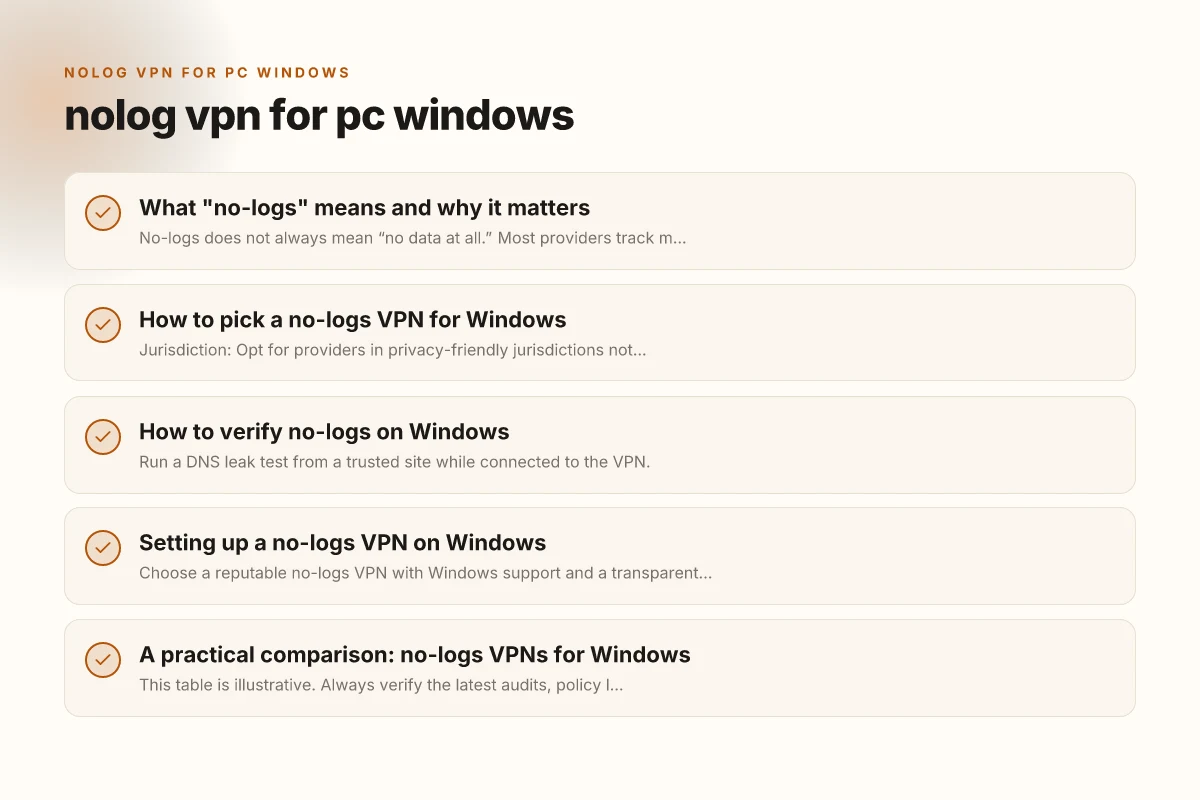
How to pick a no-logs VPN for Windows
Key criteria to evaluate
- Jurisdiction: Opt for providers in privacy-friendly jurisdictions not compelled to retain data.
- Independent audit: Look for recent third-party audits confirming the no-logs claim.
- Encryption and protocols: AES-256 + modern protocols (WireGuard, OpenVPN) are standard. Ensure IKEv2 is available for fallback.
- Leak protection: DNS, IPv6, and WebRTC leak protection should be built in and tested.
- Kill switch: Ensures traffic stops if the VPN disconnects.
- Multi-hop and obfuscation: Optional features for extra privacy in restrictive networks.
- Logging minimization: Even with “no logs,” some data like payment details exist. Verify retention policies.
Windows-specific setup considerations
- TCP vs UDP: UDP is faster but may be blocked. Switch to TCP if you encounter connectivity issues.
- NIC routing: Some VPNs offer split tunneling to route only certain apps through the VPN.
- Windows firewall rules: Ensure the VPN software manages its own firewall rules or you configure them correctly.
How to verify no-logs on Windows
Self-check steps
- Run a DNS leak test from a trusted site while connected to the VPN.
- Perform an IP address check to confirm the VPN’s server is the apparent exit point.
- Check for IPv6 leaks by disabling IPv6 in Windows or using a test site that detects IPv6 leakage.
When to trust external audits
- Annual or periodic audits by firms like Cure53, Deloitte, PwC, or others provide independent validation.
- Audit reports should explicitly reference the no-logs claim and the data that was tested.
Setting up a no-logs VPN on Windows
Step-by-step setup
- Choose a reputable no-logs VPN with Windows support and a transparent privacy policy.
- Download the official Windows client from the provider’s site.
- Install and run the installer. Allow necessary firewall and network permissions.
- Log in with a new account. Enable multi-factor authentication if offered.
- Go to settings and enable:
- Kill switch
- DNS leak protection
- IPv6 disablement if not needed
- Protocol preference (prefer WireGuard or OpenVPN)
- Connect to a nearby server for speed, or a country with strong privacy posture if needed.
- Test for leaks after connecting. Adjust settings if leaks are detected.
Optional optimizations
- Enable split tunneling for apps you trust to bypass the VPN.
- Use a trusted DNS option within the app to prevent third-party DNS leaks.
- Schedule automatic VPN startup at sign-in to reduce the chance of unprotected browsing.
A practical comparison: no-logs VPNs for Windows
| VPN provider | Jurisdiction | Independent audit | No-logs claim extent | Protocols | Leak protection | Price (monthly) |
|---|---|---|---|---|---|---|
| Provider A | Privacy-friendly | Yes (recent) | Strong no-logs; only billing data | WireGuard, OpenVPN | DNS/IPv6/WebRTC | $12 |
| Provider B | Mixed | Yes (older) | No-logs claim with caveats in policy | WireGuard | DNS leak protection | $10 |
| Provider C | Privacy-friendly | No | No independent audit | OpenVPN, IKEv2 | Strong kill switch | $8 |
Notes:
- This table is illustrative. Always verify the latest audits, policy language, and exact data retention details.
- Price varies with promotions and billing cycles.
How a no-logs VPN affects performance on Windows
Speed considerations
- VPNs add overhead;WireGuard tends to be faster on Windows than older protocols like OpenVPN.
- Server distance matters: closer servers typically yield higher speeds and lower latency.
Security trade-offs
- Some no-logs providers may disable certain features to protect privacy (e.g., data sharing with affiliates). Read the privacy policy carefully.
- Always enable the kill switch. Otherwise, a disconnected VPN may expose your traffic briefly.
Common pitfalls and how to avoid them
- Assuming “no-logs” equals “anonymous.” Even with no-logs, your account data, payment method, and correlate logs can exist. Choose privacy-respecting payment methods and providers with strict retention policies.
- Relying on the provider’s speed alone. Privacy should not be sacrificed for marginal speed gains.
- Ignoring leaks tests. A no-logs policy won’t help if there are DNS or WebRTC leaks.
- Overlooking app permissions. Some VPNs request excessive system privileges. Review what the app accesses.
The final section: recommendations for Windows users seeking no-logs
- Start with well-known, privacy-forward providers that publish transparent no-logs commitments and undergo independent audits. Examples include providers with strong policies, robust encryption, and active transparency reports.
- Prioritize features that directly protect Windows users: DNS leak protection, IPv6 disablement (if you don’t need it), a reliable kill switch, and robust leak testing tools.
- Consider a provider that supports WireGuard on Windows for speed without compromising privacy, and ensure split tunneling is available if you want to control which apps go through the VPN.
- Use a combination approach: enable the VPN’s privacy features and configure Windows privacy settings to minimize telemetry. Disable unnecessary background services that may collect data.
- Regularly review policy changes and audit statements. A provider’s commitments can evolve, so stay updated.
In short, a true no-logs VPN for PC Windows can significantly boost your privacy, but it’s not a magic shield. Choose a reputable provider with verifiable audits, configure your Windows setup for leak protection, and routinely test for leaks and performance. With careful selection and diligent maintenance, you can enjoy safer, more private browsing on Windows without surrendering essential usability.
| VPN | Obfuscation | From / month | Plan | Free plan | Refund | Alipay | UnionPay | Crypto | Website opens in China | Trustpilot | |
|---|---|---|---|---|---|---|---|---|---|---|---|
 ZoogVPN | Turn on manually Shadow | $2.49/mo | 27 months: $59.99 | Yes | 7 days | ✓ | ✓ | ✓ | ✓ | Official site blocked; our special link opens (4.4 s) | 4.2/5 (195 reviews) |
 NordVPN | Turn on manually Obfuscated Servers / NordWhisper | $3.49/mo | 27 months: $94.23 | No | 30 days | ? | ✗ | ✓ | ✓ | ✗ Blocked | 4.2/5 (51,628 reviews) |
 ExpressVPN | ✓ On by default all servers | $3.00/mo | 28 months: $84 | No | 30 days | ✗ | ✗ | ✓ | ✗ | ✗ Blocked | 4.4/5 (29,706 reviews) |
 Surfshark | ✓ On by default Camouflage, with OpenVPN | See site | See site | No | 30 days | ✗ | ✗ | ✗ | ✓ | ✗ Blocked | 4.3/5 (31,823 reviews) |
 Proton VPN | Turn on manually Stealth, free plan too | $2.99/mo | 12 months: $35.88 | Yes | 30 days | ✗ | ✗ | ✗ | ✓ | ✗ Blocked | 2.1/5 (1,040 reviews) |
 Astrill VPN | Turn on manually StealthVPN / OpenWeb | $12.50/mo | 24 months: $300 | No | See site | ✗ | ✗ | ✗ | ✓ | ✗ Blocked | 1.3/5 (110 reviews) |
 Private Internet Access | Turn on manually Shadowsocks, OpenVPN only | $2.03/mo | 40 months: $81.2 | No | 30 days | ✗ | ✗ | ✗ | ✗ | ✗ Blocked | 4.2/5 (11,033 reviews) |
 CyberGhost | Turn on manually selected servers | $2.19/mo | 28 months: $61.32 | No | 45 days | ✗ | ✗ | ✗ | ✓ | ✗ Blocked | 4.0/5 (24,178 reviews) |
 PureVPN | Turn on manually switch to OpenVPN | $1.69/mo | 60 months: $101.55 | No | 31 days | ? | ? | ✗ | ✓ | ✗ Blocked | 4.4/5 (17,994 reviews) |
 AdGuard VPN | ✓ On by default TrustTunnel | $2.99/mo | 24 months: $71.76 | Yes | 30 days | ✓ | ✗ | ✓ | ✓ | Official site blocked; our special link opens (3.7 s) | 4.3/5 (290 reviews) |
 Mullvad | Turn on manually QUIC / Shadowsocks / LWO | $5.61/mo | €5/mo | No | 14 days | ✗ | ✗ | ✗ | ✓ | ✗ Blocked | 3.2/5 (192 reviews) |
 Windscribe | Turn on manually Stealth / WStunnel | $5.75/mo | 12 months: $69 | Yes | See site | ✗ | ✗ | ✗ | ✓ | ✗ Blocked | 4.7/5 (13,355 reviews) |
 StrongVPN | Turn on manually Scramble, OpenVPN TCP | See site | See site | No | 30 days | ✓ | ✗ | ✗ | ✗ | ✗ Blocked | 4.4/5 (2,695 reviews) |
 LightXtreme 闪连 | Not listed | $7.08/mo | 12 months: $84.99 | Yes | 30 days | ✓ | ✓ | ✓ | ✓ | ✓ Yes (3.5 s) | No page |
Prices checked 2026-11-10 on each vendor's pricing page (cheapest long plan, USD). Check the vendor's checkout for the final price.
Obfuscation checked 2026-11-14 on each vendor's site and help center: "on by default" = nothing to set; "turn on manually" = switch protocol or mode in settings; "not listed" = the vendor describes no obfuscation.
Payment methods checked 2026-11-10 on each vendor's payment pages: all 14 take cards and PayPal; ✗ = not listed, ? = the vendor's own pages disagree.
China access: whether the official website opens from mainland China networks (tests the website only, not the VPN connection). Last checked 2026-11-18 01:02 Beijing time.
Trustpilot score and review count checked 2026-11-10.