Napsternet VPN for PC Windows
A practical guide to using Napsternet VPN on Windows PCs, with setup steps, safety tips, and alternatives.
Napsternet VPN is a popular choice for many Android users who want a simple VPN/proxy solution. If you’re trying to use Napsternet VPN on a Windows PC, you’ll find that there isn’t a native Windows app from Napsternet itself. This article walks you through what you can do to access Napsternet-like functionality on Windows, along with safer, more reliable Windows alternatives and best practices.

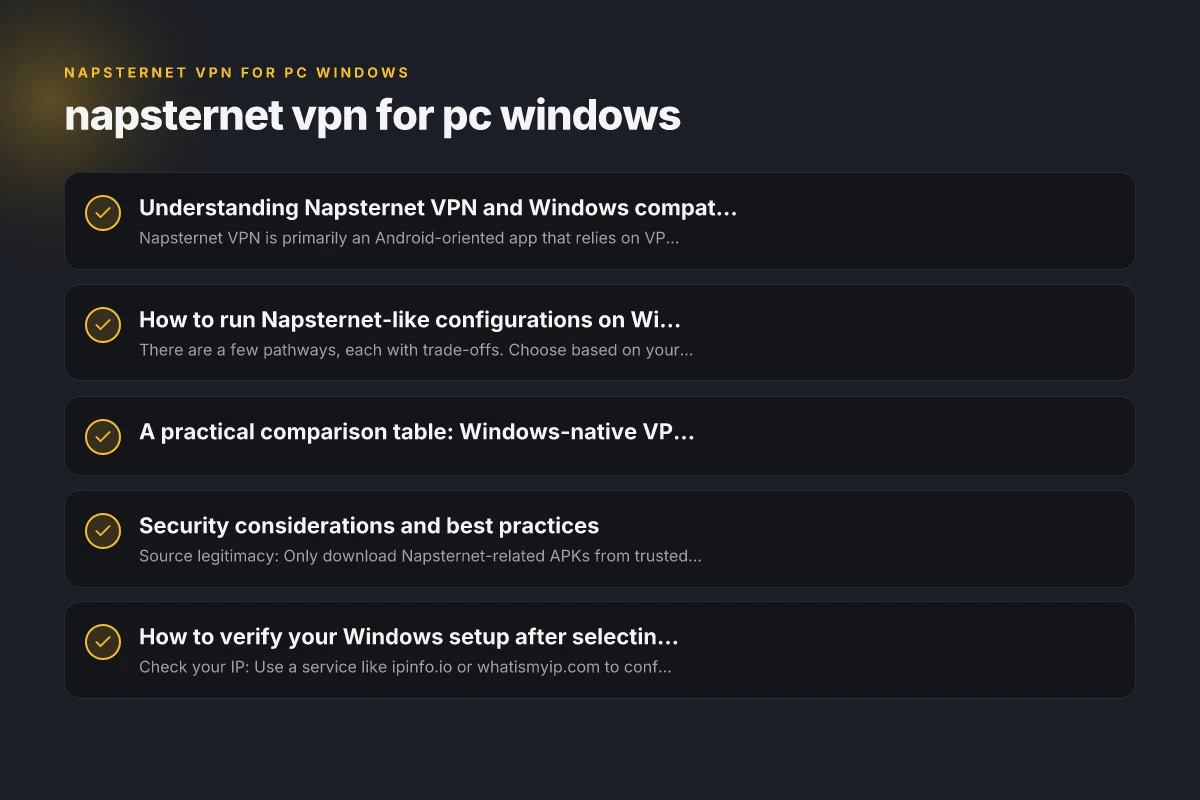
Understanding Napsternet VPN and Windows compatibility
Napsternet VPN is primarily an Android-oriented app that relies on VPN-like tunnels and proxy configurations. Windows users typically don’t get a native Napsternet VPN installer. That means:
- There is no official Napsternet VPN for Windows.
- Some users run Napsternet VPN on Windows via Android emulators or third-party wrappers.
- Emulators add layers of complexity and may affect performance, stability, and security.
Before you start, set expectations:
- If your goal is simple VPN access, a genuine Windows VPN client or a reputable proxy service can be a better fit.
- If you specifically need Napsternet-style configurations (for example, certain APN/proxy rules), you’ll likely need to mimic the setup in an emulator or switch to compatible Windows tools.
How to run Napsternet-like configurations on Windows
There are a few pathways, each with trade-offs. Choose based on your needs for stability, security, and ease of use.
Option 1: Use an Android emulator
An Android emulator lets you run Napsternet VPN as if on a phone, inside Windows. Ms VPN for PC Windows
- Popular emulators: BlueStacks, Nox, LDPlayer, or Memu.
- Steps:
- Install your chosen emulator on Windows.
- Sign in to Google Play or sideload the Napsternet APK.
- Configure Napsternet VPN inside the emulator as you would on Android.
- Pros: Closer to the native Napsternet experience. Supports APK updates.
- Cons: Emulator overhead, potential performance hit, added attack surface.
Option 2: Mirror or tunnel through Android devices
If you own an Android device with Napsternet working, you can share the connection to Windows.
- USB tethering or Wi-Fi tethering from your Android device to Windows.
- Use the device as a VPN gateway by configuring a VPN profile on the Android side and routing traffic from Windows through the device.
- Pros: Keeps Napsternet on a supported device.
- Cons: More complex. Depends on device stability. Not ideal for all apps.
Option 3: Seek Windows-compatible VPN/proxy alternatives
If your primary goal is privacy, bypassing geo-restrictions, or securing traffic on Windows, consider native Windows solutions.
- Native Windows VPN clients: Windows built-in VPN (PPTP/L2TP/IPsec, SSTP), or third-party clients like OpenVPN, WireGuard, or SoftEther.
- Proxy-based tools: Shadowsocks, V2Ray, Orbot/Orfox equivalents for Windows, or browser-based proxies.
- Pros: Native support, better performance, easier maintenance.
- Cons: May not provide the exact Napsternet feature set, such as specific OTA configurations.
Option 4: Manual proxy configuration on Windows
Napsternet-style setups on Windows can be emulated with manual proxy settings.
- If you have a proxy server configuration (host, port, protocol), you can configure Windows system proxy or browser proxy settings.
- Steps:
- Windows 10/11: Settings > Network & Internet > Proxy > Manual proxy setup.
- Enter the proxy host and port. Exclude local addresses as needed.
- Pros: Simple. No extra software needed.
- Cons: Only proxies, no full VPN encryption. Risk of leaks if not configured properly.
A practical comparison table: Windows-native VPNs vs. Napsternet-like emulation
| Feature | Windows-native VPNs (OpenVPN/WireGuard/etc.) | Napsternet emulation on Windows (via emulator) | Proxy-based Napsternet-like setup |
|---|---|---|---|
| Native support | Yes | No (emulation) | Limited (proxy only) |
| Encryption/security | Strong end-to-end options (AES, IKEv2) | Depends on emulator/VPN inside; not guaranteed | Only as good as proxy security |
| Performance | Generally high; optimized for Windows | Overhead from emulator | Dependent on proxy server speed |
| Setup complexity | Moderate to advanced | Moderate to high (emulator + Napsternet) | Low to moderate |
| Stability/updates | Frequent updates from reputable providers | Emulator updates needed; potential bugs | Depends on proxy service |
| Risk profile | Lower when using reputable providers | Higher due to emulation surface area | Medium; proxy can be less private |
| Cost | Often free to paid tiers | Free to paid apps; emulator licenses may apply | Free to paid proxies |
Security considerations and best practices
- Source legitimacy: Only download Napsternet-related APKs from trusted sources. Be wary of modified APKs that install malware.
- Data privacy: Understand what Napsternet collects. VPN apps can log traffic or metadata. Read privacy policies carefully.
- Emulation risk: Running Napsternet in an emulator increases attack surfaces. Keep the emulator updated, use reputable antivirus, and isolate the emulator from the host system when possible.
- Windows-native options: For most users, Windows-native VPNs provide stronger security, easier updates, and better performance. Consider OpenVPN or WireGuard for robust protection.
- DNS and IPv6 leaks: After configuring any VPN or proxy, verify there’s no DNS or IPv6 leakage. Use online tools to test for leaks and enable kill switches where available.
How to verify your Windows setup after selecting a path
- Check your IP: Use a service like ipinfo.io or whatismyip.com to confirm your public IP changes when the VPN/proxy is active.
- Test DNS: Use DNS leak test sites to ensure DNS requests are routed through the VPN or proxy correctly.
- Kill switch: If your VPN offers a kill switch, enable it to prevent traffic leaks if the VPN drops.
- Speed test: Run speed tests with and without the VPN to gauge impact. Emulation setups may show more variability.
- Accessibility: Confirm that access to geo-restricted content or services works as intended, if that’s your goal.
Step-by-step starter guide for a Windows-friendly path
If you decide to go the Windows-native route (which is generally simpler and more reliable), here’s a quick starter guide: MRVPN for PC Windows: The Complete Guide to Using MRVPN on Windows
- Choose a reputable Windows VPN provider or open-source solution.
- Examples: OpenVPN, WireGuard, or a trusted commercial VPN service with Windows clients.
- Ensure they offer strong encryption, a no-logs policy, and a transparent privacy stance.
- Download and install the client on Windows.
- Follow official setup wizards, enabling necessary permissions and features (kill switch, DNS protection).
- Configure servers and test connectivity.
- Pick a server location, connect, and verify IP, DNS, and speed.
- Secure your device.
- Keep software updated, enable firewall rules, and consider device encryption.
- Optional proxy path (if you only need specific traffic masked).
- Configure a proxy in your browser or system settings.
- Validate that only intended traffic uses the proxy.
Final recommendations
- If your goal is reliability and security on Windows: use a Windows-native VPN client from a reputable provider or the official OpenVPN/WireGuard implementations. This path offers better performance, updates, and support.
- If you specifically need Napsternet VPN features: understand that native Windows support is not provided by Napsternet. Emulation is possible but not ideal for long-term use due to complexity and security concerns. Consider alternatives that replicate the same goals on Windows, such as OpenVPN, WireGuard, or Shadowsocks, depending on your needs.
- Always prioritize safety: obtain software from trusted sources, verify app permissions, and regularly audit your VPN/proxy setup to avoid leaks or exposure.
If you want, tell me your primary goals (privacy, bypassing geo-restrictions, secure remote access, or something else) and your tolerance for setup complexity. I can tailor a concrete, step-by-step plan for your Windows PC, including exact client recommendations, configuration steps, and testing routines.
| VPN | Obfuscation | From / month | Plan | Free plan | Refund | Alipay | UnionPay | Crypto | Website opens in China | Trustpilot | |
|---|---|---|---|---|---|---|---|---|---|---|---|
 ZoogVPN | Turn on manually Shadow | $2.49/mo | 27 months: $59.99 | Yes | 7 days | ✓ | ✓ | ✓ | ✓ | Official site blocked; our special link opens (4.4 s) | 4.2/5 (195 reviews) |
 NordVPN | Turn on manually Obfuscated Servers / NordWhisper | $3.49/mo | 27 months: $94.23 | No | 30 days | ? | ✗ | ✓ | ✓ | ✗ Blocked | 4.2/5 (51,628 reviews) |
 ExpressVPN | ✓ On by default all servers | $3.00/mo | 28 months: $84 | No | 30 days | ✗ | ✗ | ✓ | ✗ | ✗ Blocked | 4.4/5 (29,706 reviews) |
 Surfshark | ✓ On by default Camouflage, with OpenVPN | See site | See site | No | 30 days | ✗ | ✗ | ✗ | ✓ | ✗ Blocked | 4.3/5 (31,823 reviews) |
 Proton VPN | Turn on manually Stealth, free plan too | $2.99/mo | 12 months: $35.88 | Yes | 30 days | ✗ | ✗ | ✗ | ✓ | ✗ Blocked | 2.1/5 (1,040 reviews) |
 Astrill VPN | Turn on manually StealthVPN / OpenWeb | $12.50/mo | 24 months: $300 | No | See site | ✗ | ✗ | ✗ | ✓ | ✗ Blocked | 1.3/5 (110 reviews) |
 Private Internet Access | Turn on manually Shadowsocks, OpenVPN only | $2.03/mo | 40 months: $81.2 | No | 30 days | ✗ | ✗ | ✗ | ✗ | ✗ Blocked | 4.2/5 (11,033 reviews) |
 CyberGhost | Turn on manually selected servers | $2.19/mo | 28 months: $61.32 | No | 45 days | ✗ | ✗ | ✗ | ✓ | ✗ Blocked | 4.0/5 (24,178 reviews) |
 PureVPN | Turn on manually switch to OpenVPN | $1.69/mo | 60 months: $101.55 | No | 31 days | ? | ? | ✗ | ✓ | ✗ Blocked | 4.4/5 (17,994 reviews) |
 AdGuard VPN | ✓ On by default TrustTunnel | $2.99/mo | 24 months: $71.76 | Yes | 30 days | ✓ | ✗ | ✓ | ✓ | Official site blocked; our special link opens (3.7 s) | 4.3/5 (290 reviews) |
 Mullvad | Turn on manually QUIC / Shadowsocks / LWO | $5.61/mo | €5/mo | No | 14 days | ✗ | ✗ | ✗ | ✓ | ✗ Blocked | 3.2/5 (192 reviews) |
 Windscribe | Turn on manually Stealth / WStunnel | $5.75/mo | 12 months: $69 | Yes | See site | ✗ | ✗ | ✗ | ✓ | ✗ Blocked | 4.7/5 (13,355 reviews) |
 StrongVPN | Turn on manually Scramble, OpenVPN TCP | See site | See site | No | 30 days | ✓ | ✗ | ✗ | ✗ | ✗ Blocked | 4.4/5 (2,695 reviews) |
 LightXtreme 闪连 | Not listed | $7.08/mo | 12 months: $84.99 | Yes | 30 days | ✓ | ✓ | ✓ | ✓ | ✓ Yes (3.5 s) | No page |
Prices checked 2026-11-10 on each vendor's pricing page (cheapest long plan, USD). Check the vendor's checkout for the final price.
Obfuscation checked 2026-11-14 on each vendor's site and help center: "on by default" = nothing to set; "turn on manually" = switch protocol or mode in settings; "not listed" = the vendor describes no obfuscation.
Payment methods checked 2026-11-10 on each vendor's payment pages: all 14 take cards and PayPal; ✗ = not listed, ? = the vendor's own pages disagree.
China access: whether the official website opens from mainland China networks (tests the website only, not the VPN connection). Last checked 2026-11-18 01:02 Beijing time.
Trustpilot score and review count checked 2026-11-10.