HTTP injector for PC Windows

A practical guide to using HTTP injector on PC Windows, including setup, alternatives, and safety tips.
HTTP Injector for PC Windows: A practical guide
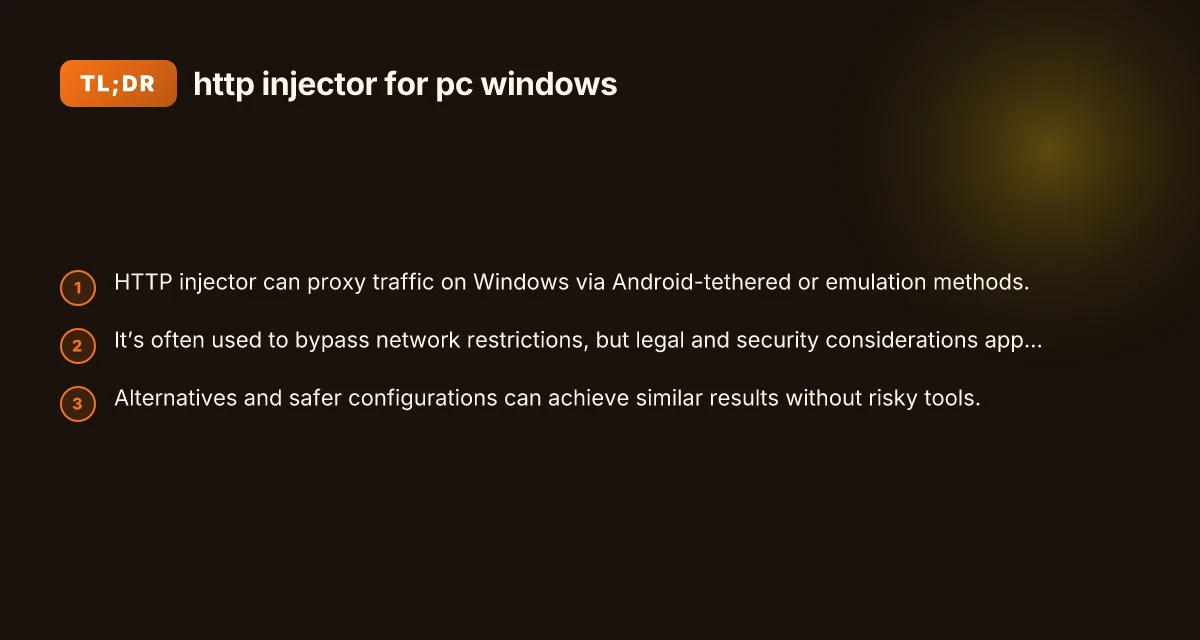
If you’re looking to use HTTP injector on a PC running Windows, you’re essentially trying to reproduce a function commonly found on Android: tunneling or proxying traffic to bypass network restrictions or to access restricted content. Windows itself doesn’t run the Android app HTTP Injector, but you can achieve similar outcomes by using compatible software, proper VPN/proxy setups, and careful configuration. This guide breaks down what HTTP injector does, how to approach Windows setups, and safer alternatives.

What HTTP Injector does and why you might want it on Windows
Understanding the core idea
- HTTP injector is primarily a tool that creates a tunnel for your network traffic by configuring HTTP/HTTPS proxies and custom payloads.
- It often relies on SSH/SSL tunneling, chosen proxy servers, or VPN-like behavior to route traffic.
- On Windows, you can emulate this behavior with comparable software that supports HTTP/S proxies, SOCKS proxies, and tunneling.
Why Windows users consider this
- Accessing restricted networks (schools, workplaces, or geo-restricted services) in some cases.
- Bypassing simple firewalls or content filters that don’t inspect traffic deeply.
- Testing mobile-configured profiles on a larger display or for research purposes.
Important caveat
- Bypassing network restrictions may violate terms of service or local laws. Always ensure you have authorization to modify network traffic and comply with the policies of your institution or network provider.

How to achieve similar functionality on Windows
Emulating HTTP injector behavior with Windows-native tools
- Proxy clients: Use tools like Proxifier, ProxMate, or Fiddler to force all traffic through a proxy.
- VPN and tunneling: OpenVPN, WireGuard, or SoftEther VPN can create secure tunnels that emulate the effect of custom proxies.
- SSH tunneling: PuTTY or OpenSSH can create dynamic port forwarding (SOCKS tunnels) that route traffic through a remote server.
Step-by-step approach (conceptual)
- Choose a tunneling method: HTTP/HTTPS proxy, SOCKS proxy, or VPN.
- Obtain a proxy/VPN server you’re authorized to use (this could be a personal server you control or a trusted provider).
- Configure the client on Windows to route traffic through the chosen proxy or tunnel.
- Verify traffic routing with a simple test (visit a site that reveals your IP).
- Maintain security: use encryption (HTTPS/SOCKS over TLS), rotate credentials, and monitor for leaks.
Tools you might use
- VPN: OpenVPN, WireGuard
- SSH tunneling: PuTTY (for Windows), OpenSSH
- Proxy clients: Proxifier, Proxomitron (legacy), Fiddler
- Network testing: ipconfig, tracert, and browser-based IP check
A practical configuration example: SOCKS5 tunneling with an SSH dynamic port forward
Note: This is a general workflow. The exact steps depend on your SSH server configuration and the software you choose.
Prerequisites:
Access to an SSH server that supports dynamic port forwarding (SOCKS).
PuTTY installed on Windows (or an OpenSSH client if you prefer command-line). How to download almes VPN for PC Windows 10 8
Steps:
- Open PuTTY and enter your SSH server address.
- In the Connection -> SSH -> Tunnels section, set “Source port” to a local port (e.g., 1080) and select “Dynamic” and “Auto”.
- Click Add, then save and Open the session to establish the SOCKS tunnel.
- In Windows, configure your browser (or system proxy) to use SOCKS5 at localhost:1080.
- Test by visiting a site that shows your IP.
Pros:
Strong encryption if using SSH.
Flexible for many applications. Hotbot VPN for PC Windows: everything you need to know
Cons:
Requires SSH access. May be blocked by some networks.
Some apps may not respect system proxy settings easily.
A comparison table: common approaches for Windows users
| Method | Typical use cases | Pros | Cons | Complexity |
|---|---|---|---|---|
| SOCKS5 via SSH dynamic port forward | Lightweight tunneling for browser/app traffic | Encrypted, flexible, no VPN needed | Requires SSH access; setup varies | Moderate |
| Proxifier with HTTP/HTTPS proxy | Forcing all apps through a proxy without app support | Simple to set up for supported proxies | Proxy quality affects speed and reliability | Easy to moderate |
| VPN (OpenVPN, WireGuard) | Full device tunnel; all traffic routed | Strong, modern encryption; broad compatibility | Needs VPN server; potential speed impact | Moderate |
| Fiddler or similar proxy tools | Debugging, web traffic routing through a proxy | Excellent for developers; granular control | Primarily HTTP/HTTPS; not ideal for all traffic | Easy to moderate |
Security, privacy, and legality considerations
- Legal compliance: Always verify network policies and legal constraints in your country or organization.
- Data privacy: Routing traffic through proxies or VPNs means your data passes through another server. Trust and verify the service you use.
- Leaks and DNS: Ensure that your configuration doesn’t cause IP or DNS leaks, which would reveal your actual location despite the tunnel.
- Credential management: Use strong, unique credentials for any servers you control. Rotate keys regularly.
- Malware risk: Only use reputable tools from trusted sources. Avoid shady “free” proxies or shady injector-like software.
Troubleshooting common issues
Issue: Your traffic isn’t routing through the proxy Hidemy name VPN for PC Windows
Check proxy/SSH settings and ensure the correct port and protocol are configured.
Verify that the proxy server is reachable (ping/traceroute).
Ensure applications are using the system proxy or configured to use the SOCKS5 proxy.
Issue: DNS leaks Hot VPN for PC Windows
Use DNS over TLS if available, or configure your system to force DNS through the tunnel.
In a VPN scenario, ensure the VPN’s DNS settings are active.
Issue: Slow speeds
The bottleneck could be the proxy/VPN server or the network path. Hide my IP VPN for PC Windows
Try a different server or protocol. Reduce encryption overhead where possible while maintaining security.
Issue: Apps not respecting proxy settings
Some apps bypass system proxy settings. Use an application-level proxy configuration if available, or a tool like Proxifier to force traffic.
Final recommendations and practical path forward
- If your goal is to replicate HTTP injector-like behavior on PC Windows, start with a clear objective: do you want to browse with a proxy, route all traffic through a VPN, or tunnel a single app? Your choice guides the toolset.
- For most users seeking secure, broad coverage with reasonable setup effort, a VPN solution (OpenVPN or WireGuard) offers a straightforward, reliable route to a tunnel that covers all traffic without needing to configure every app individually.
- If you only need to route specific applications or test how traffic behaves behind a proxy, a SOCKS5 tunnel via SSH dynamic forwarding or a dedicated proxy client like Proxifier can be a lighter, more controllable option.
- Always use legitimate, authorized servers. Avoid untrusted proxies or “free” injection tools that could expose you to malware or data theft.
- Keep your system and tools updated, monitor for leaks, and document your configuration so you can reproduce or troubleshoot later.
If you want, I can tailor a step-by-step setup guide for your exact Windows version (e.g., Windows 10 vs Windows 11) and your preferred method (VPN vs SSH dynamic port forwarding vs Proxifier). Hide me VPN for PC Windows