Faster VPN for PC Windows

Find practical tips to speed up VPNs on Windows PCs, including setup, settings, and troubleshooting for faster connections.
If you’re chasing faster VPN speeds on a Windows PC, you’re not alone. A good Fast VPN experience hinges on the right mix of provider, protocol, server selection, and device settings. Below you’ll find clear steps to boost speed, reduce latency, and keep connections stable without sacrificing security or privacy.

Understanding what affects VPN speed on Windows
Speed depends on several moving parts:
- Server distance and load: closer and less congested servers usually perform better.
- VPN protocol: some protocols are faster but offer different levels of security and obfuscation.
- Your own network: local network conditions, ISP throttling, and Wi‑Fi strength matter.
- Device performance: CPU, RAM, and background tasks can bottleneck encryption and routing.
- Encryption level: stronger encryption can add overhead, though modern hardware handles it efficiently.
When you optimize, you’re balancing speed, stability, and security. It’s often a matter of trial and measurement to find your sweet spot.
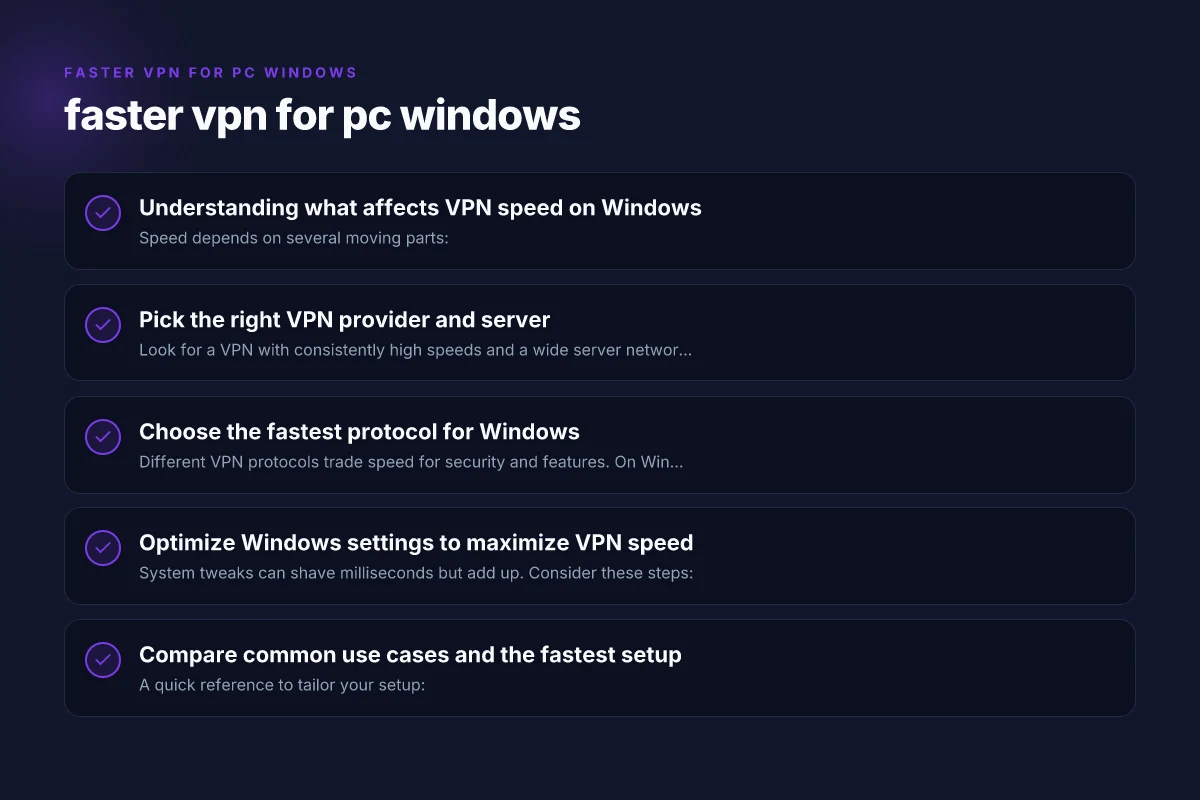
Pick the right VPN provider and server
Provider selection
- Look for a VPN with consistently high speeds and a wide server network on Windows.
- Check independent speed tests and user reviews for Windows performance.
- Favor providers that publish real-world speed results and offer a generous free trial or money-back guarantee.
Server strategy
- Connect to a server geographically close to you for lowest latency.
- If streaming or torrenting, choose servers optimized for those tasks (if available).
- Try different servers within the same country to compare speeds.
Testing approach
- Use the VPN’s built-in speed test if available.
- Compare results with your baseline non-VPN speed to gauge impact.
- Note time of day: peak hours can slow speeds on popular servers.
Choose the fastest protocol for Windows
Different VPN protocols trade speed for security and features. On Windows, common options include:
- WireGuard: known for high speed and low overhead. Great default choice for performance.
- IKEv2/IPSec: fast, stable, good for mobile devices and roaming.
- OpenVPN (UDP): very secure and reliable but typically slower than WireGuard. Can be tuned for speed.
- OpenVPN (TCP): more reliable on congested networks but slower.
Tips: Fast V2Ray VPN for PC Windows
- Start with WireGuard if available. It often delivers the best balance of speed and reliability on Windows.
- If you have VPN features like obfuscation or DDoS protection, test with and without them to measure impact.
- Some providers let you switch protocols per connection. Use the fastest available for your task.
Optimize Windows settings to maximize VPN speed
System tweaks can shave milliseconds but add up. Consider these steps:
- Ensure your device isn’t CPU-throttling: check Task Manager for background processes that spike CPU usage.
- Disable bandwidth-hogging apps during speed testing.
- Ensure your antivirus or firewall isn’t interfering with the VPN process. Temporarily adjust exclusions if necessary.
- Set your DNS to a fast resolver (e.g., your VPN’s DNS or a trusted public DNS) to reduce lookup time.
- Enable IPv6 only if your network supports it well. Otherwise, leave it off to avoid leaks or misrouting.
Networking tweaks:
- Use a wired Ethernet connection when possible for lower latency and stability.
- If Wi‑Fi is your only option, place the router closer and reduce interference (2.4 GHz vs 5 GHz, channel selection).
- In Windows network settings, disable compute-intensive features like large send offload (LSO) if unstable.
Security settings:
- Keep VPN kill switch enabled to avoid leaking traffic if the tunnel drops.
- Ensure DNS leak protection is on, this keeps your real DNS from being exposed during VPN use.
- Use the latest Windows updates and VPN client updates to benefit from performance and security improvements.
Compare common use cases and the fastest setup
A quick reference to tailor your setup: Factor VPN for PC Windows
| Use case | Recommended protocol | Server criteria | Notes |
|---|---|---|---|
| General browsing | WireGuard or IKEv2 | Nearby, low latency | Prioritize stability over extreme anonymity for everyday tasks |
| Streaming | WireGuard; if blocked, try a nearby optimized server | High-capacity streaming servers | Some streaming services attempt to block VPNs; rotate servers if needed |
| Gaming | WireGuard or IKEv2 | Very low latency, fast routing | Wired connection plus nearby servers can dramatically help |
| File downloads | WireGuard | Least congested servers with good bandwidth | May try multiple servers to find best throughput |
Tips for testing:
- Run a speed test (Speedtest by Ookla or similar) with VPN connected, then disconnected to compare.
- Record ping, download, and upload metrics across 3–5 servers to identify a top performer.
- If a server feels slow, switch to another within the same region or nearby country.
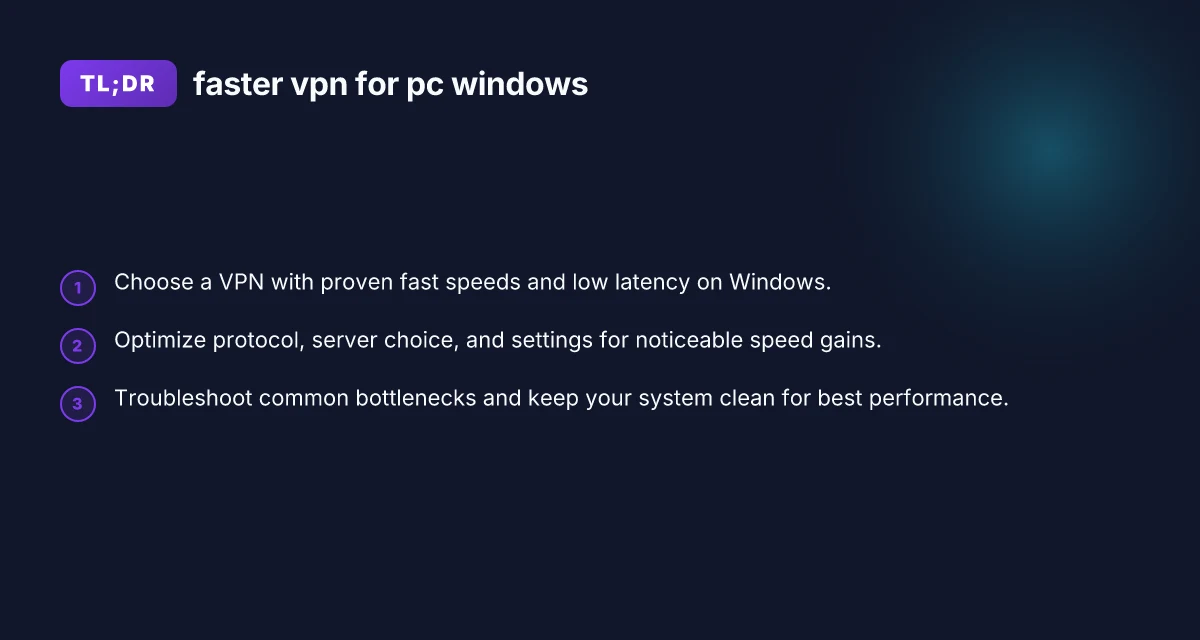
Practical 5-step workflow to speed up a Windows PC VPN
- Start with a clean baseline: measure your non-VPN speeds on your typical connection (Wi‑Fi or Ethernet).
- Install/adjust VPN: ensure you’re on the latest Windows client and that you’ve chosen WireGuard as default where available.
- Pick the best server: test several nearby servers and note the fastest result.
- Optimize the protocol and settings: switch to WireGuard, enable kill switch and DNS leak protection, and disable features you don’t need.
- Fine-tune your environment: use a wired connection, reduce competing bandwidth usage, and keep drivers and firmware up to date.
Troubleshooting common issues that slow VPNs on Windows
- VPN connection drops or instability: check for stable network, update VPN client, prune conflicting firewall rules, enable kill switch.
- Slow speeds despite a fast plan: try another server, switch protocol, or reboot your router and PC.
- High latency in games or live calls: use the nearest server, ensure QoS on the router is configured, and consider wired Ethernet.
- DNS leaks: verify DNS leak protection is on and use a trusted DNS resolver.
- Bandwidth issues from antivirus: temporarily disable real-time protection during speed tests (re-enable afterwards) to see if it’s affecting the VPN.
How to measure true speed gains effectively
- Baseline: run a test without VPN for 3–5 minutes to get stable numbers.
- Consistency: test at different times of day to account for variability.
- Isolation: measure one variable at a time (server, protocol) to see its impact.
- Real-world checks: test common tasks (loading a site, streaming a video, online gaming) to translate raw numbers into practical gains.
Final recommendation
If you want the clearest, fastest Windows VPN experience, start with a reputable provider that offers WireGuard as the default protocol and a broad, well-optimized server network. Favor nearby servers for the lowest latency, and keep your Windows client up to date. Use a wired connection when possible, enable a kill switch and DNS leak protection, and run small, controlled tests to compare protocol and server choices. With a methodical approach, test, compare, repeat, you’ll uncover the fastest setup for your Windows PC and your typical online activities.
| VPN | Obfuscation | From / month | Plan | Free plan | Refund | Alipay | UnionPay | Crypto | Website opens in China | Trustpilot | |
|---|---|---|---|---|---|---|---|---|---|---|---|
 ZoogVPN | Turn on manually Shadow | $2.49/mo | 27 months: $59.99 | Yes | 7 days | ✓ | ✓ | ✓ | ✓ | Official site blocked; our special link opens (4.4 s) | 4.2/5 (195 reviews) |
 NordVPN | Turn on manually Obfuscated Servers / NordWhisper | $3.49/mo | 27 months: $94.23 | No | 30 days | ? | ✗ | ✓ | ✓ | ✗ Blocked | 4.2/5 (51,628 reviews) |
 ExpressVPN | ✓ On by default all servers | $3.00/mo | 28 months: $84 | No | 30 days | ✗ | ✗ | ✓ | ✗ | ✗ Blocked | 4.4/5 (29,706 reviews) |
 Surfshark | ✓ On by default Camouflage, with OpenVPN | See site | See site | No | 30 days | ✗ | ✗ | ✗ | ✓ | ✗ Blocked | 4.3/5 (31,823 reviews) |
 Proton VPN | Turn on manually Stealth, free plan too | $2.99/mo | 12 months: $35.88 | Yes | 30 days | ✗ | ✗ | ✗ | ✓ | ✗ Blocked | 2.1/5 (1,040 reviews) |
 Astrill VPN | Turn on manually StealthVPN / OpenWeb | $12.50/mo | 24 months: $300 | No | See site | ✗ | ✗ | ✗ | ✓ | ✗ Blocked | 1.3/5 (110 reviews) |
 Private Internet Access | Turn on manually Shadowsocks, OpenVPN only | $2.03/mo | 40 months: $81.2 | No | 30 days | ✗ | ✗ | ✗ | ✗ | ✗ Blocked | 4.2/5 (11,033 reviews) |
 CyberGhost | Turn on manually selected servers | $2.19/mo | 28 months: $61.32 | No | 45 days | ✗ | ✗ | ✗ | ✓ | ✗ Blocked | 4.0/5 (24,178 reviews) |
 PureVPN | Turn on manually switch to OpenVPN | $1.69/mo | 60 months: $101.55 | No | 31 days | ? | ? | ✗ | ✓ | ✗ Blocked | 4.4/5 (17,994 reviews) |
 AdGuard VPN | ✓ On by default TrustTunnel | $2.99/mo | 24 months: $71.76 | Yes | 30 days | ✓ | ✗ | ✓ | ✓ | Official site blocked; our special link opens (3.7 s) | 4.3/5 (290 reviews) |
 Mullvad | Turn on manually QUIC / Shadowsocks / LWO | $5.61/mo | €5/mo | No | 14 days | ✗ | ✗ | ✗ | ✓ | ✗ Blocked | 3.2/5 (192 reviews) |
 Windscribe | Turn on manually Stealth / WStunnel | $5.75/mo | 12 months: $69 | Yes | See site | ✗ | ✗ | ✗ | ✓ | ✗ Blocked | 4.7/5 (13,355 reviews) |
 StrongVPN | Turn on manually Scramble, OpenVPN TCP | See site | See site | No | 30 days | ✓ | ✗ | ✗ | ✗ | ✗ Blocked | 4.4/5 (2,695 reviews) |
 LightXtreme 闪连 | Not listed | $7.08/mo | 12 months: $84.99 | Yes | 30 days | ✓ | ✓ | ✓ | ✓ | ✓ Yes (3.5 s) | No page |
Prices checked 2026-11-10 on each vendor's pricing page (cheapest long plan, USD). Check the vendor's checkout for the final price.
Obfuscation checked 2026-11-14 on each vendor's site and help center: "on by default" = nothing to set; "turn on manually" = switch protocol or mode in settings; "not listed" = the vendor describes no obfuscation.
Payment methods checked 2026-11-10 on each vendor's payment pages: all 14 take cards and PayPal; ✗ = not listed, ? = the vendor's own pages disagree.
China access: whether the official website opens from mainland China networks (tests the website only, not the VPN connection). Last checked 2026-11-18 01:02 Beijing time.
Trustpilot score and review count checked 2026-11-10.