Download VPN for PC
A practical guide to downloading and installing a VPN for PC, with safety tips and comparisons.
VPN basics: what “download vpn for pc” means A VPN, or virtual private network, lets you create a secure, private connection over the internet. When you search for “download vpn for pc,” you’re usually looking to install software on a Windows or macOS PC that:
- encrypts your data in transit
- hides your IP address and real location
- protects you on public Wi-Fi and in networks you don’t control
- lets you bypass regional restrictions where permitted by law This guide walks you through choosing a VPN, downloading it, installing it on a PC, and using it safely.

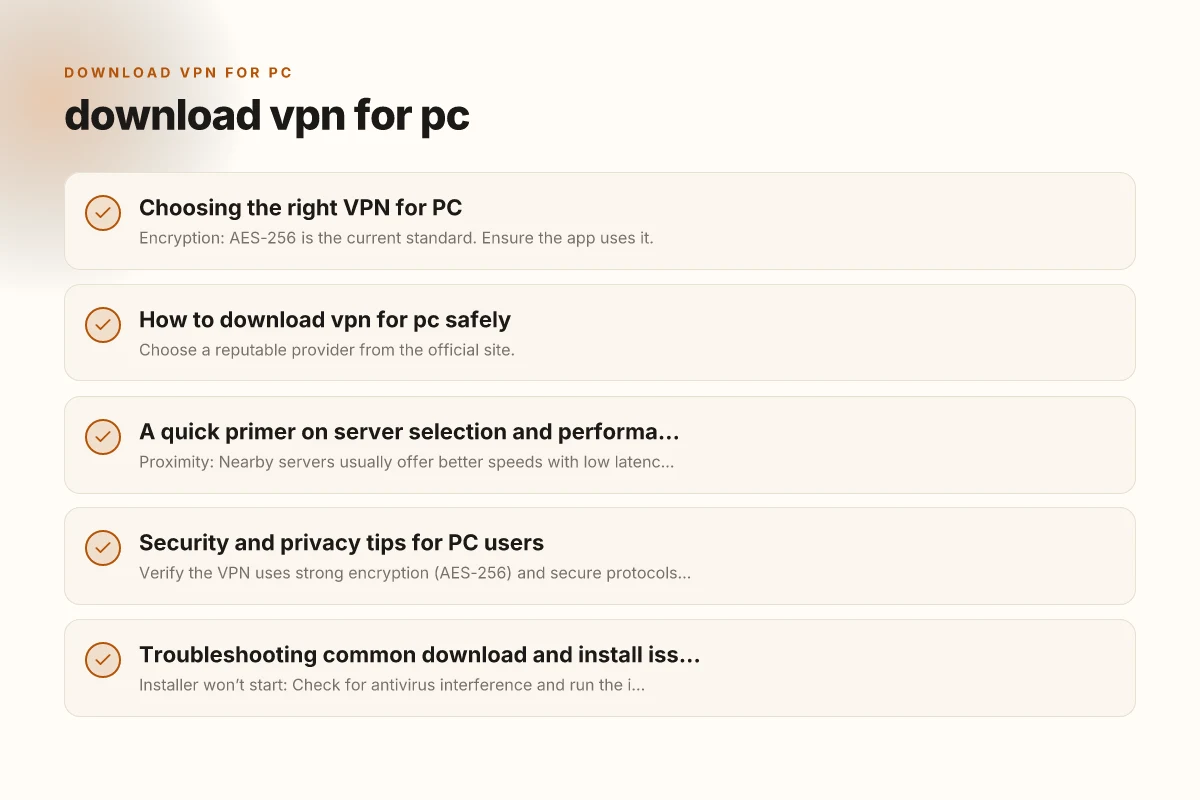
Choosing the right VPN for PC
What to look for
- Encryption: AES-256 is the current standard. Ensure the app uses it.
- Protocols: OpenVPN, WireGuard, and IKEv2 are common; WireGuard generally offers speed with good security.
- No-logs policy: Read the privacy policy to confirm they don’t keep identifiable activity data.
- DNS/leak protection: Prevents your real DNS requests from leaking.
- Kill switch: Automatically cuts traffic if the VPN drops, to avoid exposure.
- Split tunneling: Choose which apps go through the VPN and which don’t.
- Speed and performance: Some VPNs slow connections. Look for independent speed tests or trials.
- Jurisdiction and audits: Some providers publish independent security audits and are based in privacy-friendly jurisdictions.
Free vs paid
- Free VPNs: Often come with data caps, slower speeds, ads, and questionable privacy.
- Paid VPNs: Typically offer better security, more features, reliable speeds, and better support. If privacy is important, paid is usually worth it.
- Trials and money-back guarantees: Look for a 7-30 day window to try before committing.
Device and platform support
- Ensure the VPN has a PC client for Windows and macOS if you need both.
- Check browser extension availability if you want browser-level protection, but extensions aren’t enough alone for full traffic.
How to download VPN for PC safely
Step-by-step download
- Choose a reputable provider from the official site.
- Verify you are on the correct domain (watch for typos or phishing sites).
- Select the Windows or macOS version, depending on your PC.
- Click the download button and save the installer (.exe for Windows,.dmg for macOS).
- If your browser blocks the download, temporarily disable extensions that might block downloads or allow from the site.
Installing apps on Windows
- Run the installer and follow on-screen prompts.
- Grant necessary permissions during installation.
- When prompted, allow OpenVPN or the VPN service to set up network adapters if required.
- Finish installation and launch the app.
Installing apps on macOS
- Open the.dmg file and drag the app to Applications.
- Launch the app. You may be asked to allow system extensions or install a helper tool.
- Enter your admin password if prompted.
Post-install setup
- Sign in with your VPN account credentials.
- Choose a server location. Beginners can start with a nearby country for better speeds.
- Enable the kill switch and DNS leak protection in settings.
- Decide if you want auto-connect on startup or when you join unsecured networks.
A quick primer on server selection and performance
Understanding server locations
- Proximity: Nearby servers usually offer better speeds with low latency.
- Special-purpose servers: Some servers are optimized for streaming, P2P, or gaming.
- Jurisdiction: Some users prefer servers in privacy-friendly countries.
Balancing speed and privacy
- If you need high-speed, avoid overcrowded servers and pick fewer hops.
- For streaming or gaming, test a few servers and keep notes on performance.
- If you’re on a slow link, choose a single-hop route (a closer server) rather than long-distance routes.
A simple comparison (handy at a glance)
| Feature | Free VPNs | Paid VPNs |
|---|---|---|
| Speed | Often slower | Generally fast and consistent |
| Data limits | Usually capped | Unlimited or large allowances |
| Privacy policy | Variable | More transparent, stronger no-logs commitments |
| Security features | Basic | Full suite (kill switch, DNS leak protection, multiple protocols) |
| Customer support | Limited or email-only | 24/7 chat and support |
| Server network | Small | Large and diverse locations |
Security and privacy tips for PC users
- Verify the VPN uses strong encryption (AES-256) and secure protocols (WireGuard, OpenVPN, IKEv2).
- Enable the kill switch to ensure traffic stops if the VPN drops.
- Use DNS leak protection to prevent your real DNS from leaking.
- Regularly update the VPN client to patch security vulnerabilities.
- Review permissions: Don’t grant unnecessary admin rights to the app.
- Be mindful of logging: Even if a provider claims “no logs,” read the privacy policy and any third-party audits.
- Use a strong master password and enable two-factor authentication if available.
Troubleshooting common download and install issues
- Installer won’t start: Check for antivirus interference and run the installer as an administrator (Windows) or use the first-run prompts on macOS.
- VPN won’t connect after install: Try switching servers, check that the kill switch isn’t blocking all traffic, and verify your firewall isn’t blocking VPN ports.
- Slow speeds: Switch to a closer server, try a different protocol (e.g., WireGuard), or check for competing bandwidth uses on your PC.
- DNS leaks: Revisit DNS leak protection in settings. Flush DNS cache and reconnect.
- App crashes: Ensure your OS is up to date, reinstall the latest version, and check for known issues in the provider’s status page or support forum.
When to use a VPN on a PC
- Public Wi-Fi: Always use a VPN on open networks to protect data from eavesdroppers.
- Privacy-conscious browsing: A VPN helps obscure your IP and geolocation from websites and advertisers.
- Streaming and region-locked content: Some services restrict content by region. A VPN can help access those libraries where legal.
- Remote work: VPNs connect you to a company network securely, protecting sensitive data.
What to do after purchasing or subscribing
- Set up auto-connect on trusted networks.
- Choose and save preferred server locations for quick access.
- Enable advanced features you use regularly (kill switch, split tunneling, DNS leak protection).
- Periodically test for IP and DNS leaks to ensure protection remains intact.
- Keep a secure backup of your login credentials and recovery options.
Best practices for responsible VPN use on PC
- Respect local laws and terms of service for content and networks you access.
- Don’t use a VPN to commit wrongdoing. It’s illegal in many places to bypass restrictions or commit fraud.
- Combine VPNs with safe browsing habits: updated software, strong passwords, and careful link handling.
- If you share a PC, ensure the VPN settings are configured to start automatically when the system boots.
Final recommendation
If you’re new to VPNs or prioritizing reliability and privacy on a PC, start with a well-known, reputable paid provider. They typically offer:
- strong security and privacy policies
- responsive customer support
- robust apps with easy installation on Windows and macOS
- fast and predictable speeds across multiple servers
Begin with a 7- to 30-day money-back guarantee to test performance on your PC, your typical sites, and your usual workloads. Enable essential protections like the kill switch and DNS leak prevention, keep the app updated, and periodically review your settings and server choices to maintain optimal privacy and performance.
For most users seeking straightforward PC protection and dependable access to regional content, download and install a trusted VPN client from the official site, walk through the setup steps, and tailor the server, protocol, and security settings to your daily needs.
| VPN | Obfuscation | From / month | Plan | Free plan | Refund | Alipay | UnionPay | Crypto | Website opens in China | Trustpilot | |
|---|---|---|---|---|---|---|---|---|---|---|---|
 ZoogVPN | Turn on manually Shadow | $2.49/mo | 27 months: $59.99 | Yes | 7 days | ✓ | ✓ | ✓ | ✓ | Official site blocked; our special link opens (4.4 s) | 4.2/5 (195 reviews) |
 NordVPN | Turn on manually Obfuscated Servers / NordWhisper | $3.49/mo | 27 months: $94.23 | No | 30 days | ? | ✗ | ✓ | ✓ | ✗ Blocked | 4.2/5 (51,628 reviews) |
 ExpressVPN | ✓ On by default all servers | $3.00/mo | 28 months: $84 | No | 30 days | ✗ | ✗ | ✓ | ✗ | ✗ Blocked | 4.4/5 (29,706 reviews) |
 Surfshark | ✓ On by default Camouflage, with OpenVPN | See site | See site | No | 30 days | ✗ | ✗ | ✗ | ✓ | ✗ Blocked | 4.3/5 (31,823 reviews) |
 Proton VPN | Turn on manually Stealth, free plan too | $2.99/mo | 12 months: $35.88 | Yes | 30 days | ✗ | ✗ | ✗ | ✓ | ✗ Blocked | 2.1/5 (1,040 reviews) |
 Astrill VPN | Turn on manually StealthVPN / OpenWeb | $12.50/mo | 24 months: $300 | No | See site | ✗ | ✗ | ✗ | ✓ | ✗ Blocked | 1.3/5 (110 reviews) |
 Private Internet Access | Turn on manually Shadowsocks, OpenVPN only | $2.03/mo | 40 months: $81.2 | No | 30 days | ✗ | ✗ | ✗ | ✗ | ✗ Blocked | 4.2/5 (11,033 reviews) |
 CyberGhost | Turn on manually selected servers | $2.19/mo | 28 months: $61.32 | No | 45 days | ✗ | ✗ | ✗ | ✓ | ✗ Blocked | 4.0/5 (24,178 reviews) |
 PureVPN | Turn on manually switch to OpenVPN | $1.69/mo | 60 months: $101.55 | No | 31 days | ? | ? | ✗ | ✓ | ✗ Blocked | 4.4/5 (17,994 reviews) |
 AdGuard VPN | ✓ On by default TrustTunnel | $2.99/mo | 24 months: $71.76 | Yes | 30 days | ✓ | ✗ | ✓ | ✓ | Official site blocked; our special link opens (3.7 s) | 4.3/5 (290 reviews) |
 Mullvad | Turn on manually QUIC / Shadowsocks / LWO | $5.61/mo | €5/mo | No | 14 days | ✗ | ✗ | ✗ | ✓ | ✗ Blocked | 3.2/5 (192 reviews) |
 Windscribe | Turn on manually Stealth / WStunnel | $5.75/mo | 12 months: $69 | Yes | See site | ✗ | ✗ | ✗ | ✓ | ✗ Blocked | 4.7/5 (13,355 reviews) |
 StrongVPN | Turn on manually Scramble, OpenVPN TCP | See site | See site | No | 30 days | ✓ | ✗ | ✗ | ✗ | ✗ Blocked | 4.4/5 (2,695 reviews) |
 LightXtreme 闪连 | Not listed | $7.08/mo | 12 months: $84.99 | Yes | 30 days | ✓ | ✓ | ✓ | ✓ | ✓ Yes (3.5 s) | No page |
Prices checked 2026-11-10 on each vendor's pricing page (cheapest long plan, USD). Check the vendor's checkout for the final price.
Obfuscation checked 2026-11-14 on each vendor's site and help center: "on by default" = nothing to set; "turn on manually" = switch protocol or mode in settings; "not listed" = the vendor describes no obfuscation.
Payment methods checked 2026-11-10 on each vendor's payment pages: all 14 take cards and PayPal; ✗ = not listed, ? = the vendor's own pages disagree.
China access: whether the official website opens from mainland China networks (tests the website only, not the VPN connection). Last checked 2026-11-18 01:02 Beijing time.
Trustpilot score and review count checked 2026-11-10.